Quick answer: You can draft slides in ChatGPT or Claude, then bring them into Prezi to present them as an interactive session. Upload the file to Prezi and your slides arrive looking the way you made them, with live activities such as polls and quizzes added to your timeline automatically, drafted from your content. If you use ChatGPT, the Prezi plugin does this without leaving the chat. Your audience joins from one QR code with no app and no login, and afterward one link keeps working for anyone who missed it. Prezi is also an AI presentation maker in its own right, so you can skip the assistant and describe your presentation in a sentence.
General AI assistants are very good at first drafts. Hand ChatGPT or Claude a report, a brief or a rough outline, and you get structured slide content in minutes.
A first draft is not a finished session, though. A set of slides still does not ask your audience anything, show you who followed along, or keep teaching after the meeting ends. That is the part Prezi handles.
This guide shows a two-tool workflow: draft in the assistant you already use, then bring the result into Prezi and make it interactive. If you draft in ChatGPT, there is an even shorter route: the Prezi plugin builds the presentation right inside your conversation. Import your deck and you can be running a poll in about two minutes.
Why use two tools
Chat assistants are built to generate and reshape text. Prezi is built for what happens when people are in the room or opening a link. Using each for what it does best gives you a faster draft and a better session.
You do not have to give up anything. Prezi imports slides generated in ChatGPT and other AI tools, alongside PowerPoint, Google Slides, Canva, PDF and Word.
Step 1: Draft the content in your assistant
The quality of the draft depends on the brief. Give the assistant four things: your source material, your audience, your length, and the format you want back.
Example prompt: "Turn the report below into a 12-slide presentation for a leadership team. For each slide give me a title, three short bullets and one sentence of speaker notes. Start with the main finding, not the background."
A few habits that improve results:
-
Name the audience. "Frontline managers" produces different content from "board members."
-
Set a limit per slide. Three bullets and a title keeps slides readable.
-
Ask for speaker notes separately. Detail belongs in notes or in the conversation, not on the slide.
-
Ask for the questions. Request three discussion questions or a short knowledge check. They help you decide where to add interaction later.
If you are starting from a document, paste in the text or attach the file where your assistant supports it, and ask it to keep the original structure or reorganize around a message.
Step 2: Check the draft
AI drafts can contain errors, invented statistics and generic phrasing. Before moving on:
-
Verify every number and claim against your source.
-
Cut anything that sounds plausible but that you cannot support.
-
Make sure each slide has one clear point.
This is the most important step, and it is yours to do. The tool does not replace your judgment.
Using ChatGPT? Let the Prezi plugin do the handoff
Prezi is available as a plugin inside ChatGPT, so you can skip the download and upload entirely. Once Prezi is connected, ask ChatGPT to turn your draft into a Prezi presentation and it builds it for you in the conversation.
-
Bring what you already have. The plugin brings in slides generated in ChatGPT, or a PowerPoint, Google Slides deck or PDF you attach, and your slides keep looking the way you made them. Nothing gets rebuilt or overwritten.
-
Or start from a topic. Describe the presentation in the chat and Prezi drafts it for you.
-
Keep editing in the chat. Ask for a new slide, a different order or a new look without leaving the conversation. Restyling only happens when you ask for it.
-
It lands in your Prezi account. Every presentation is saved to your account, ready to open, present live or reuse. New presentations are unlisted by default, so nothing is public until you share the link.
To set it up, open ChatGPT and go to Settings, open Plugins, connect Prezi and sign in with your Prezi account. If you do not have one yet, you can create a free account. Then start a chat, select Prezi, and give it a task like "Use my attached slides to create an interactive Prezi presentation."
For more on how the plugin works, see Prezi added as a ChatGPT plugin: what it means for educators.
Step 3: Get the draft into a format Prezi can use
If you are using the plugin in ChatGPT, you can skip to Step 5. If you are drafting in Claude or another assistant, how you get slides out of your assistant depends on the tool and its current features.
-
If your assistant gives you a file, such as a PowerPoint, PDF or Word document, download it and upload it to Prezi.
-
If it only gives you text, paste your outline into the prompt box on your Prezi dashboard and Prezi builds the presentation from it.
Step 4: Bring it into Prezi
If you are working outside the plugin, log in to Prezi, or create a free account. On your dashboard, click Already have a presentation or content? and upload your file. Prezi builds your presentation from it.
From there, you choose how it looks.
Keep your design. Your slides come in looking the way you made them. Use this when the slides are close to final.
Try a new look. Once your presentation is generated, click Add your style or brand in the chat. Upload your own branding, or choose a designer to restyle the deck. Your content stays the same, and nothing changes until you say so.
Step 5: Review and add activities
When Prezi generates your presentation, it adds live activities automatically and places them on your timeline alongside your slides. Quiz and poll questions are drafted from your own content. Review every question before you use it.
To add more, open the editor and click Add activity:
-
Put a poll after the opening framing to see what the room already thinks.
-
Put a quiz after the data or the dense section.
-
Keep Q&A open so questions arrive during the session, ranked by upvotes.
-
Use a word cloud to gather quick reactions.
-
Close with Feedback to collect ratings and comments.
If you asked your assistant for discussion questions in Step 1, this is where they go.
For the idea that is hardest to explain, add an interactive slide. It puts a hands-on model right on your slide that you move live as you present, like adjusting the sunlight in a photosynthesis model or building a timeline one step at a time. Prezi can generate one for your topic, or suggest one from a library of more than 140. Interactive slides are currently in beta, so you may see them change as the feature develops.
Step 6: Present and share
Click Present to run the session live. The audience scans one QR code and joins from any phone, with no app and no login. Remote attendees join the same way. No second tool to switch to mid-talk.
When a question jumps ahead, you can go straight to that part of the presentation on Prezi's canvas, answer, and return to your planned sequence.
Not everyone will be there live. Record in Newscaster mode with your camera on, so your video sits alongside the content, or add a narrated video or podcast version from the Add activity menu, with no recording required.
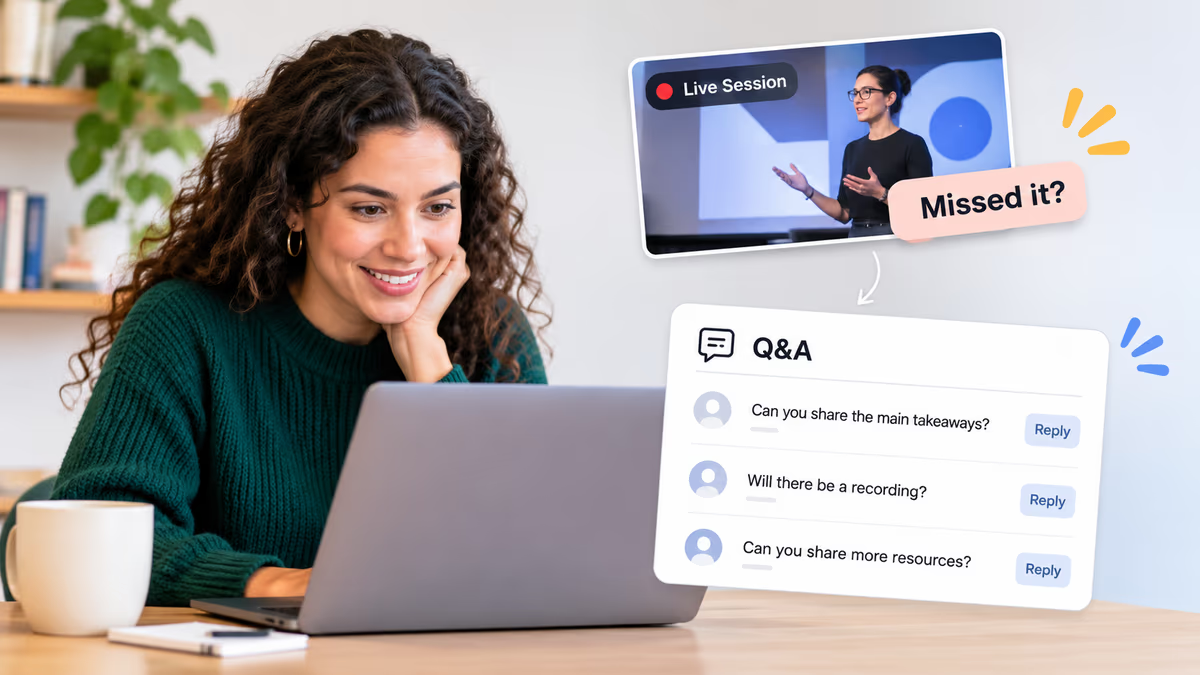
Afterward, share the link. People can watch, listen, or work through the content on their own, and viewers can ask the presentation to explain a point and get an answer drawn from your content. If you send the deck ahead of time by tracking link, you can see who viewed it and how long they spent on each frame. Analytics is a paid feature.
Refine in conversation, in either tool
Both steps of this workflow support revising through conversation. With the Prezi plugin in ChatGPT, you can make changes to the presentation in the same chat where you drafted it. In your assistant on its own, you can ask for a shorter version, a different tone or a new angle on the same content. In Prezi, you can ask for changes in the chat inside the editor, use Design Suggestions on any slide, or edit text, images and layout directly.
Useful follow-ups:
-
"Rewrite this for a non-technical audience."
-
"Cut this to eight slides."
-
"Give me the same presentation with the financial results first."
Prezi can also start from a sentence
Prezi is an AI presentation maker, so you do not need an assistant at all. Describe what you are presenting in the prompt box on your dashboard, and Prezi drafts the presentation for you, with activities already on the timeline. The two-tool workflow makes the most sense if you already like drafting in a chat assistant or have source material you want to work from.
Who this works well for
-
Educators who turn lecture notes into interactive lessons.
-
HR and L&D teams who convert onboarding or policy documents into employee sessions.
-
Consultants and analysts who turn research and reports into client decks.
-
Product managers who convert specs and PRDs into stakeholder presentations.
Common questions
Can I use slides generated in ChatGPT or Claude in Prezi? Yes. Prezi imports slides generated in ChatGPT and other AI tools, along with PowerPoint, Google Slides, Canva, PDF and Word files. Click Already have a presentation or content? on your dashboard to upload them.
Is there a Prezi plugin for ChatGPT? Yes. Connect Prezi in ChatGPT under Settings, then Plugins, and sign in with your Prezi account. ChatGPT can then bring in your slides or build a new presentation, and save it straight to your Prezi account.
Is there a Prezi plugin for Claude? Not currently. Draft in Claude, download the file, and upload it from your Prezi dashboard with Already have a presentation or content? If Claude gives you text only, paste the outline into the prompt box on your dashboard.
Do I need to pay for ChatGPT or Claude to do this? That depends on the assistant and the features you use. Check each tool's current plans.
Can Prezi build the deck without an assistant? Yes. Prezi is an AI presentation maker, so you can describe your topic in a sentence and Prezi drafts the presentation. You can also upload a file and Prezi builds from your content.
Do I have to add the activities myself? No. Prezi adds activities to your timeline automatically, with questions drafted from your slides. You can add more in the editor with Add activity.
Can I edit the deck after it is created? Yes. You can ask for changes in the editor chat, or edit text, images and layout directly.
Can I export it back out? Yes. You can export a Prezi presentation as a PowerPoint (PPTX) file, with your speaker notes and embedded fonts, or as a PDF.
Is it free? Prezi has a free plan with basic features and AI capabilities. Advanced features such as analytics require a paid plan.
The takeaway
Draft fast in the assistant you already use. Check the content carefully. Then bring it into Prezi, or build it with the Prezi plugin right inside ChatGPT, review the activities your audience will answer, and share one link that keeps working after the session.
Prezi is the only product G2 ranks in the top three across Audience Response, Presentation Software and AI Presentation Tools, and it has helped more than 170 million presenters create over 500 million presentations.
Ready to try it? Take your next AI-drafted deck, upload it to Prezi, and run it with a small group.