OpenAI just rolled out new ChatGPT plugins, giving educators a way to bring the tools they already use, like Google Docs, Gmail, and Prezi, directly into a single ChatGPT conversation.
Prezi is one of the EDU partners. Here is what it changes for a teacher planning tomorrow's lesson.
What ChatGPT plugins actually do
Instead of jumping between a dozen browser tabs to plan a lesson, teachers can now pull context from the plugins they already rely on into a single ChatGPT conversation. A teacher might draft a lesson in Google Docs, check standards in a district file, build the lesson in Prezi with the poll and quiz already in it, and then send a family update through Gmail or Outlook, all without the manual copying and pasting that used to sit between each step.
The result is more context, less busywork, and more time for what actually matters: teaching.
How Prezi shows up inside ChatGPT
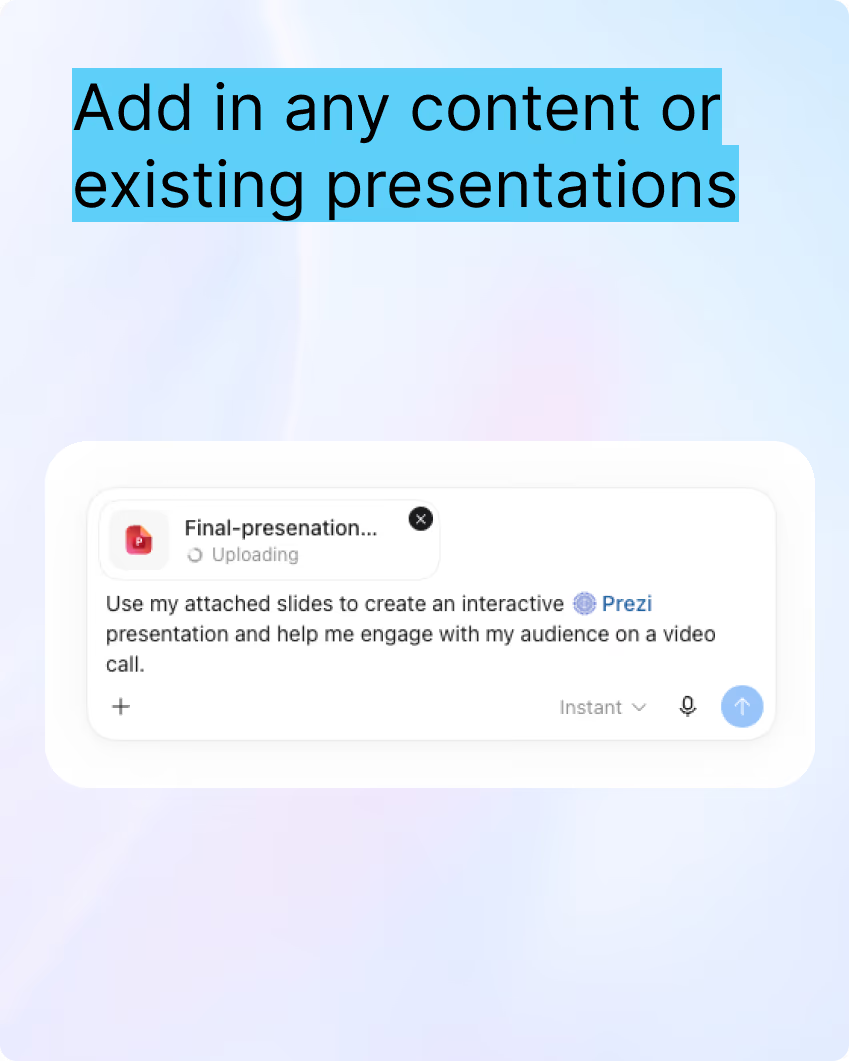
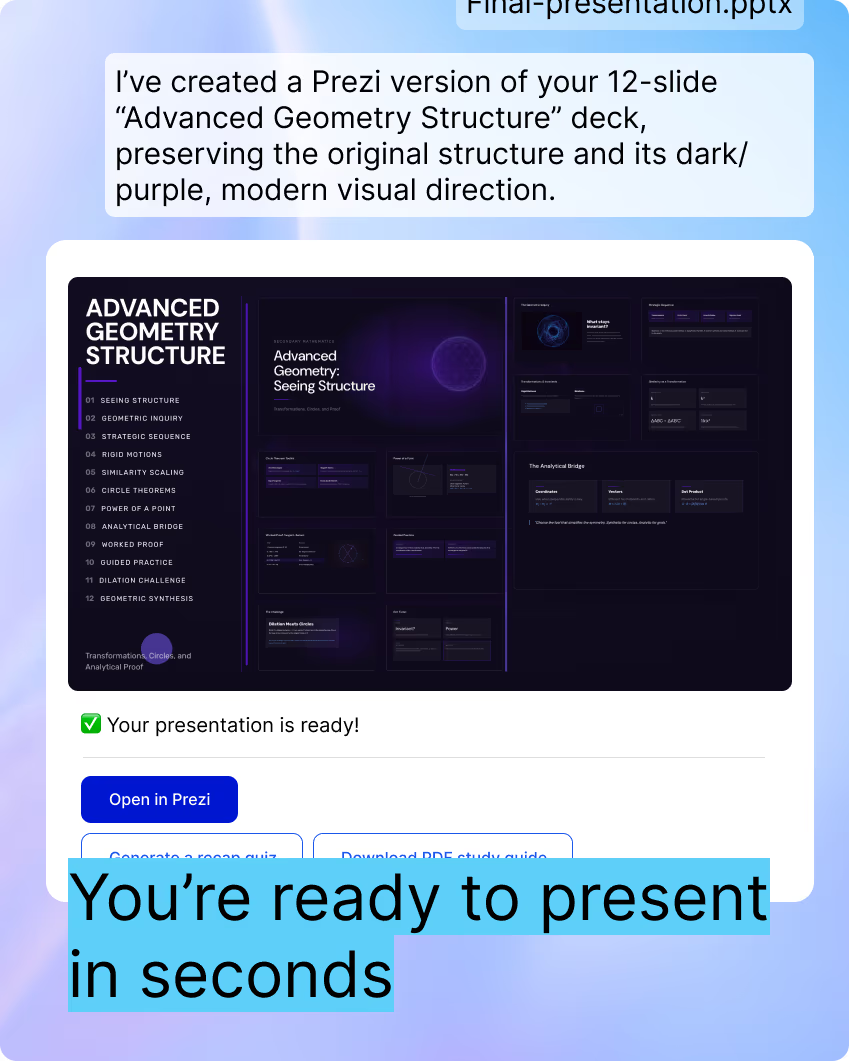
With the Prezi plugin, ChatGPT can take slides you already have, whether they were created in ChatGPT, generated elsewhere, or uploaded as a PowerPoint or PDF, and place them on Prezi's zoomable canvas as an interactive presentation. The import is automatic, and your slides keep looking the way you made them, so nothing gets rebuilt and nothing gets overwritten. If you'd rather have a new look, ask Prezi to restyle them into one of its designer themes, and your content moves across unchanged.
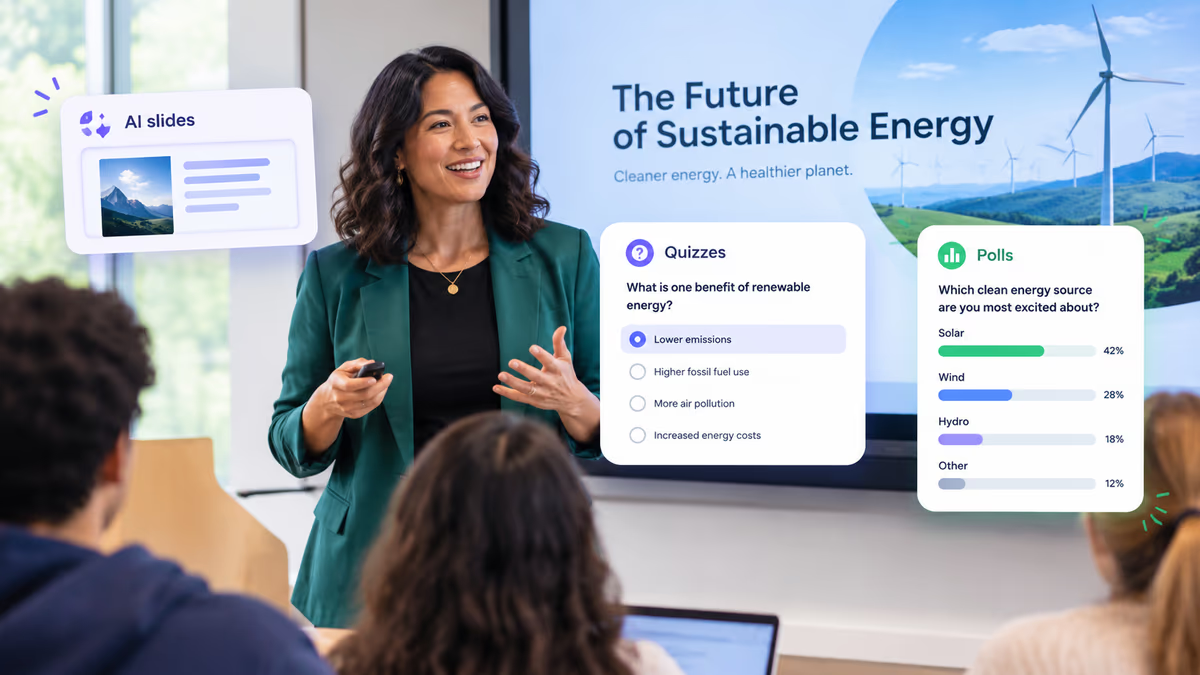
From there, you get a full suite of presentation, engagement, and sharing tools built for the classroom, including polls, quizzes, and live Q&A that help students stay engaged and retain more of what they learn.
Educators already trust Prezi to make lessons land. According to a June 2025 survey of 1,300 educators, 81.5% said Prezi increased student engagement in their classroom, and 87.7% said Prezi's AI features helped them build lesson plans and classroom presentations faster. That track record is exactly what carries over when Prezi shows up inside ChatGPT.
Here's what that looks like in practice:
- Start from wherever you already are. Have slides sitting in ChatGPT, a PowerPoint, or a PDF? The Prezi plugin imports them as they are. Starting cold? Give Prezi a topic, or just keep talking through your lesson idea in chat, and it will build the first draft for you, with an animated preview so you can watch it come together in real time. From there, everything is editable right in the conversation: add a slide, cut one, reorder your flow, swap the theme. Your slides come in exactly as they are, and now you can move around them. When a poll says half the room missed the third step, you go straight there instead of arrowing backward through twenty slides.
- Make any lesson interactive. This is where Prezi goes further than a slide export. Check who's following with a live poll. Let students ask questions by typing rather than raising their hands. Then, let the class upvote what it most wants answered. Close with a quiz that tells you whether it landed. And if a student is stuck on a specific slide, they can ask Prezi to explain it a different way without waiting for you to circle back.
- Teach it live, then give students two ways to catch up. Not every lesson happens with everyone in the room. For the ones that don't, you have two options, and they're different tools for different moments. Record with your camera on, so your video sits alongside the content rather than a voice running behind it. That is the difference between a lesson that feels taught and one that feels narrated. Nobody else does this. Or, if you'd rather not record at all, ask Prezi's AI to generate a narrated video or a narrated podcast version of the material for you, no camera required.
Either way, share one link, and your students take the material in whichever format they need: as that video, as a podcast on the bus, as a transcript, or as a quiz they can retake until it sticks. The student who was out sick catches up without a reschedule. The one who nodded along and didn't quite follow can go back as many times as they need.
The link stays live, so it isn't a one-day artifact. It becomes part of your course materials: use it during the unit, point students back to it before the exam, and reuse it next term without rebuilding anything. If you need it somewhere else, export to PDF, PowerPoint, or SCORM for your LMS.
Then find out what actually landed
Quiz and poll results show which concepts connected and which need another pass. The questions students asked show where the confusion is. Attention by slide shows where you lost them, which is a different problem from not understanding and needs a different fix.
Every Prezi you generate in ChatGPT lands directly in your own Prezi account, ready to open, present, or reuse for the next class. New presentations are unlisted by default, so nothing is publicly discoverable until you decide to share the link, and you stay in control of who can view it at all times. You'll need to sign in with your Prezi account to get started.
Why this partnership matters
Teachers already spend hours outside the classroom planning lessons, and a lot of that time goes to the handoffs between tools rather than the actual teaching. This integration closes that gap. A teacher can go from a conversation with ChatGPT about tomorrow's lesson to a fully interactive, presentable deck without ever leaving the chat, downloading a file, or rebuilding a slide.
It matters most in the moments that make a lesson land: a question to check who is following along, an opener that surfaces what students already know, a quiz to confirm they got it. Those are the moments where a teacher finds out what the room actually understood, and now they are one prompt away instead of a separate app and a separate login. The easier it is for a teacher to add that layer of interactivity, the more likely it happens in every class, not just the ones there was extra time to prepare for.
How to get started in ChatGPT
- Open ChatGPT and go to
Settings. - Look for
Pluginsand connect the tools available in your workspace. - Authenticate the applications you use for teaching and planning.
- Start a chat, select the connected tools you want ChatGPT to use, and give it a specific classroom task.
Try it yourself
If you are a teacher looking to save time on lesson prep and make your presentations more interactive, connect Prezi in ChatGPT today and try one of the prompts above. Your next lesson could be a few sentences away.
Frequently Asked Questions
What is the Prezi plugin for ChatGPT? It's a plugin that lets you build, edit, and present Prezi presentations directly from a ChatGPT conversation. The Prezi plugin automatically imports slides you already have, or generates a new presentation from a topic or from your chat with ChatGPT, without leaving the conversation.
Do I need a Prezi account to use it? Yes. You'll need to sign in with your Prezi account when you add the plugin in ChatGPT. If you don't have one yet, you can create a free account to get started.
Is this only for K-12 teachers? No. OpenAI's plugins launched with K-12 educators as a featured use case, but the Prezi integration works the same way for higher ed instructors, corporate trainers, or anyone building a presentation through ChatGPT.
Can I bring in slides I already made in PowerPoint? Yes. The Prezi plugin automatically imports PowerPoint, Google Slides, and PDF files, along with slides generated in ChatGPT itself, and turns them into an interactive presentation. Your slides keep the formatting you gave them. If you want a different look, ask Prezi to restyle the presentation and your content carries over unchanged.
Does Prezi change how my slides look? Only if you ask it to. Imported slides keep their formatting by default. Restyling into a designer theme is something you request, not something that happens automatically.
What happens to a presentation once ChatGPT generates it? It's saved directly to your Prezi account, so you can open it, edit it, present it live, or reuse it for another class at any time.
Can my students interact with the presentation, or is it view-only? You can add live polls, quizzes, word clouds, and Q&A to any generated presentation. Students take part in real time from their own phones with no app and no login, or respond on their own schedule through the shared link.
Can students revisit the lesson afterward? Yes. The presentation becomes one shareable link students can return to. Depending on how you've set it up, that can be a Newscaster-mode video of you presenting, an AI-narrated video or podcast, a transcript, or a self-check quiz. Anyone who missed the class catches up on their own time, and the link stays live for the rest of the term.
What's the difference between Newscaster mode and a narrated video or podcast? Newscaster mode is you: you record yourself presenting, and your video sits alongside the content. A narrated video or podcast is generated by Prezi's AI, with no recording required on your end. You can offer either or both from the same presentation.
What can I see after a lesson? Quiz and poll results by question, the questions students asked, attention by slide, and an end-of-session feedback digest. Together these show which concepts landed, which need another pass, and where in the lesson attention dropped.
Who can see my presentation once it's created? New presentations are unlisted by default, meaning they won't show up publicly or get indexed. Only people with the share link can view it, and you control that visibility at any time from within Prezi.
What formats can I export or share it in? You can present live, record a Newscaster-mode video, generate an AI-narrated video or podcast, share an interactive link, or export to PDF, PowerPoint, or SCORM for your LMS.
How do I turn this on in ChatGPT? Go to Settings in ChatGPT, open Plugins, add Prezi along with any other tools you use for teaching, and authenticate your account. From there, you can select Prezi in any chat and give it a specific task, like building a lesson on a topic.
Is Prezi free for students and educators? Yes. Anyone can start on Prezi's free Basic plan to create and publish presentations. Students and educators with a certified school email address also qualify for discounted EDU plans, currently offered at up to 80% off the standard subscription price.
How do students and teachers sign up for the free or EDU plan? Sign up at prezi.com using a school email address. Prezi verifies educational eligibility during sign-up, and the discount applies automatically once your school email is confirmed. If your school's domain isn't recognized, you can reach out to Prezi's support team to get it added.