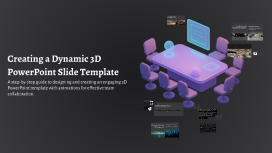
Creating a Dynamic 3D PowerPoint Slide Template
Transcript: Designing the Central 3D Model: The Conference Table To create a visually engaging presentation, design a central 3D model of a conference table that rotates continuously. This model serves as the focal point, drawing attention and enhancing the overall theme of team collaboration in a virtual office. Introduction to 3D PowerPoint Presentations 3D PowerPoint presentations represent a groundbreaking approach to visual storytelling, making content more interactive and engaging. By leveraging 3D models and animations, presenters can create memorable experiences that enhance audience comprehension and retention. Importance of Effective Communication Definition of Team Collaboration in a Virtual Office Tools and Technologies for Collaboration Effective communication is essential for successful team collaboration in a virtual office, as it fosters understanding, builds trust, and ensures that all team members are aligned with project goals and expectations. Regular updates and clear channels of communication are vital. Team collaboration in a virtual office refers to the collective effort of team members working together from different locations using digital tools and platforms. This approach allows teams to overcome geographical barriers and maintain productivity in a flexible work environment. Numerous tools and technologies support collaboration in a virtual office, including project management software, instant messaging platforms, and video conferencing tools. These resources enable teams to share information, manage tasks, and hold meetings seamlessly, regardless of distance. Captivates audience attention Importance of 3D Elements in Presentations Enhances understanding of complex concepts Overview of the Topic: Team Collaboration in a Virtual Office Provides a modern and professional look Facilitates interactive experiences Improves retention of information Creating a Dynamic 3D PowerPoint Slide Template A step-by-step guide to designing and creating an engaging 3D PowerPoint template with animations for effective team collaboration. Implementing Simultaneous 3D Animations A structured approach to create dynamic presentations with engaging 3D effects. Set Up the 3D Model Sync Animations for a Cohesive Effect Add Animations to the Model Introduce flying 3D icons and a 3D graph that rise simultaneously with the model, ensuring everything is triggered at once. Import the central 3D model of the conference table from Remix3D.com and position it prominently in the slide. Apply a continuous rotation effect to the conference table for a captivating focal point. Building a 3D Graph or Chart Flying 3D Icons: Avatars and Tools Dynamic 3D icons enhance engagement and visual storytelling in presentations. Creating dynamic visual representations to enhance data understanding. Avatars Representation Incorporate 3D avatars symbolizing team members, providing a personalized touch to the presentation. Collaboration Tools Utilize 3D icons of collaboration tools that visually represent the resources available to the team. Dynamic Entry Animate the icons to fly in from various angles, creating a dynamic visual experience. Synchronization Ensure the flying icons sync with the rotation of the central model for a cohesive presentation. Step 3 Step 1 Step 2 To enhance your presentation, utilize Morph to create smooth transitions between your 3D elements. This feature allows for dynamic shape changes and facilitates a cohesive visual narrative, ensuring that your audience remains engaged with the flow of information. Set up triggers for animations to activate on click, ensuring a smooth and engaging presentation of your data. Select the desired type of 3D graph or chart, such as bar, line, or pie charts, that best suits your data presentation needs. Incorporate multiple layers to allow for simultaneous building of the graph, enhancing visual complexity and engagement. Applying Morph for Seamless Transitions Using Animation Pane for Triggering Effects Utilize PowerPoint's Animation Pane to create a cohesive experience by synchronizing animations and ensuring flawless transitions. Creating a Pulsating 3D Background To elevate your presentation's visual impact, design a pulsating 3D background filled with dynamic particles or lights. This not only adds depth to your slides but also creates an engaging atmosphere that captures audience attention. 1 click 3 steps 100% Set triggers for all elements to activate simultaneously. Optimize for seamless transitions through careful layering and timing. Ensure smooth playback on devices, avoiding lag or stuttering.

 Prezi Present

 Prezi Video

 Prezi Design