You're about to create your best presentation ever

Congratulations Powerpoint Slide Template

Create your presentation by reusing a template from our community or transition your PowerPoint deck into a visually compelling Prezi presentation.

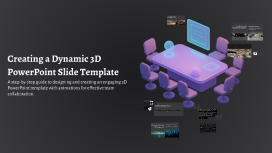
Creating a Dynamic 3D PowerPoint Slide Template

Transcript: Designing the Central 3D Model: The Conference Table To create a visually engaging presentation, design a central 3D model of a conference table that rotates continuously. This model serves as the focal point, drawing attention and enhancing the overall theme of team collaboration in a virtual office. Introduction to 3D PowerPoint Presentations 3D PowerPoint presentations represent a groundbreaking approach to visual storytelling, making content more interactive and engaging. By leveraging 3D models and animations, presenters can create memorable experiences that enhance audience comprehension and retention. Importance of Effective Communication Definition of Team Collaboration in a Virtual Office Tools and Technologies for Collaboration Effective communication is essential for successful team collaboration in a virtual office, as it fosters understanding, builds trust, and ensures that all team members are aligned with project goals and expectations. Regular updates and clear channels of communication are vital. Team collaboration in a virtual office refers to the collective effort of team members working together from different locations using digital tools and platforms. This approach allows teams to overcome geographical barriers and maintain productivity in a flexible work environment. Numerous tools and technologies support collaboration in a virtual office, including project management software, instant messaging platforms, and video conferencing tools. These resources enable teams to share information, manage tasks, and hold meetings seamlessly, regardless of distance. Captivates audience attention Importance of 3D Elements in Presentations Enhances understanding of complex concepts Overview of the Topic: Team Collaboration in a Virtual Office Provides a modern and professional look Facilitates interactive experiences Improves retention of information Creating a Dynamic 3D PowerPoint Slide Template A step-by-step guide to designing and creating an engaging 3D PowerPoint template with animations for effective team collaboration. Implementing Simultaneous 3D Animations A structured approach to create dynamic presentations with engaging 3D effects. Set Up the 3D Model Sync Animations for a Cohesive Effect Add Animations to the Model Introduce flying 3D icons and a 3D graph that rise simultaneously with the model, ensuring everything is triggered at once. Import the central 3D model of the conference table from Remix3D.com and position it prominently in the slide. Apply a continuous rotation effect to the conference table for a captivating focal point. Building a 3D Graph or Chart Flying 3D Icons: Avatars and Tools Dynamic 3D icons enhance engagement and visual storytelling in presentations. Creating dynamic visual representations to enhance data understanding. Avatars Representation Incorporate 3D avatars symbolizing team members, providing a personalized touch to the presentation. Collaboration Tools Utilize 3D icons of collaboration tools that visually represent the resources available to the team. Dynamic Entry Animate the icons to fly in from various angles, creating a dynamic visual experience. Synchronization Ensure the flying icons sync with the rotation of the central model for a cohesive presentation. Step 3 Step 1 Step 2 To enhance your presentation, utilize Morph to create smooth transitions between your 3D elements. This feature allows for dynamic shape changes and facilitates a cohesive visual narrative, ensuring that your audience remains engaged with the flow of information. Set up triggers for animations to activate on click, ensuring a smooth and engaging presentation of your data. Select the desired type of 3D graph or chart, such as bar, line, or pie charts, that best suits your data presentation needs. Incorporate multiple layers to allow for simultaneous building of the graph, enhancing visual complexity and engagement. Applying Morph for Seamless Transitions Using Animation Pane for Triggering Effects Utilize PowerPoint's Animation Pane to create a cohesive experience by synchronizing animations and ensuring flawless transitions. Creating a Pulsating 3D Background To elevate your presentation's visual impact, design a pulsating 3D background filled with dynamic particles or lights. This not only adds depth to your slides but also creates an engaging atmosphere that captures audience attention. 1 click 3 steps 100% Set triggers for all elements to activate simultaneously. Optimize for seamless transitions through careful layering and timing. Ensure smooth playback on devices, avoiding lag or stuttering.

CONGRATULATIONS!congratulations

Transcript: Our Stars of Class 2015 Our Stars of Class 2015 Our Stars of Class 2015 Our Stars of Class 2015 Congratulations to: Siyu – King Edward VI Camp Hill School for Girls Hamaad – King Edward VI Aston Grammar School Saihaan – Handsworth Grammar School Zakariya - King Edward VI Camp Hill School for Boys Our Stars of Class 2015 Congratulations to: Mikail – Bishop Vesey’s Grammar School Fahad - King Edward VI Camp Hill School for Boys Fatimah -Zahra – King Edward High School for Girls Summer– King Edward VI Camp Hill School for Girls Lamees - King Edward VI Camp Hill School for Girls Our Stars of Class 2015 Congratulations to: Arjan - King Edward VI Camp Hill School for Boys Ayman - King Edward VI Camp Hill School for Boys Iman - King Edward VI Camp Hill School for Girls Hayyaan - King Edward VI Camp Hill School for Boys Congratulations to: Lois – King Edward VI Five Ways Yusuf - King Edward VI Aston School for Boys Amira- King Edward VI Camp Hill School for Girls Bohan– King Edward VI Camp Hill School for Boys Our Stars of Class 2015 Our Stars of Class 2015 Congratulations to: Manveer– King Edward’s School Raza– King Edward VI Five Ways Hemma – King Edward VI Five Ways Adam - King Edward VI Camp Hill School for Boys Our Stars of Class 2015 CONGRATULATIONS! Congratulations to: Ammar – King Edward’s School (Scholarship award) Alisha – King Edward VI Camp Hill School for Girls Simra – Stratford Upon Avon Grammar School for Girls Halimah– Queen Mary’s High School for Girls Congratulations to: AbdulAhad - King Edward VI Camp Hill School for Boys Eleanor - King Edward VI Camp Hill School for Girls Sara - King Edward VI Camp Hill School for Girls Khadijah - King Edward VI Camp Hill School for Girls Congratulations to: Josh – Bishop Vesey’s Grammar School for Boys Cherie – King Edward VI Camp Hill School for Girls Haneefah- King Edward VI Camp Hill School for Girls Hafsah– King Edward VI Camp Hill School for Girls Well Done! Congratulations to: Ajay S – King Edward VI Camp Hill School for Boys Daniyal – Solihull School Ajay D – King Edward VI Camp Hill School for Boys Yicheng - King Edward VI Camp Hill School for Boys

Blank Slide Template

Transcript: Blank Slide Template A customizable and versatile template for notes and presentations. Slide 7: Questions & Answers This slide serves as an open forum for the audience to pose questions and engage in a discussion. It allows clarification on topics covered in the presentation and fosters interaction. Conclusion Summarize the core insights and essential points covered in the presentation. Emphasize the importance of these takeaways for the audience's understanding or actions going forward. Slide 1: Title Page This slide serves as the introduction to your presentation, providing a space to clearly state your topic. Aim to capture the audience's attention and set the tone for the content that follows. Slide 5: Section 4 This section serves as a blank template for discussing the fourth main point or topic of the presentation. Utilize this space to write down key ideas, arguments, or insights related to the subject matter. Slide 2: Section 1 Slide 3: Section 2 This section provides a framework for presenting the second main point of your topic. It is designed to allow for in-depth discussion and exploration of key ideas and supporting details. Slide 4: Section 3 This slide is a blank template where you can outline and elaborate on the first main point or topic of your presentation. Use this space to jot down key ideas, data, or arguments related to your initial topic. This section serves as a placeholder for detailed exploration of the third main point or topic. Use this space to elaborate with your insights, data, or examples relevant to the discussion.

Blank Slide Template

Transcript: Blank Slide Template Your participation and engagement have been invaluable. We appreciate your time and contributions to this discussion. Final Thoughts on the Presentation A simple and versatile template for creating presentations with ten blank slides. Q&A Session Recap of Concept 1 Concept 1 has demonstrated significant relevance in today's context, showcasing its impact on various industries and sectors. This session invites participants to ask questions and engage in discussions related to the presentation topics. It provides an opportunity for clarification and deeper understanding. Recap of Concept 2 Slide 8: Summary of Key Points Concept 2 plays a crucial role in addressing modern challenges, offering innovative solutions and applications that benefit society. Importance of the Discussed Topics The topics discussed highlight the need for continuous learning and adaptation in a rapidly changing environment, emphasizing their overall significance. Detailed Explanation 2 This section provides a thorough examination of Concept 2, focusing on its significance, implications, and interconnectedness with other concepts. Understanding this concept is crucial for grasping the broader theme of the presentation. Detailed Explanation 1 This section provides a comprehensive analysis of Concept 1, discussing its significance, underlying principles, and potential impact on the field. Key implications and applications will also be examined to highlight its relevance in real-world scenarios. Slide 7: Visual Representation This slide will showcase various graphs and charts that highlight the most significant data points related to the topic. Visual aids will enhance understanding and retention of information. Slide 4: Key Concepts Definition and significance Real-world applications Addressing challenges Introduction to the Topic Detailed Explanations Summary of Key Points Closing Remarks This section introduces the main theme of the presentation, providing context and background information to engage the audience. Provide thorough explanations of the concepts, discussing their implications and significance in detail to foster deeper understanding. Summarize the main takeaways from the presentation to reinforce learning and emphasize the importance of the discussed topics. Conclude the presentation with final thoughts, thanking the audience for their engagement and reinforcing the topic's significance. Key Concepts Visual Representation Q&A Session Identify and explain the key concepts that are central to understanding the topic, highlighting their relevance and importance. Visual aids such as graphs, charts, and infographics will help illustrate critical data points and make the information more accessible. Encourage audience participation by inviting questions, clarifying doubts, and fostering a discussion about the topics covered. Slide 3: Agenda Slide 2: Introduction This presentation focuses on the selected topic, addressing its relevance and the impact it has on the field. Understanding this topic is essential for grasping key concepts and their applications in various contexts. Slide 1: Title Slide This presentation covers essential insights and information on the chosen topic, aimed at informing and engaging the audience.

Editable PowerPoint Template

Transcript: Editable PowerPoint Template Guiding Principles for Effective Presentations Design Principles Introduction to Editable Templates Consistency in Style Color Schemes and Branding Maintaining a consistent style throughout a presentation reinforces the brand image and enhances comprehension. Consistent elements, such as color, fonts, and layouts, help the audience follow the narrative without distractions. A well-chosen color scheme can evoke specific emotions and create a memorable experience. Aligning color choices with branding principles ensures recognition and reinforces your message effectively across all slides. Visual Hierarchy and Layout Definition and Purpose Font Selection and Readability Establishing a clear visual hierarchy guides the viewer's attention to the most critical information. Effective layout techniques, such as balancing text and images, can ensure that key points stand out in your presentation. Overview of PowerPoint Benefits Editable templates are pre-designed formats that allow users to modify content, layout, and design. Their primary purpose is to save time and maintain consistency in presentations across different topics and audiences. Choosing the right fonts is crucial for readability and engagement. Sans-serif fonts are generally preferred in presentations due to their clean lines, while limiting the number of font types maintains visual clarity. PowerPoint simplifies the presentation creation process through intuitive tools and features, such as templates, animations, and multimedia integration. Its widespread use ensures compatibility, making it accessible for diverse audiences. Importance of Editable Formats Examples of Use Cases Editable formats promote collaboration among team members, allowing multiple users to contribute to a single presentation without confusion. They enhance adaptability to specific audience needs, ensuring relevant and impactful communication. Editable templates can be applied in various scenarios, including corporate training sessions, educational lectures, and marketing presentations. They help to tailor content to specific objectives while maintaining a professional appearance. Content Guidelines Structuring Your Narrative Incorporating Data Visualizations Use charts and graphs to represent complex data simply, making it easier for the audience to grasp key points. Ensure visualizations are labeled correctly, providing context to avoid misinterpretation. Organize content logically, beginning with a clear introduction, followed by key points and a strong conclusion. Each section should transition smoothly to maintain audience engagement and ensure key messages are memorable. Effective Use of Text and Images Engaging Your Audience Customization Tips Balance text and visuals to enhance understanding, ensuring that images complement and reinforce the message rather than distract. Limit text on slides to key phrases to promote clearer communication and retention. Use interactive elements such as polls, questions, or discussions to foster audience participation and create a dynamic atmosphere. Understanding your audience and addressing their interests can significantly enhance engagement levels. Adding Multimedia Elements Altering Templates for Your Needs Customize templates to reflect your unique branding and message. Adjust colors, fonts, and layouts to better align with your content's theme and improve audience engagement. Take advantage of template features to create a distinct visual identity. Incorporate videos, audio clips, and animations to create dynamic presentations. Multimedia can significantly enhance the storytelling aspect, making information more compelling and easier to retain for your audience. Saving and Sharing Templates Best Practices for Adaptation After customization, save templates in accessible formats for future use. Use cloud services for easy sharing among team members, ensuring everyone has the most up-to-date version to maintain consistency in presentations. When adapting templates, keep the audience's needs and perceptions in mind. Use feedback to refine designs and ensure your modifications serve the original purpose while enhancing clarity and effectiveness.

Now you can make any subject more engaging and memorable