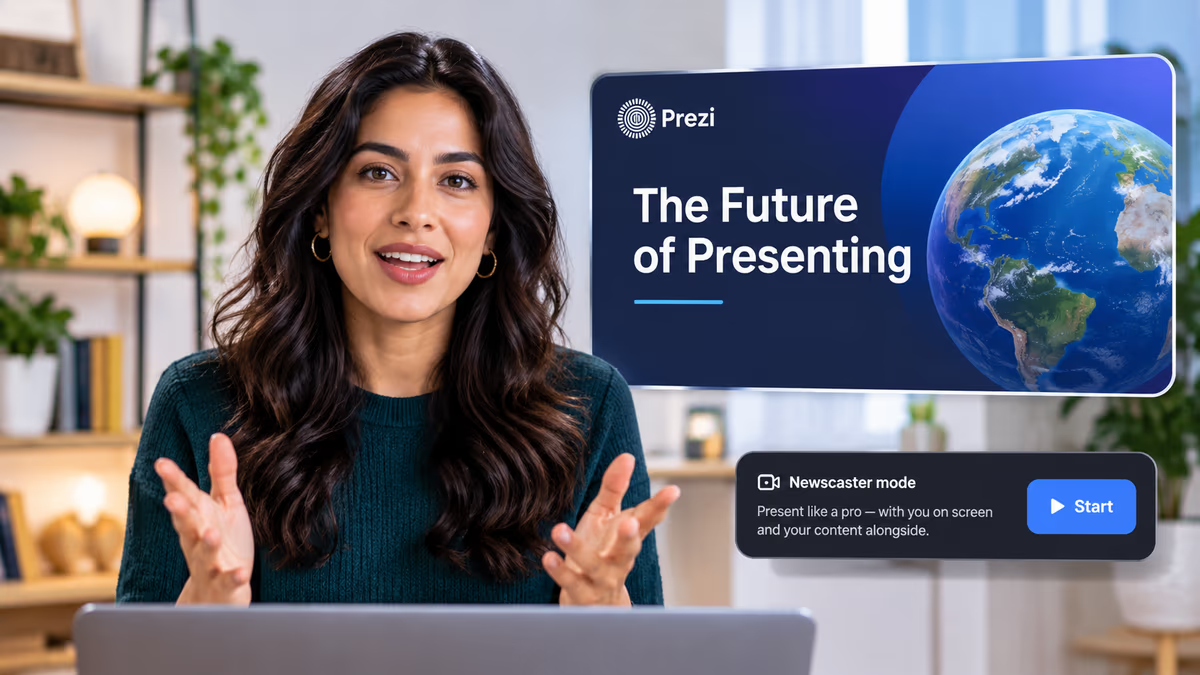
AI presentation tools that generate presentation recaps give students plain-language explanations of the concepts in lecture slides, turning dense academic material into summaries they can review on demand. These tools read the slides, pull out the key ideas, and restate complex points in simpler terms. That helps students who missed class, lost the thread of a fast-paced lecture, or need a second pass before an exam. In 2026, recap features have become a standard part of how students study, because they offer clarity without rewatching a full recording or waiting for office hours.
The demand says something about how students use class material now. A set of slides reviewed the night before a test rarely tells a student whether they actually understood it. For instructors, that changes what a presentation is for. The presentation is where it starts, not where it ends, and the same material can keep teaching after class as something students question, practice against, and come back to.
What Is a Presentation Recap?
A presentation recap is a condensed summary that distills the key points, concepts, and takeaways from a slide deck into a format that's easier to understand and review. Re-reading slides only repeats them. A recap synthesizes the information, highlights what matters most, and often rephrases technical language in plain terms.
In an academic context, presentation recaps serve as study aids that help students grasp material after a lecture ends. A well-built recap goes beyond bullet points. It explains why concepts matter, how they connect to broader themes, and what students should remember for exams or assignments.
Traditionally, students had to write their own summaries by hand, which takes time and the very comprehension skills a struggling student may not have yet. AI tools changed that by automating the extraction and explanation, so students get a recap they can use right after class or while reviewing before a test.
A recap presentation can review key points, pose questions, and include a quiz to check comprehension. That turns a recap from something students read into something they do, which is where understanding gets built.
Who Benefits Most from AI Presentation Summaries
Students working through dense lecture material benefit most from AI presentation summaries, particularly undergraduates juggling several courses with fast-paced instruction. They often miss nuances during a live lecture and need a way to break complex slides down into manageable explanations.
Students who find text-heavy slides or abstract diagrams hard to parse are another large group. When a professor's slides assume context a student doesn't have yet, a plain-language explanation fills in the reasoning that connects one slide to the next.
Instructors gain from these tools too. College professors and high school teachers who want students to keep understanding the material outside class hours can point them to a recap instead of answering the same questions about slide content again and again. Office hours open up for deeper conversations, and the student who would never raise a hand gets the same explanation as the one who asks.
Accessibility advocates and instructional designers find particular value in AI-generated summaries for neurodiverse students. Students with ADHD, dyslexia, or processing differences often need material in more than one format. A summary that rephrases dense academic language into conversational explanations can make the difference between confusion and comprehension.
Real classroom examples show this clearly. A Spanish 1 recap presentation shows how a teacher structures review content for students who need reinforcement after the first round of instruction.
How AI Tools Generate Slide-by-Slide Explanations
AI tools generate slide-by-slide explanations by analyzing the text, images, and structure of each slide, then producing natural-language summaries that explain concepts in simpler terms. The process combines optical character recognition, natural language processing, and contextual inference to turn static slides into explanations a student can follow.
When a student uploads a slide deck or connects an AI tool to a learning management system, the software first extracts all the readable content from each slide, including titles, body text, speaker notes, and text embedded in images or charts. The AI then identifies the core concept of each slide from keyword density, heading hierarchy, and contextual clues.
Explanation is where tools differ most. Stronger tools rephrase content at a reading level that fits the reader instead of simply restating what a slide says. A slide on cellular respiration packed with scientific terms becomes an explanation that starts with what the process does, why it matters, and how it connects to earlier slides.
Some tools go further and generate questions alongside the explanations. Those questions let students test themselves immediately, so review becomes active recall practice. Others create flashcards or practice quizzes straight from the slides, extending the recap into a full study set.
Students who want to format an AI-generated recap into a shareable document can start from a designer-made presentation summary report to organize their notes.
Presentation Summary vs. Presentation Notes vs. Presentation Outline
A presentation summary condenses an entire slide deck into a brief overview of its main points. Presentation notes capture detailed information slide by slide. A presentation outline provides the structure before the content is fully developed. Knowing the difference helps students and instructors pick the right format for the job.
A presentation summary works best for quick review. It answers "what was this presentation about?" in a few paragraphs, covering themes and conclusions without granular detail. Students preparing for exams often prefer summaries because they can review several lectures quickly.
Presentation notes serve a different purpose. They are detailed records, sometimes verbatim, of what each slide contains and what the presenter said. Notes are valuable when a student needs to find something specific again, such as a formula, a definition, or an example from a particular slide. AI tools are good at generating notes because they catch content a student might have missed while listening. If you teach from PowerPoint, your speaker notes now come along when you export a Prezi presentation back to PowerPoint, so the notes you wrote stay with the slides.
A presentation outline usually exists before a presentation is finished. It maps the structure: which topics come first, how the sections connect, and what the logical flow should be. Outlines help presenters organize their thinking and help audiences anticipate what's coming. For students, reviewing an outline clarifies how individual slides fit into the bigger picture.
Instructors can look at an executive summary presentation to see how a summary differs from detailed notes in practice. For anyone planning a presentation from scratch, a simple presentation outline shows how structure comes before content.
The right format depends on the task. Studying for a comprehensive exam? Start with the summary. Reviewing for a quiz on specific material? Use the notes. Planning your own presentation? Begin with an outline.
Top AI Tools for Interactive Presentation Recaps in 2026
The strongest AI tools for interactive presentation recaps in 2026 combine slide analysis, plain-language explanation, and live participation, so the recap stays connected to the class it came from. Here is how the main options compare. For a wider look at live participation features, see our roundup of the best interactive presentation tools with live audience features in 2026.
Prezi
Prezi is an interactive presentation platform that turns the material you already teach into experiences where people participate, apply ideas, and show what they understand. One tool does what four used to.
For recaps, that means you don't need a separate study app. Bring the slides you already have from PowerPoint, Google Slides, Canva, or a PDF, or describe the class in a sentence, and Prezi builds the presentation. From that same presentation, Prezi generates practice and self-learning activities students can use on their own:
- Flashcards for key terms and ideas, each one linked back to the slide it came from.
- Self-tests, practice quizzes students can take and retake at their own pace.
- An audio summary or a narrated video of your presentation, for students who want to listen or watch again.
During class, checks for understanding run inside the presentation. Quizzes, polls, word clouds, and Q&A are part of the same session, and students join from any device by scanning a QR code, with no app and no login. Quiz participants add their name by default, and scores stay hidden until you choose to reveal them. Results by question show which concepts landed and which need another pass, so you know what the recap has to cover.
What students open afterward is the same page you taught from, shared with one link, with the flashcards and self-test attached. On the Prezi canvas, they can go straight to the part they found confusing instead of scrubbing through a recording.
Prezi's rebuilt editor also renders equations cleanly on slides, so a STEM recap shows the formula the way it appeared in class.
Prezi is the only product G2 ranks in the top three of Presentation Software, AI Presentation Tools, and Audience Response at the same time (as of August 2026), and educators make up 71% of Prezi's G2 Audience Response reviewers.
Standalone AI slide summarizers
AI PPT summarizers outline the key information on each slide and generate flashcards and practice questions automatically. They suit a student studying alone from someone else's slides. They sit outside the class, though: the instructor can't see what students practiced, and nothing connects back to the live session.
AI presentation generators
Generators such as Gamma draft slides from a prompt, which helps when you need a first draft fast. The draft is where they stop. Live participation and after-class practice need to come from other tools. If budget is the deciding factor, here's what free AI presentation tools actually give you before you pay.
Live polling and classroom activity tools
ClassPoint adds questions and activities to PowerPoint slides, and Mentimeter runs polls and quizzes during live sessions. Both are useful in the moment. Both typically mean a second subscription and a second tab, and the review material students use later lives somewhere else. For side-by-side comparisons, see Mentimeter vs Prezi and Top Hat vs Prezi.
For more on how AI fits into the rest of the process, see how to turn meeting notes into a presentation using AI. A review of AI tools for sharing slides covers the distribution side of recaps.
The best tool depends on who is using it. Instructors who want the lecture, the live checks, and the review material in one place will prefer Prezi. A student reviewing a professor's PDF on their own may be fine with a standalone summarizer.
Accessibility Features for Every Student
AI presentation recaps include accessibility features that turn complex visual presentations into plain-language explanations for students with learning differences, making class material more inclusive. They address barriers that traditional slide decks create for neurodiverse students.
Students with dyslexia benefit from tools that rephrase dense text into shorter sentences and simpler vocabulary. They get explanations at an accessible reading level without losing accuracy.
For students with ADHD, focused summaries of specific slides reduce cognitive overload. Instead of reviewing an entire 50-slide deck, a student can ask about only the slides that confused them, which makes study time shorter and less overwhelming.
Visual processing differences are another barrier recaps can lower. Some students struggle to interpret charts, graphs, or diagrams without more context. Tools that describe visual elements in words, explaining what a graph shows and why it matters, open that information up to students who process text more easily than images.
Screen reader compatibility has also improved across AI presentation tools, so students who are blind or have low vision can reach AI-generated explanations through assistive technology.
Offering the same material in more than one format helps too. Prezi's practice and self-learning activities give every student more than one way in: an audio summary to listen to, a narrated video to watch, or flashcards to work through at their own pace.
Instructional designers building inclusive materials can also look at a simplified short story presentation summary report that supports a range of reading levels.
The most effective accessibility work happens while the presentation is being built, not after the fact. Instructors who use clear structure, descriptive headings, and a logical flow make every AI-generated recap better for all students.
Get Started with Prezi's Presentation Recap Tools
Getting started with Prezi's recap tools takes the slides you already have and a few minutes. Nothing to rebuild and nothing technical to learn.
- Bring your slides, or describe the class. Import from PowerPoint, Google Slides, Canva, or a PDF. Imported PowerPoints now look much closer to the original, with fonts, line spacing, shadows, and highlights carried over. If you draft in ChatGPT, the Prezi app in ChatGPT now works for free ChatGPT users too and can bring in your PowerPoint files.
- Add checks for understanding. Put a quiz, poll, word cloud, or Q&A where the class needs it.
- Present. Students scan the QR code, now built right into the share panel, and they're in.
- Share one link afterward. Flashcards, a self-test, an audio summary, and a narrated video are generated from the presentation you just taught.
- See what landed. Results by question tell you which ideas to revisit next class, and Prezi AI viewer analytics shows who opened the shared presentation afterward and how long they spent on it.
For instructors, one presentation now does several jobs. The slides work for live teaching, and the same page supports independent study. Students who missed class, need reinforcement, or prefer listening to reading all work from the same source material.
For students, that means exam prep with a purpose. Instead of re-reading slides, they test themselves with flashcards and a self-test, then go straight to the part of the canvas that tripped them up.
To see how a polished recap can look, explore this executive summary presentation example.
Recaps help outside the classroom too. Trainers can turn existing training decks into self-paced review and export to their LMS with SCORM, including completion data. Anyone summarizing a meeting or a conference talk can share one link that keeps working after the session.
The session ends. The learning doesn't.
Frequently Asked Questions
What is a presentation recap?
A presentation recap is a condensed summary of the key points, concepts, and takeaways from a slide deck, written in an easier-to-understand format. It synthesizes the material, highlights what matters, and rephrases technical language in plain terms. Students use recaps as study aids after a lecture ends.
How can AI tools help students understand confusing presentation slides?
AI tools analyze each slide and generate plain-language explanations of complex concepts. They extract key information, identify the core idea, and produce summaries at an accessible reading level. Students get an explanation right away instead of waiting for office hours or rewatching a full lecture.
What should a presentation recap include?
A presentation recap should include the main concepts from each slide, why those concepts matter, how the ideas connect, and key terms defined in plain language. It should also flag what students need to remember for exams or assignments. Adding a quiz or flashcards turns the recap into active recall practice.
How do I recap a presentation without sounding repetitive?
Synthesize the material instead of restating it slide by slide. Explain why concepts matter and how they connect, use different wording than the original slides, and emphasize takeaways over details. When it fits, organize the recap around themes rather than slide order.
Can AI generate presentation notes and summaries for accessibility needs?
Yes. AI tools can generate plain-language explanations for students with reading difficulties, focused summaries that reduce cognitive overload for students with ADHD, and text descriptions of charts and diagrams for students with visual processing differences. Offering the same material as an audio summary, narrated video, or flashcards gives every student another way in.
Can Prezi turn a presentation into flashcards or a practice quiz?
Yes. Prezi generates flashcards, a self-test, an audio summary, and a narrated video from your presentation, and each flashcard links back to the slide it came from. Students open them from the same shareable link you used in class, with no app and no login.
How is a presentation recap different from a presentation outline or script?
A presentation recap summarizes content after a presentation is finished, an outline sets the structure before the content is developed, and a script holds the exact words a presenter will say. Recaps focus on what the audience should remember, outlines on logical organization, and scripts on delivery. Each one serves a different stage of a presentation.
What makes an effective recap slide for interactive classroom presentations?
An effective recap slide states the key takeaways concisely, uses clear headings and minimal text, and asks students to do something with the material. A live quiz, poll, or word cloud on the recap slide shows you, question by question, what landed. Students who need another pass can review the flashcards and self-test from the shared link afterward.