Prezi gives you two ways to put yourself in front of your content: present live in Newscaster mode, or record a video your audience can watch on their own time. Both start from the slides you already have.
When you teach or train on a screen, the usual setup splits attention. Your slides fill the window and you shrink to a small tile in the corner, or disappear entirely. Learners end up watching a document instead of a person.
Prezi puts you back in the frame. You can appear beside your material like a news anchor, sit in a camera bubble over your slides, or narrate in your own voice (or an AI voice) without appearing on camera at all. This guide walks through each option and when to use it.
Newscaster mode: present live, right beside your content
Newscaster mode puts your live camera feed on screen next to your slides, the way an anchor sits beside the day's graphics. Your audience sees you and your material in one frame, so nobody has to choose where to look.
It works with the presentation you already built. Bring your existing slides or PDF into Prezi, and nothing about the deck has to change. You simply present it with yourself in the picture.
Two ways to work in Newscaster
When Newscaster starts, Prezi shows you the two basics:
- Just present. Sit in the center and move through your slides. Your content flies out around you so you can explain each point, and you can use your hands to highlight cards.
- Drag and pin cards. Drag any card anywhere on screen and pin it there. Pin two ideas side by side to compare them, or keep a key definition on stage for the whole lesson.
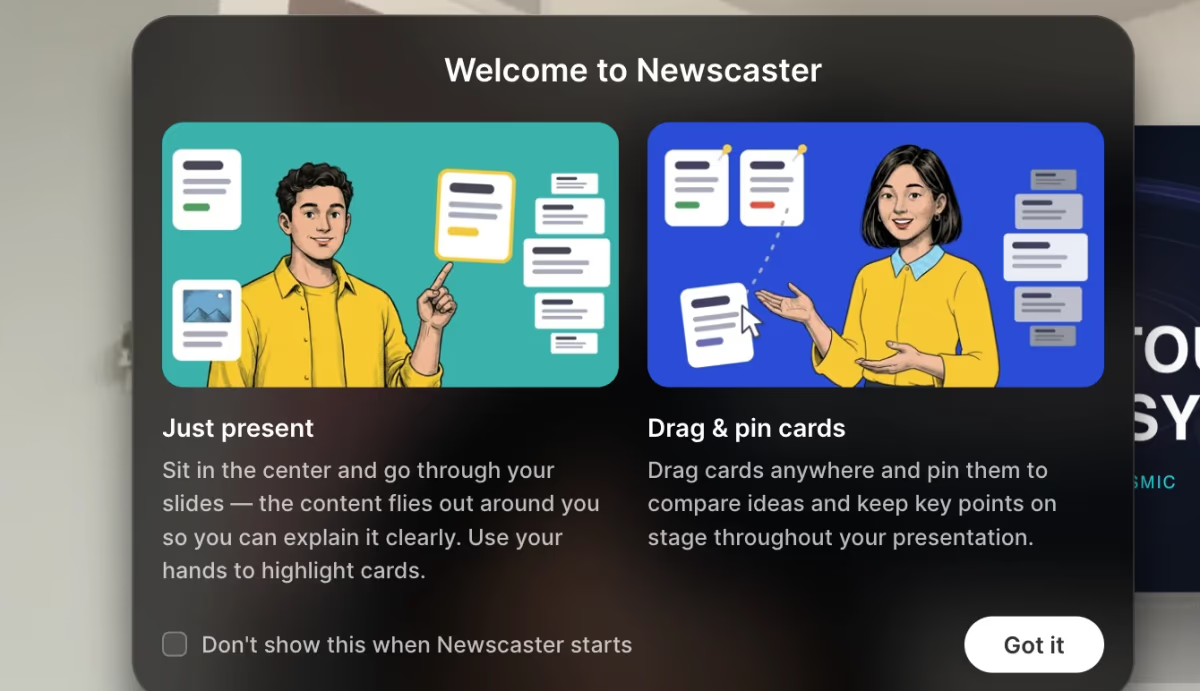
Pull content out of your slides and pin it
In Newscaster mode, you can pull individual elements out of a slide, like a single point, definition, or image, and place them anywhere on screen around you. Learners see that one idea up close while you talk through it.
Pulled-out elements are temporary by default. When you move to the next slide, they clear away so the screen stays focused on what you're covering now.
To keep an element on screen, click the pin icon on it. Pinned elements stay put as you move through the rest of your presentation. Use this to:
- Keep a key term or formula visible for the whole lesson
- Hold an earlier point on screen to compare it with a new one
- Leave the lesson's main question up while you work toward the answer
Newscaster settings
Open Newscaster settings to choose how your content appears around you.
| Setting | Options | What it does |
|---|---|---|
| Presenting mode | Slides, Around, Below | Slides shows your slides with you on camera. Around arranges content cards around you. Below lines the cards up underneath you. |
| Content cards fly-out | One group per click, All at once | Reveal cards a group at a time to pace a lesson, or bring them all out together for a full overview. |
| Logo & titles | Show logo and titles | Adds your logo and slide titles on screen, like a broadcast lower third. |
| Tracking | Cards lean away from your face; Cards grow when you point at them | Keeps cards from covering your face as you move, and enlarges the card you point at so learners know exactly what you're talking about. |
For most classes, Around with One group per click works well: learners see one idea at a time, and you decide when the next one arrives. Turn on both tracking options so you can move naturally without blocking your own content.
Why it works for live sessions
- You stay the focus. Learners read your face and gestures alongside the content, which keeps attention on the person teaching rather than on a static screen share.
- You can point to what matters. Standing beside a chart or key term lets you direct attention the way you would at a whiteboard.
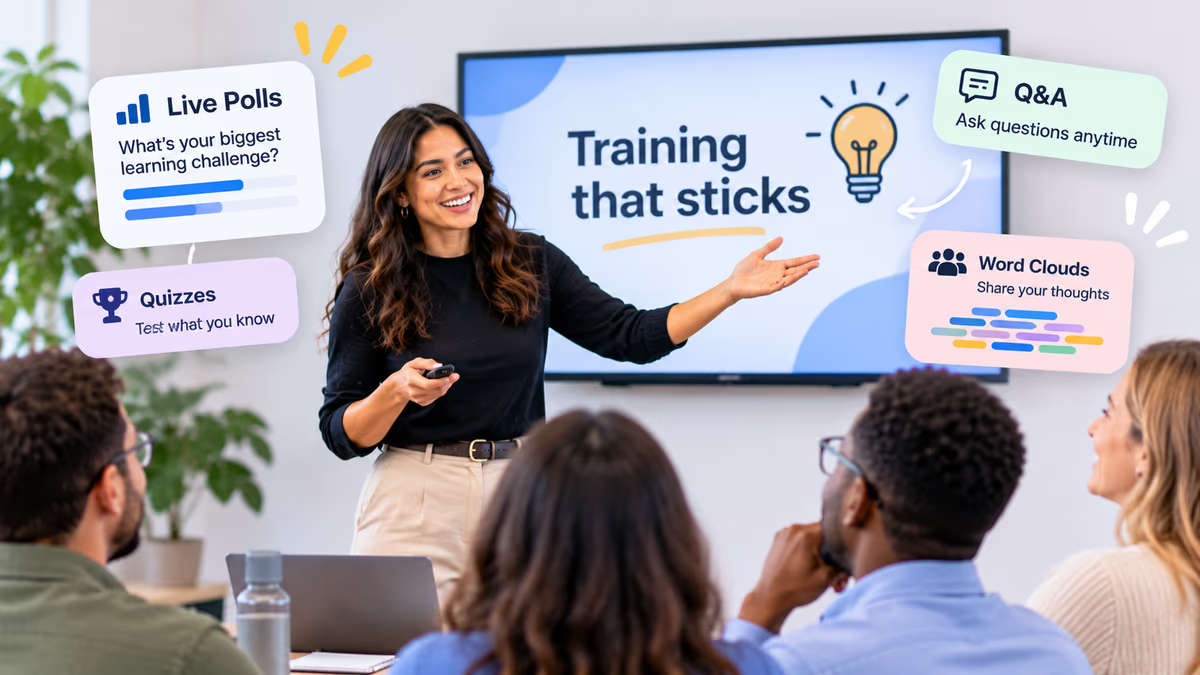
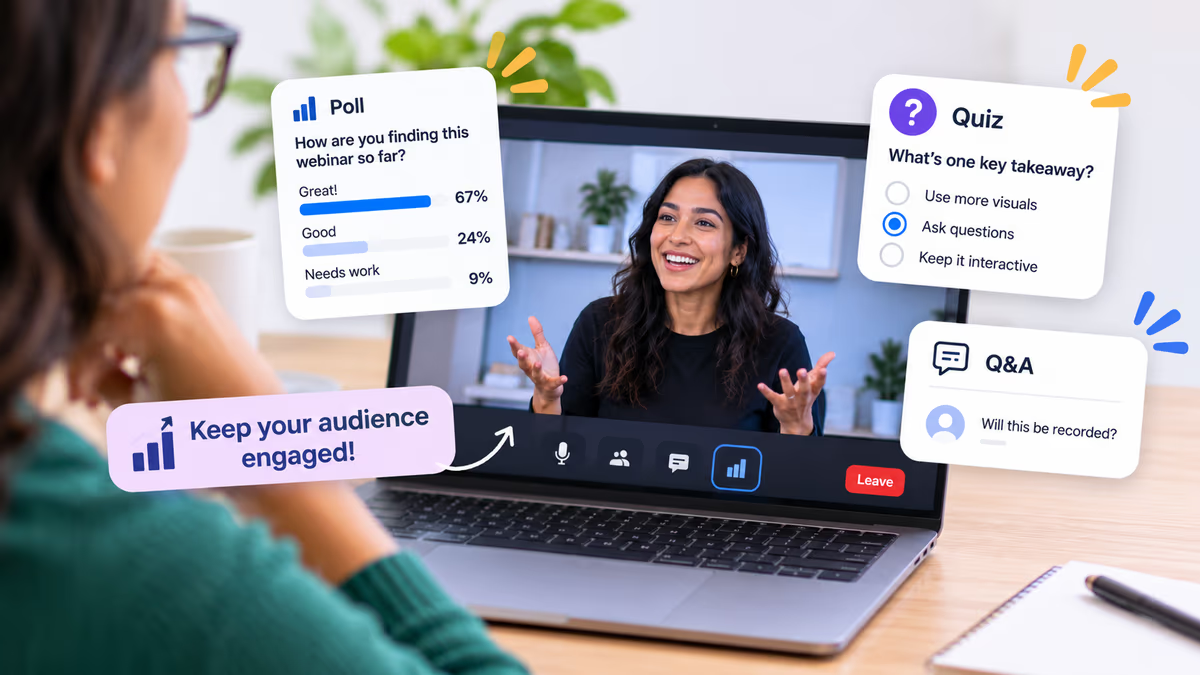
- It pairs with live activities. Run a poll, quiz, word cloud, or Q&A from your presentation timeline while you stay on camera, so watching turns into taking part.
- You keep control from your phone. Use the mobile presenter remote to move through your presentation and launch activities without reaching for the keyboard.
Good fits for Newscaster mode
- Live virtual classes and lectures
- Office hours and review sessions before an exam
- L&D trainings and onboarding sessions
- Team updates where you want the numbers and the person delivering them in the same frame
Present live with overlay camera
Want your full presentation on screen with you in a smaller spot? Switch the camera view at the top of the screen from Newscaster to Overlay camera. You appear in a camera bubble in the corner while your presentation keeps the whole screen, including the full Prezi canvas overview of how your topics connect.
The same toolbar stays with you: move through your presentation with the arrows at the bottom, launch Activities, or click Record to capture the session as a video. Overlay camera is a good fit when the layout itself teaches something, like a topic map learners should keep in view.
Record a video: four ways to do it
When you can't present live, or want a version learners can rewatch, record a video straight from your presentation. Prezi asks one question first: how do you want to create it? You then pick from two groups of options.
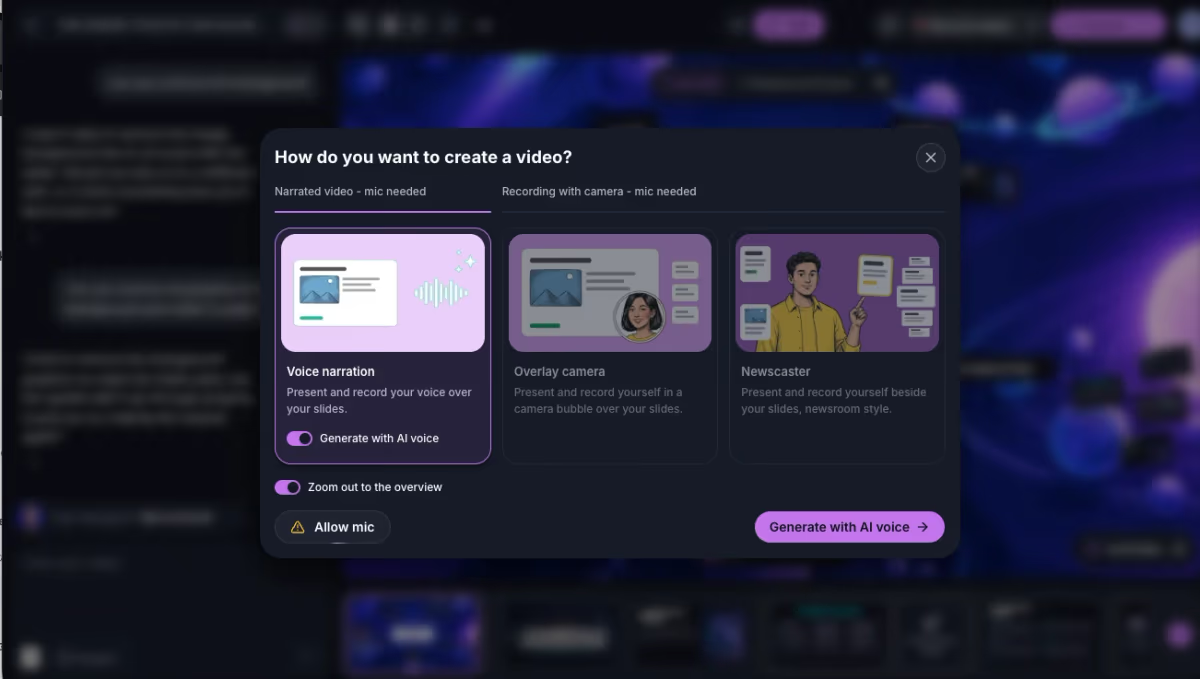
Choose how to create your video: narrate over your slides, or record with your camera in an overlay bubble or Newscaster layout.
Narrated video (mic needed)
Voice narration. Present and record your voice over your slides. Your audience sees your content full screen and hears you walk through it. This is the simplest option when you want the material front and center.
Generate with AI voice. Turn on the AI voice toggle inside Voice narration and Prezi narrates your presentation for you. It's useful when you need a clean recording quickly, are short on time, or prefer not to record your own voice. Click Generate with AI voice to create it.
Recording with camera (mic needed)
Overlay camera. Present and record yourself in a camera bubble over your slides. Learners get your face and voice while the content keeps most of the screen. A good middle ground for walkthroughs and explainers.
Newscaster. Present and record yourself beside your slides, newsroom style. This is the same Newscaster experience as presenting live, captured as a video. Choose it when you want your presence to carry as much weight as the content, such as a course welcome or a lesson intro.
One more setting: start from the overview
Below the options you'll find a toggle that opens your video on the full overview of your presentation before moving into the first section. Leave it on to give viewers a map of where the lesson is going.
Before you hit record
If you choose any option that uses your own voice or camera, click Allow mic (and allow your camera for the camera options) so your browser can capture you. The AI voice option doesn't need your mic.
Record a voiceover from Newscaster with full slides
You don't have to appear on camera to use Newscaster. The view switcher at the bottom of the screen lets you move between three layouts: just you, you beside your slides, and full slides. Pick full slides, click Record, and talk through your presentation. You get a voiceover video with your content filling the screen.
This is handy when you want the Newscaster controls close at hand while you record. Your notes, activities, and interactive slides all stay in reach from the same toolbar, and you can switch back to on-camera at any point.
Which option should you choose?
Pick by how much of you the moment needs, and whether your audience is with you live.
| Option | Live or recorded | You on camera | Best for |
|---|---|---|---|
| Newscaster (live) | Live | Yes, beside your slides | Virtual classes, trainings, team updates |
| Newscaster (video) | Recorded | Yes, beside your slides | Course welcomes, lesson intros, announcements |
| Overlay camera (live) | Live | Yes, in a bubble | Live lessons where the full layout matters, like a topic map |
| Overlay camera (video) | Recorded | Yes, in a bubble | Walkthroughs and explainers |
| Voice narration | Recorded | No | Content-heavy lessons, review videos |
| AI voice | Recorded | No, and no mic | Quick recaps when time is tight |
Tips for presenting on camera
- Leave room for yourself. Keep key text away from the side of the screen where you'll appear.
- Look at the lens, not your notes. Eye contact through the camera reads as eye contact with each viewer.
- Keep recordings short. Split a long lesson into several short videos learners can revisit by topic.
- Add activities around the video. Follow a recording with a quiz or poll so learners check what they understood.
Frequently asked questions
What is Newscaster mode in Prezi?
Newscaster mode puts your live camera feed on screen beside your presentation, like a news anchor next to the day's graphics. Your content flies out around you as you present, so learners see you and your material in one frame.
Do I need to rebuild my slides to use Newscaster?
No. Bring the slides or PDF you already have into Prezi and present them in Newscaster mode as they are.
Can I use Newscaster without showing my face?
Yes. Use the view switcher at the bottom of the screen to show full slides only, then click Record to capture a voiceover. You can also choose Voice narration when you create a video.
How do I keep a slide element on screen?
Drag the element out of your slide and click the pin icon on it. Pinned elements stay on screen as you move through your presentation. Unpinned elements clear away when you go to the next slide.
What's the difference between Newscaster and overlay camera?
Newscaster places you in the center with your content arranged around you. Overlay camera keeps your presentation full screen and shows you in a small camera bubble in the corner. Both work live and for recorded videos.
Can I record a video without using my own voice?
Yes. Choose Voice narration and turn on Generate with AI voice. Prezi narrates your presentation for you, and you don't need a mic.
Can I run live activities while presenting on camera?
Yes. Polls, quizzes, word clouds, and Q&A stay available from the Activities button while you present in Newscaster or overlay camera.
Can I control my presentation from my phone?
Yes. Use the mobile presenter remote to move through your presentation and launch activities without going back to your keyboard.
Bring your slides and get on camera
Whether you're teaching live or recording a lesson for later, you don't need to rebuild anything. Bring the slides or PDF you already use, open them in Prezi, and choose how you want to show up: beside your content in Newscaster mode, in a camera bubble, or as a voice guiding learners through it.
Ready to try it? Open a presentation in Prezi and present or record in Newscaster mode today.