
Static slide decks have a participation problem. A teacher presents, students watch, and the only signal that learning is happening is whether anyone volunteers an answer when asked. Most don't.
Prezi's interactive features let you collect responses from the whole class, not just the students who raise their hands. Polls, Q&A queues, open-ended prompts, and quizzes all run inside the presentation itself, so you never break flow to open a second app or ask students to navigate to a different website. (For a broader look at how these features stack up across tools, see our comparison of interactive presentation tools with live audience features.)
This guide walks through exactly how to use each feature, with specific classroom workflows for different moments in a lesson.
What makes Prezi different for classroom use
Before getting into the how-to, one structural point worth understanding: Prezi's canvas is dynamic. Instead of advancing through slides in a fixed sequence, you zoom to different sections of a single canvas.
In a classroom, that matters because lessons rarely go exactly as planned. If a student's question takes the discussion somewhere useful, you can zoom directly to the relevant part of your content without clicking through slides that are no longer relevant. You follow the class rather than the deck.
The interactive features sit on top of this: polls, Q&A, and prompts launch from the canvas and display results on the same screen the class is already watching.
Setting up your Prezi for classroom use
Before your first interactive session, three things to do:
1. Enable audience interaction. When you open a presentation, click Present and then "In themed room."
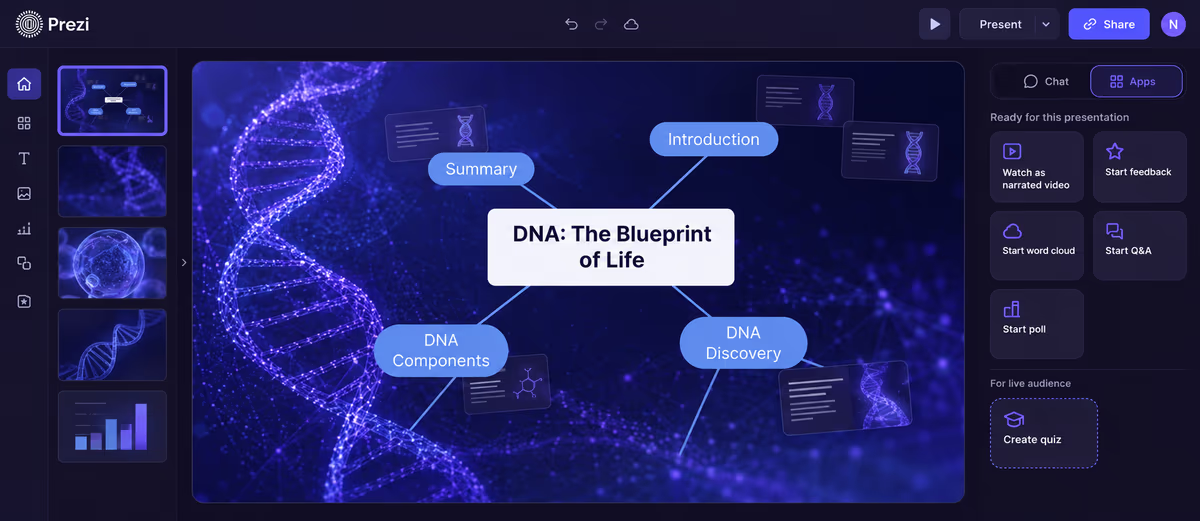
2. Check your layout. In Present mode, the presenter view shows your canvas on one side and your audience interaction panel on the other. You can choose which apps (polls, quiz, etc) that you plan to use during the class. Once you start them for students, you can see incoming responses, manage the Q&A queue, and launch new activities without the class seeing your control panel.
3. Share the join code. Display the QR code at the start of class. Students scan it with their phone camera or type the URL into a browser on a laptop or tablet. No app download required. They join as audience members and can submit responses immediately.
How to run a live poll in Prezi
Polls work best at three points in a lesson: the warm-up, the mid-lesson check, and the closing review. Here is how to run one at each stage.
Step 1: Create the poll in your presentation
In Present mode, choose the "create poll" app. An auto-generated poll will appear for the slide, but you can edit it or make your own. Click Publish to room.
Step 2: Launch the poll
When you reach that slide in Present mode, the poll appears on your presenter panel. Click Start Poll. The question appears on the main screen. Students see it on their connected devices and submit their answers.
Step 3: Display and discuss the results
Click Show Results. The class sees a real-time chart of how everyone answered. This is where the interaction actually happens: you now have data to discuss rather than opinions from the two students who raised their hands. Ask a student who chose an unexpected answer to explain their reasoning. Ask whether anyone is surprised by the distribution. Use the results as the entry point into the lesson content.
Classroom poll workflows by lesson moment
Warm-up poll (first 5 minutes)
Use a multiple-choice or rating scale poll to activate prior knowledge before introducing new content.
Example: Before a lesson on climate change, ask "How much do you think human activity contributes to global warming?" with a scale from 0 to 100 percent. Display the results without commenting. Tell the class that by the end of the lesson, they will revisit the same question. The distribution of answers creates immediate investment in the content that follows.
At the end of the lesson, run the same poll again. Compare the two distributions on screen. The shift (or lack of shift) becomes its own discussion.
Mid-lesson comprehension check (any point in the lesson)
Use a multiple-choice poll with a deliberate wrong answer that reflects a common misconception. If most students choose the misconception, you know to slow down and address it before moving on. If most students answer correctly, you have confirmation to advance.
Example during a math lesson: "Which of these is a correct application of the Pythagorean theorem?" followed by one correct application and two common errors. The results tell you exactly where to spend the next five minutes.
Exit ticket poll (last 5 minutes)
Use a rating scale poll to close the lesson. Ask students to rate their confidence with the day's main concept on a scale of one to five. You see the distribution in real time. Anyone rating one or two is flagging that they need follow-up before the next class. That information is available to you immediately rather than after grading an assignment two days later.
How to run Q&A in Prezi
The Q&A feature collects student questions throughout a presentation and queues them for the presenter to address in order.
Step 1: Open the Q&A queue
In Present mode, click the Q&A button in your interaction panel. This activates the question submission field on students' connected devices. They can type and submit questions at any point during the session without interrupting you.
Step 2: Let questions accumulate
Rather than stopping to answer each question as it comes in, let the queue build while you continue presenting. Students who have a question but don't want to interrupt submit it silently. You collect questions from students who would never raise their hand in front of the class.
Step 3: Surface and answer questions
At a natural break point, open your Q&A panel. You see all submitted questions and choose which ones to show and answer by clicking Moderate Q&A. Select a question and click Show or Answer. It appears on the main screen so the whole class can see what is being addressed. Answer it, then dismiss it and move to the next one.
Students can upvote the ones they also have to make it easier to understand knowledge gaps or what students collectively want to know more about.
This approach changes the dynamic: quieter students participate more because the barrier is lower, and the class hears questions from peers they would not have heard otherwise.
Step 4: Save the Q&A log
After the session, Prezi saves the full Q&A log. Review it after class to identify questions that came up repeatedly (a signal that the explanation needs work) or questions you did not have time to address (candidates for a follow-up discussion or a written response).
How to run open-ended prompts
Open-ended prompts collect free-text responses from the class and display them as a word cloud or ranked list on the main screen.
When to use them
Open-ended prompts work well for:
-
Brainstorming at the start of a new unit ("What do you already know about the Civil War?")
-
Opinion or prediction questions before revealing an answer ("What do you think happens next in this story?")
-
Vocabulary recall ("Name one thing you remember from last week's lesson")
-
Reflection at the end of a lesson ("In one word, how would you describe today's topic?")
How to run one
In Present mode, click Start word cloud, and it will launch the prompt. Students will type their responses on their devices. As responses come in, the word cloud builds in real time on the main screen. The most common responses appear largest. You can see at a glance what the class is thinking and use the distribution to guide discussion.
How to embed a quiz for knowledge checks
Prezi lets you embed a quiz directly in the presentation. Students complete it on their connected devices while the quiz is displayed on the main screen.
Setting up the quiz
In Present mode, click Create a quiz. Add as many questions as you need, each with a correct answer marked, or use the generated questions. The quiz runs inside the presentation, no separate platform required.
During the session
Launch the quiz from your presenter panel. Students answer each question on their device. After each question, you can display the results before revealing the correct answer, which gives you a moment to discuss why students chose what they chose. The competitive element is optional: you can show a leaderboard or turn it off depending on whether you want collaboration or individual assessment.
After the session
Prezi shows you the quiz results: overall score distribution, and which questions had the most incorrect answers. The questions with the most errors are the ones to address in the next class.
Managing a live session: practical tips
Tell students what to expect at the start of class. Display the join QR code while students are settling in and tell them they will need their devices connected for activities during the lesson. Students who know interaction is coming are more likely to stay engaged.
Do not over-poll. Two or three interactive moments per class period is usually enough. More than that and the activities feel like interruptions rather than part of the lesson.
Use the canvas when the class takes a detour. If a student's question opens up a discussion that pulls the lesson in a productive direction, zoom to the relevant section of your canvas rather than staying on a slide that no longer fits the conversation. The class follows where the learning is going.
Leave time to discuss results. A poll that generates a chart no one talks about does less than a poll that generates two minutes of discussion. Build the discussion time into your plan.
Review the session data after class. Prezi's post-session analytics show participation rates, Q&A logs, and quiz results. Patterns across multiple sessions tell you which topics consistently lose the class and which formats drive the most participation.
Sharing the presentation after class
Once a lesson is over, share the Prezi link with students for async review. Students who want to revisit the material can open the presentation and use the "Explain it to me" feature to ask questions about specific sections. Students who missed class get a navigable version of the lesson rather than a static PDF.
If you recorded a narrated walkthrough during or after the session, students can watch it at their own pace. The quiz remains embedded in the shared link, so students can test themselves on the material independently.
A complete lesson structure using Prezi's interactive features
Here is how a 50-minute class might use Prezi's interactive tools from start to finish:
| Time | Activity | Prezi feature |
|---|---|---|
| 0-5 min | Warm-up: prior knowledge check | Open-ended prompt or poll |
| 5-20 min | New content delivery | Share the presentation jumping around as needed |
| 20-25 min | Mid-lesson comprehension check | Multiple choice poll |
| 25-40 min | Discussion or activity | Q&A queue open throughout |
| 40-45 min | Address top student questions | Q&A display and discussion |
| 45-50 min | Exit ticket | Rating scale poll |
| After class | Share link for review | Async sharing with embedded quiz |
Every interactive moment in this structure runs inside Prezi. No second tab, no join code mid-lesson, no asking students to navigate to a different site while you wait.
If you're building your first interactive lesson from scratch, our guide on how to create interactive presentations walks through the broader design principles that apply beyond the classroom.
Ready to run your first interactive Prezi lesson? Start a free Prezi account at prezi.com and build your presentation with polls and Q&A included from the start.