

Quick Summary / Key Takeaways
- Start with a strong hook in the first 60 seconds. Address a clear audience problem or question immediately to capture attention before viewers get distracted.
- Keep slides focused and visual. Aim for one main idea per slide and limit text so your audience listens to you instead of reading the screen.
- Use purposeful visual movement to guide attention. When ideas unfold step-by-step instead of appearing all at once, audiences follow the story more easily.
- Add interaction points during the session. Polls, chat prompts, or quick audience questions help maintain attention and prevent webinar fatigue.
- Close with a single, clear call to action. The final slide should reinforce your key message and show the exact next step for the audience.
Introduction
Creating a webinar presentation that keeps people engaged requires more than placing text on slides. In a virtual setting, presenters compete with email notifications, chat messages, and other distractions on the viewer's screen. That is why effective webinars rely on clear storytelling, strong visual flow, and purposeful pacing. When ideas appear progressively and the presentation moves naturally between topics, audiences stay focused and follow the message more easily.
A strong webinar presentation also removes the pressure of complicated design. The goal is to concentrate on the story you want to deliver while the visuals guide attention and reinforce key points. Motion between sections, clear structure, and visuals that highlight the most important ideas help viewers process information without feeling overwhelmed. This approach transforms a typical slide deck into a presentation that keeps attention and supports meaningful engagement during live sessions.
This guide explains how to create a webinar presentation that keeps viewers engaged from the first minute to the final call to action. You will learn practical tips for structuring your content, pacing your visuals, and maintaining attention during live sessions. Prezi AI helps by turning a simple prompt or outline into a ready-to-present webinar deck in seconds. Trained on 500 million real presentations, it organizes topics, builds layouts, and maps a clear visual flow so your webinar presentation moves naturally from the opening hook to the closing message.

Webinar Presentation Preparation Checklist
- Define the single outcome your webinar presentation should achieve so every slide supports that goal.
- Organize your talking points into clear sections such as introduction, key insights, examples, and final call to action.
- Simplify slides so each frame presents one idea at a time instead of large blocks of text.
- Test all visuals, animations, and navigation to ensure the presentation moves smoothly between topics during the webinar.
Webinar Presentation Delivery Checklist
- Review your presentation flow to confirm the story moves logically from the opening hook to the conclusion.
- Prepare interaction moments such as polls, chat prompts, or Q&A segments to keep viewers engaged.
- Double-check that charts, statistics, and visuals are clear and readable on smaller screens often used during webinars.
- Rehearse transitions between sections so the presentation moves naturally from one idea to the next.
Section 1: Planning a Successful Webinar Presentation
FAQ 1: What is the first step in webinar presentation design?
The first step in webinar presentation design is defining the core objective of the webinar and the main outcome you want the audience to achieve. A webinar should solve a specific problem, teach a clear concept, or guide viewers toward a decision. Once the objective is defined, outline the key sections of the presentation such as the introduction, main teaching points, supporting examples, and final takeaway. This structure ensures the webinar flows logically and prevents slides from becoming cluttered with unrelated information.
If you are preparing the webinar with Prezi AI, start by entering the webinar topic or adding your initial talking points. The system analyzes the content and produces a presentation outline with suggested sections and supporting points. After reviewing the outline, the presentation layout is generated with organized frames that guide viewers from the opening idea to the final takeaway. This allows you to quickly move from a webinar concept to a structured presentation draft while still refining the message before presenting.
Takeaway: Begin with a clear webinar objective and outline so every slide supports the main message and outcome of the session.
FAQ 2: How do I make my slides look professional without design skills?
Professional webinar slides rely on clear structure, consistent formatting, and strong visual hierarchy, not advanced graphic design. Focus on presenting one main idea per slide, using readable text sizes, and keeping enough white space so viewers can easily follow the content during the webinar. Visual elements such as simple diagrams, icons, or charts can help explain concepts faster than large blocks of text, especially when audiences are watching on smaller screens.
When creating a webinar presentation with Prezi AI, you start by entering your topic or adding your outline. The system analyzes the content and generates a presentation outline first. After confirming the outline, the presentation is built where major topics appear as larger sections and supporting points are placed within those areas. The layout automatically establishes spacing, visual hierarchy, and a guided presentation path that moves the audience from one idea to the next, helping slides look organized and professional even without design experience.
Takeaway: Use structured content and automated layout generation to produce professional webinar slides without needing graphic design skills.
Section 2: Structuring Content for a Webinar Presentation
FAQ 3: What is the best way to structure a webinar script?
A strong webinar script follows a clear narrative progression that moves the audience from problem to solution. Begin with a short opening that explains the challenge the webinar will address and why it matters to the audience. Next, organize the main content into two or three focused sections that explain the key ideas step by step. Each section should build logically on the previous one so the audience can easily follow the explanation. Finish with a recap of the most important insights and a clear action or takeaway the audience can apply after the session.
Prezi AI analyzes the webinar topic or outline and generates a structured presentation outline with section headings and supporting talking points. The presentation is then arranged on a visual canvas where each section becomes a connected area of the overall story. As the presentation progresses, the view moves between these sections to focus attention on the idea being discussed while keeping the larger structure visible to the audience.
Takeaway: Structure your webinar script with a clear introduction, focused teaching sections, and a final recap so the audience can easily follow the presentation.
FAQ 4: How can I use visuals to simplify complex data?
Simplifying complex data in a webinar presentation starts by presenting one key insight at a time. Instead of placing full spreadsheets or dense tables on a slide, focus on a single chart, diagram, or highlighted statistic that directly supports your point. Clear labels, large numbers, and color contrast help viewers immediately understand what matters. This approach is especially important in webinars where audiences often watch on smaller screens and need information that is easy to scan quickly.
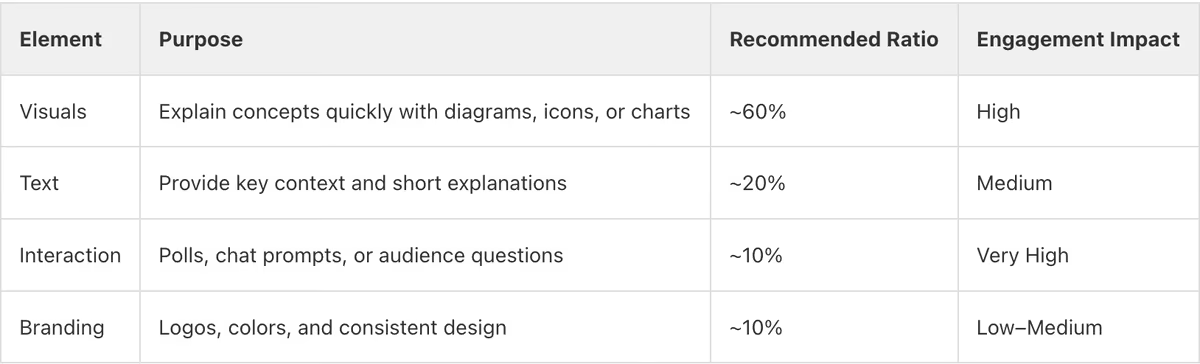
Visual storytelling also helps audiences connect the larger idea to the specific data supporting it. Presentations that guide attention from the broader topic into individual data points make complex information easier to follow. A structured visual layout and purposeful movement between sections allow the audience to see how each statistic fits into the overall narrative instead of trying to interpret a crowded slide all at once.
Takeaway: Show one key data insight at a time and use clear visual emphasis so your audience can quickly understand the most important takeaway.
Section 3: Improving Webinar Engagement and Pacing
FAQ 5: How many slides should a 45-minute webinar have?
A 45-minute webinar usually works best with 30 to 40 focused slides, depending on how much explanation each point requires. The goal is not to fill the presentation with slides but to keep the visual pace aligned with the discussion. Each slide should introduce one idea, example, or visual explanation. If a slide stays on screen for too long with dense text, viewers tend to disengage, especially in virtual settings where attention is easier to lose.
Instead of relying on long slides, break the topic into smaller visual steps that guide the audience through the discussion. A presentation structure that moves between sections and highlights one point at a time helps maintain engagement during longer webinars. This approach keeps viewers oriented while the presenter transitions from overview topics to specific examples, supporting data, or demonstrations.
Takeaway: Use roughly 30–40 focused slides in a 45-minute webinar so the presentation maintains a steady visual pace without overwhelming the audience.
FAQ 6: Which webinar presentation tips improve audience retention?
Audience retention during webinars improves when the presentation regularly redirects attention and reinforces the narrative visually. Instead of leaving one static slide on screen for long stretches, introduce clear visual shifts that reveal ideas step by step. Showing one concept at a time, highlighting key numbers as you explain them, and transitioning between sections with intentional motion helps the audience follow the logic of the discussion. This approach keeps viewers mentally engaged and reduces the common problem of "static slide fatigue" during long virtual sessions.
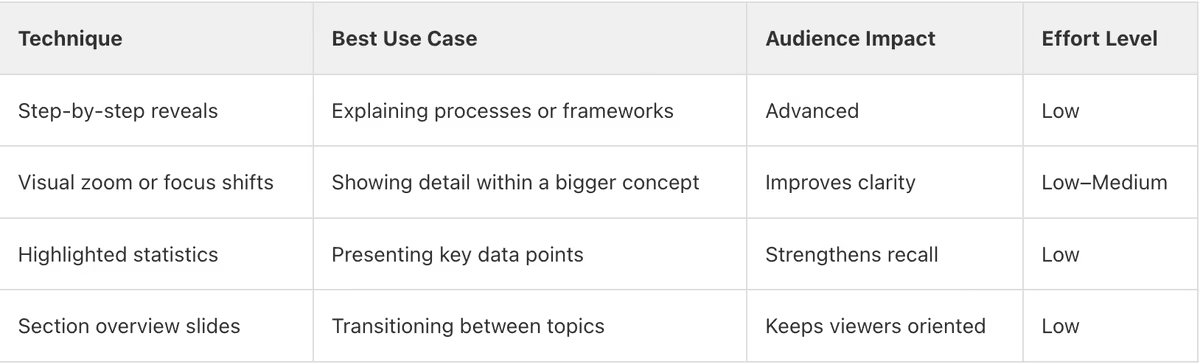
Prezi AI strengthens this process by turning outlines or prompts into a structured presentation where ideas unfold progressively. Trained on 500 million real presentations, it organizes topics into a visual overview and then moves into specific details as the presenter advances through the story. The platform automatically builds layouts and presentation flow so each section transitions naturally into the next, guiding the audience's attention without requiring manual design work. This type of guided movement keeps viewers oriented and engaged, which aligns with research showing 4 out of 5 presenters say Prezi is more effective at capturing their audience's attention.
Takeaway: Combine interactive moments with guided visual movement so the audience stays focused and follows the story throughout the webinar.
Section 4: Delivering and Finalizing Your Webinar Presentation
FAQ 7: Why is interaction crucial when you create a webinar presentation?
Interaction is crucial when you create a webinar presentation because it turns viewers into participants rather than passive listeners. When attendees respond to questions, vote in polls, or contribute in chat, their attention stays anchored to the discussion. This participation improves comprehension and retention because people process information more actively when they are involved in the conversation. Even simple prompts such as asking the audience to type a quick response in chat or vote on a scenario can reset attention during longer sessions and prevent drop-off.
Prezi AI supports this style of presenting through its visual canvas structure. Instead of locking the presenter into a strict slide sequence, the presentation is organized as a visual overview with connected topics. During a webinar, a presenter can move from the main overview into a specific section when a question comes up, focus on a detail, and then return to the broader topic. This ability to navigate between ideas in real time keeps the session responsive to the audience while maintaining a clear visual story.
Takeaway: Use audience prompts and a flexible presentation structure so your webinar can respond naturally to questions while keeping the narrative clear.
FAQ 8: What should the final slide of a webinar include?
The final slide of a webinar should contain one clear call to action, a short summary of the key takeaway, and a simple way for viewers to continue the conversation. This usually includes a direct next step such as visiting a resource page, booking a demo, downloading a guide, or contacting the presenter. Keeping the CTA large and easy to read is important because many attendees stay on the webinar during the Q&A portion. Showing the action step on screen during that time reinforces what the audience should do after the session ends.
In Prezi AI, presenters often place the final message as a dedicated topic within the presentation overview. At the end of the webinar, the presenter can zoom back from the last detailed section to the main overview and then move into the closing frame where the CTA and contact details are displayed. This visual transition signals that the presentation is concluding while keeping the core message visible during the Q&A. It ensures the audience finishes the session with a clear takeaway and a defined next step.
Takeaway: End your webinar with one clear action step and visible contact information so viewers know exactly what to do after the session.