You're about to create your best presentation ever

Project Plan Timeline Powerpoint Template

Create your presentation by reusing a template from our community or transition your PowerPoint deck into a visually compelling Prezi presentation.

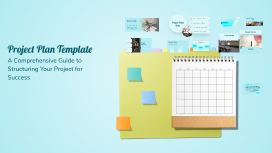
Project Plan Template

Transcript: Project Overview This project aims to enhance operational efficiency and drive innovation within the organization. By aligning our actions with strategic business objectives, we will create a sustainable impact that benefits both the company and its stakeholders. Define Clear and Measurable Objectives "Success is not the key to happiness. Happiness is the key to success. If you love what you are doing, you will be successful." - Albert Schweitzer Clearly defined objectives provide a roadmap for project success, ensuring that all team members understand the goals and can measure progress effectively. This aids in maintaining focus throughout the project lifecycle. Align with Business Goals Project Objectives Budget Overview Aligning project objectives with the overall business goals not only enhances coherence and unity within the organization but also ensures that the project contributes to the larger vision. This alignment is crucial for stakeholder buy-in and resource allocation. Quote from Project Sponsor Achievable Within Timeline A detailed look at the financial resources dedicated to the project. Objectives must be realistic and achievable within the set timeline to ensure project feasibility. This involves careful planning and consideration of available resources, timelines, and potential obstacles, promoting accountability and focus. 500k 50k 350k Timeline of Key Milestones Total Budget This timeline outlines the critical milestones for effective project tracking and management. Contingency Fund Allocated for Resources Mid-Project Review Final Deliverable Project Kickoff A comprehensive evaluation of project progress, including assessments of objectives, timelines, and resource allocations. Delivery of the final product to stakeholders, including post-project evaluation and feedback collection. The official start of the project, where all stakeholders are aligned and project scope is discussed. Phase 1 Completion All activities and deliverables for Phase 1 are completed and reviewed, ensuring alignment with objectives. Project Plan Template Project Manager: [Name] Lead Developer: [Name] Project Team Roles Marketing Specialist: [Name] A Comprehensive Guide to Structuring Your Project for Success Quality Assurance: [Name] Conclusion and Next Steps In summary, we have outlined the project’s objectives, timeline, budget, and team roles. The immediate next steps include finalizing the project kickoff date, allocating resources, and conducting a detailed risk assessment to ensure we stay on track and achieve our goals. Identify Risks Recognizing potential risks that could affect project success, including financial, operational, and reputational risks. Assess Impact Evaluating the severity and likelihood of identified risks to prioritize response efforts. Develop Mitigation Strategies Creating actionable plans to reduce the likelihood or impact of identified risks. Risk Management Plan Expected Outcomes Positive Outcomes Monitor and Review Risks The project is expected to yield several significant positive outcomes that will enhance overall performance and satisfaction. Increased efficiency will lead to faster project completion, while enhanced collaboration among team members will foster a culture of innovation and creativity. Improved customer satisfaction will ultimately strengthen the brand's reputation and lead to greater loyalty. Continuously tracking identified risks and adjusting strategies as necessary to respond to new risks or changes. Understanding and managing risks is crucial to the success of any project. Challenges However, the project also faces several challenges that must be managed effectively. Resource constraints may limit the ability to execute tasks fully, impacting timelines and deliverables. Effective time management is crucial to ensure that milestones are achieved as planned. Additionally, scope creep, the tendency for project requirements to expand beyond the original plan, poses a risk to project completion and budget adherence.

Medical PowerPoint Template

Transcript: Medical PowerPoint Template Design Elements Color Schemes for Medical Presentations Font Selection for Readability Color schemes significantly affect audience understanding and retention. In medical presentations, using blue and green hues promotes calmness and trust, while contrasting colors can highlight key information and enhance visibility. Choosing the right font is crucial for comprehension. Sans-serif fonts like Arial or Helvetica are recommended as they are easier to read on screens. Always ensure that text is large enough to be legible from a distance. Incorporating Graphics and Images Layout and Structure Incorporating relevant graphics can enhance understanding and retention of complex ideas. Use high-quality images, charts, or diagrams that directly relate to the content to support the narrative without overcrowding the slide. A well-structured layout guides the audience’s eye and improves information flow. Utilize a grid system to maintain alignment and consistency, making sure to reserve space for visual elements. Balance text with images to avoid clutter. A Blank Canvas for Your Data Presentation Tips Best Practices for Delivery Content Organization in Medical Presentations Engaging Your Audience Practicing your presentation can lead to smoother delivery and reduced anxiety. Utilize appropriate body language, voice modulation, and eye contact to foster a connection with the audience, making your message more impactful. Audience engagement is critical for effective communication. Techniques include asking rhetorical questions, using relatable examples, and incorporating multimedia elements to maintain interest and encourage participation. Title Slides and Headings Introduction to Medical Presentations Title slides set the stage for your presentation and should include the topic, your name, and the date. Headings throughout the presentation guide the audience through the narrative and facilitate smooth transitions between topics, ensuring clarity and focus on key messages. Bullet Points vs. Paragraphs Handling Questions and Feedback Bullet points provide concise and digestible pieces of information, making it easier for the audience to follow along. In contrast, paragraphs may be necessary for complex concepts but should be used sparingly to maintain attention and avoid overwhelming the viewer. Practicing and Timing Your Presentation Using Tables and Charts Tables and charts effectively present quantitative data, making complex information more approachable. They facilitate quick understanding of trends and relationships within data, enhancing the audience’s ability to interpret clinical findings or statistical results. Rehearse your presentation multiple times to refine your delivery and timing. Understanding how long each section takes helps ensure that you cover all material without rushing or exceeding your allotted time. Encourage questions to create a dialogue with your audience. Responding thoughtfully to feedback shows respect for their input and enhances clarity for everyone involved, improving overall comprehension. Citing Sources and References Importance of Visual Aids Citing sources is crucial in maintaining credibility and allowing the audience to explore further. Proper referencing not only attributes the original work but also strengthens arguments presented in the medical content, supporting evidence-based practice. Visual aids play a crucial role in medical presentations by simplifying complex information. They help audiences grasp essential concepts quickly, improving retention and engagement through the use of charts, images, and videos. Overview of PowerPoint Features PowerPoint offers various features to enhance medical presentations, including templates specifically designed for medical content, the ability to incorporate multimedia, and options for animations that can illustrate processes or changes over time. Objectives of the Medical Template The medical PowerPoint template serves to streamline the creation of presentations by providing a standardized format. This ensures consistency in design and aids users in organizing their data effectively for clarity and impact.

Project Timeline Template

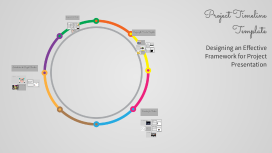
Transcript: Components of the Timeline Project Timeline Template Milestones Tasks and Deliverables Milestones represent key points in a project timeline, marking significant phases or events. They serve as critical indicators of progress and help stakeholders track completion against strategic goals. Tasks break down milestones into actionable steps, clarifying responsibilities for team members. Each task should align with a deliverable, ensuring every action drives the project toward completion. Dependencies Deadlines Dependencies illustrate the relationships between tasks, highlighting how the completion of one task affects another. Identifying dependencies is crucial for effective scheduling and resource management. Deadlines set clear expectations for when tasks and milestones should be completed. They create urgency and accountability, influencing workflow and resource allocation throughout the project. Resources Required Resource requirements outline the personnel, tools, and budget needed for task completion. Properly estimating resources is essential to avoid bottlenecks and ensure smooth project execution. Designing the Timeline Template Format Options There are various format options for timelines, including Gantt charts and linear layouts. Gantt charts effectively show task durations and dependencies, while linear timelines provide a straightforward view of project phases. Example Templates Visual Elements Example templates can serve as effective starting points. Many online resources provide free or customizable templates that can be adapted to specific project requirements, saving time and improving consistency. Incorporating visual elements like colors and icons can significantly enhance engagement. Colors can indicate progress or phases, while icons can represent tasks or milestones, making the timeline more intuitive. Customization Tips Customizing timelines according to project scope and audience is critical. Tailor the complexity of visuals and details based on stakeholder preferences to ensure effective communication and engagement. Software Tools Consider software tools like Microsoft Project, Trello, or Asana for creating timeline templates. These platforms offer user-friendly interfaces and features to customize timelines based on project needs. Designing an Effective Framework for Project Presentation Introduction to Project Timeline Importance of a Timeline Timelines provide a visual representation of a project's schedule, which aids in setting priorities, tracking progress, and ensuring timely completion. They help identify potential bottlenecks and allocate resources efficiently, fostering accountability within the team. Overview of Key Phases The timeline of a project is divided into several key phases: initiation, planning, execution, monitoring, and closure. Each phase has specific objectives and timeframes that are critical to the project's overall success, providing a structured framework to follow. Purpose of the Presentation This presentation aims to equip participants with the skills to create an effective project timeline template. By understanding the essential components, attendees will enhance their project management capabilities, fostering successful project execution. Presenting the Timeline Best Practices for Presentation Engaging Your Audience Ensure the timeline is clear and visually appealing. Use consistent formatting, incorporating colors and symbols to differentiate phases and milestones. Practice delivering the content to maintain engagement and adjust based on audience feedback throughout the presentation. Utilize storytelling techniques to illustrate the project’s context and relevance, making the timeline relatable. Encourage participation by asking questions and integrating audience feedback during the presentation. Follow-up Steps After Presentation Addressing Questions and Feedback Allocate time for questions after presenting each section to clarify any doubts. Be prepared for potential critiques, and use them constructively to enhance the project's planning and execution phases. Circulate a summary of key takeaways and action items post-presentation. Schedule follow-up meetings to review progress and ensure transparency, keeping all stakeholders aligned with project milestones. Tools for Ongoing Tracking Utilize project management software such as Trello or Asana to maintain real-time updates on tasks and timelines. These tools enhance collaboration, allowing stakeholders to monitor progress and adjust timelines as necessary.

PowerPoint Template Design

Transcript: Conclusion and Next Steps Summarizing the presentation and outlining future actions for effective PowerPoint utilization. PowerPoint Template Design Key Points Summary Summarize the essential elements discussed in the presentation, emphasizing the importance of the selected template and animations. Utilizing the PowerPoint Outline clear next steps for the audience to implement the PowerPoint effectively in their context. Creating Engaging Presentations with Dynamic Animations Animated Slides Static Slides Animated slides introduce movement and transitions, capturing audience attention and enhancing engagement. They can highlight key points effectively but may also risk overwhelming viewers if not used judiciously. Static slides provide a straightforward presentation of information, allowing for easy comprehension without distractions. They are ideal for simple data, ensuring that the audience can focus entirely on the message being conveyed. Template Requirements Cohesive Look Brand Alignment Audience Engagement Templates provide a cohesive look, making it easier for the audience to follow the content and key messages. A well-designed template aligns with the branding and theme of the presentation, ensuring consistency throughout. Utilizing a specific template helps to facilitate audience engagement by providing a visually appealing structure. Clearly Defined Key Elements Incorporation of Visual Aids Well-Organized Structure Key elements such as objectives, main topics, and conclusions are clearly outlined, providing a roadmap for the audience. The PowerPoint is meticulously organized to ensure a coherent flow of information, making it easy for the audience to follow along. Visual aids and animations will be incorporated to enhance engagement and understanding, making the presentation more dynamic. Overview of the PowerPoint Setting the Stage for Our Discussion This presentation outlines key aspects of the upcoming content, providing a framework for understanding the topic and its relevance.

Editable PowerPoint Template

Transcript: Editable PowerPoint Template Guiding Principles for Effective Presentations Design Principles Introduction to Editable Templates Consistency in Style Color Schemes and Branding Maintaining a consistent style throughout a presentation reinforces the brand image and enhances comprehension. Consistent elements, such as color, fonts, and layouts, help the audience follow the narrative without distractions. A well-chosen color scheme can evoke specific emotions and create a memorable experience. Aligning color choices with branding principles ensures recognition and reinforces your message effectively across all slides. Visual Hierarchy and Layout Definition and Purpose Font Selection and Readability Establishing a clear visual hierarchy guides the viewer's attention to the most critical information. Effective layout techniques, such as balancing text and images, can ensure that key points stand out in your presentation. Overview of PowerPoint Benefits Editable templates are pre-designed formats that allow users to modify content, layout, and design. Their primary purpose is to save time and maintain consistency in presentations across different topics and audiences. Choosing the right fonts is crucial for readability and engagement. Sans-serif fonts are generally preferred in presentations due to their clean lines, while limiting the number of font types maintains visual clarity. PowerPoint simplifies the presentation creation process through intuitive tools and features, such as templates, animations, and multimedia integration. Its widespread use ensures compatibility, making it accessible for diverse audiences. Importance of Editable Formats Examples of Use Cases Editable formats promote collaboration among team members, allowing multiple users to contribute to a single presentation without confusion. They enhance adaptability to specific audience needs, ensuring relevant and impactful communication. Editable templates can be applied in various scenarios, including corporate training sessions, educational lectures, and marketing presentations. They help to tailor content to specific objectives while maintaining a professional appearance. Content Guidelines Structuring Your Narrative Incorporating Data Visualizations Use charts and graphs to represent complex data simply, making it easier for the audience to grasp key points. Ensure visualizations are labeled correctly, providing context to avoid misinterpretation. Organize content logically, beginning with a clear introduction, followed by key points and a strong conclusion. Each section should transition smoothly to maintain audience engagement and ensure key messages are memorable. Effective Use of Text and Images Engaging Your Audience Customization Tips Balance text and visuals to enhance understanding, ensuring that images complement and reinforce the message rather than distract. Limit text on slides to key phrases to promote clearer communication and retention. Use interactive elements such as polls, questions, or discussions to foster audience participation and create a dynamic atmosphere. Understanding your audience and addressing their interests can significantly enhance engagement levels. Adding Multimedia Elements Altering Templates for Your Needs Customize templates to reflect your unique branding and message. Adjust colors, fonts, and layouts to better align with your content's theme and improve audience engagement. Take advantage of template features to create a distinct visual identity. Incorporate videos, audio clips, and animations to create dynamic presentations. Multimedia can significantly enhance the storytelling aspect, making information more compelling and easier to retain for your audience. Saving and Sharing Templates Best Practices for Adaptation After customization, save templates in accessible formats for future use. Use cloud services for easy sharing among team members, ensuring everyone has the most up-to-date version to maintain consistency in presentations. When adapting templates, keep the audience's needs and perceptions in mind. Use feedback to refine designs and ensure your modifications serve the original purpose while enhancing clarity and effectiveness.

Now you can make any subject more engaging and memorable