You're about to create your best presentation ever

Grading Rubric Template For Student Powerpoints Biographies

Create your presentation by reusing a template from our community or transition your PowerPoint deck into a visually compelling Prezi presentation.

Student Biographies

Transcript: Wordle Guided Practice and Independent Practice *Divide students into two groups - one with teacher who helps students develop questions and the other with the Librarian to learn about The Cube Creator. *The teacher will walk students through developing questions to ask their classmates through an interview. *The Librarian will model The Cube Creator at http://www.readwritethink.org/files/resources/interactives/cube_creator/ http://www.readwritethink.org/files/resources/interactives/cube_creator/ Students will: Gain knowledge of the backgrounds and interests of a classmate through personal interviews. Students will: Demonstrate knowledge of a classmate through a summary, a Wordle, and the creation of a Bio-Cube. *Gather students and explain that you want to make sure that your classroom community works well during the rest of the school year and that a good way to make sure this happens is for everyone to get to know each other, including others' backgrounds, languages, interests, similarities, and differences. *Have students meet with the Librarian to locate biographies through the use of the online cataloging system. *Show students a few biographies from your classroom library and take time to discuss what each biography contained. Goals and Objectives Summary Students will write a summary about their classmate they interviewed. This summary will be typed into Wordle.net and a supplementary visual aide will be created. Materials www.wordle.net Student Biographies Beginning of the School Year 5th Grade Writing Lesson Outline * Internet Access *Biographies from Librarian (guidance from Librarian in how to find biographies) *Summary Writing Template *Sample Interview Questions 5th Grade - Classmate Biography Duration: 3-5 days Evaluation: Summary Wordle Bio-Cube Oral Presentation Bio Cube Guided Practice Shields Valley Schools Library Wilsall Elementary School Library Destiny Quest

Grading Rubric Online

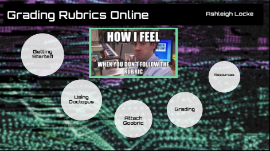
Transcript: Grading Rubrics Online Ashleigh Locke Getting Started 1. Create a Rubric in Google Sheets. Leave Cell A1 blank. (Or copy and paste from a Google Doc into a Google Sheet) 2.Create a “Rubrics” folder in Google Drive where you can store your rubrics. Getting Started Next Steps 3. In Google Chrome, download the extension called Goobric Web App Launcher (If you haven't already). 4. Create a blank Google Sheet, where the Doctopus results can be stored. 5. In this blank Google Sheet, install Doctopus through the Add-ons menu (if you haven’t already). Give this Google Sheet a name (something like Assignment Name_Doctopus & Goobric Results). 6. From within this Google Sheet, go to the Add-ons menu and launch Doctopus. Doctopus now appears at the right. Launch Doctopus Launch Doctopus Doctopus Using Doctopus This launches Doctopus. Under Step 1, click “Ingest Google Classroom Assignment.” Doctopus pulls all of your Google Classrooms. Click on one that has an assignment. Select an Assignment from this Classroom. It pulls the assignment and switches to the Doctopus Assignment Tools window at the right. Grading Attach Goobric Click the Attach Goobric button at the top right. It pulls up any recent rubics that you have created in Google Sheets. If you don’t see the one you want, navigate to your “Rubrics” folder by clicking the My Drive tab. Locate and Select the rubric you want from your Google Drive. Click the blue Attach rubric button. Doctopus now presents a spreadsheet of columns and links (see below). Grading Grading Important: Look for the column called Goobric Link. These are the links to run the Goobric (Google Rubric) on top of each student’s document. Click on the first Goobric Link. The Goobric/rubric appears at the top of the document. Click on the rubric score for each part of the assignment, and then move on. Notes Notes Note: In the top right corner, you can either click on the Next>> button and advance to the next student, or click the drop-down menu which gives the names of each student, so you can jump to a specific student name – if you prefer that method. Note: There is a checkbox to "Also email scores to" each student. This is optional. For students who need oral feedback, there is also a Record Audio Comment button (shaded below) where you can record and save an audio comment. You get up to 120 seconds for the audio comment. Resources Resources A video on how students self-assess A video about how to get started with Doctopus/Goobric

Electronic Rubric Grading

Transcript: Faculty: Determine areas to improve course content/strengthen teaching strategies Students: Track individual progress to tailor and focus learning/studying Mission Completed Keep Improving Administration: Submit reports to University Administration & Accreditation Board Staff: Evaluates student performance, individually & by cohort, in all courses Committees: Consider and suggest changes to curriculum Faculty Advisors: Pinpoint areas of weakness for student advisees Timeline: 3 months 4 out of 10 exams Identified participants Obtained feedback Provided technical support Modified process What did it look like? Staff time Resources Temporarily misplacing rubrics Turnaround time for score release Calculation errors Right Way Questions? Implementation Process Jorge Godinez, BS jgodinez@westernu.edu Contact Us! Ensuring Success: Review Process College of Dental Medicine Western University of Health Sciences Pomona, California Moving Forward Prior to Implementation Electronic workflow solution how transitioning to electronic rubrics improved student learning Establish long-term goals Set a clear vision 3rd & 4th year students Demonstrate competency Individually challenged 2 faculty graders 10 clinical exams total ELECTRONIC CLINIC GRADING The ESTABLISHING A FOUNDATION FOR THE FUTURE OF HEALTH PROFESSIONS EDUCATION The Pilot Test Electronic workflow cont. Testing your Process: The End Results... Ensuring Success: Ensuring Success: Major Issues Personal user credentials Multiple graders for various dimensions/rubric Lack of score release tracking Minor Issues Requesting wrong graders Incomplete assessments High volume of reminder e-mails Solutions General grader accounts/clinic group Multiple iterations of SharePoint form Change score submission deadline Launching Our Process Reporting Longitudinal Data Set deadlines Assign tasks to staff members Prepare ExamSoft portal Tag existing rubrics with applicable categories Utilization of additional software platforms to facilitate the workflow Previous process: Identifying Issues Clinical Exams Uses of Data for Administration, Faculty, Staff, and Students Processing of Clinical Exams Support from college administration Explain the advantages of ExamSoft rubrics Small group training sessions Step-by-step instruction guide Use of personal devices On-site technical support Jayzona Alberto, BA, MS jalberto@westernu.edu Revising our process Streamlining the process Less faculty/staff time spent on miscellaneous tasks (i.e. calculating scores) Category tagging of ILOs, PLOs, and disciplines Ability to measure soft skills such as communication and professionalism System-generated reports Tracking student progress in specific areas Using reports for learning interventions And how the benefits outweighed the burdens Faculty Buy-in & Training using data to improve learning outcomes SUCCESS

Now you can make any subject more engaging and memorable