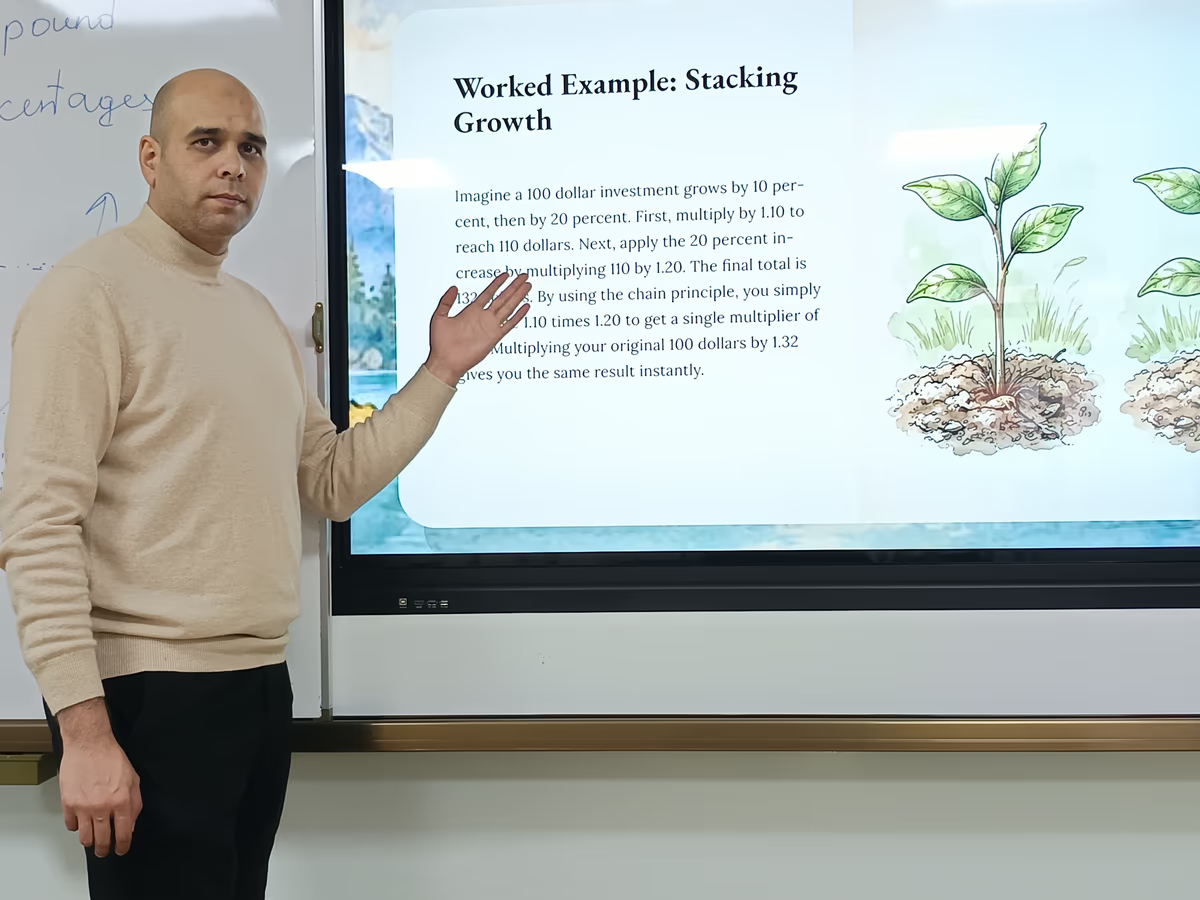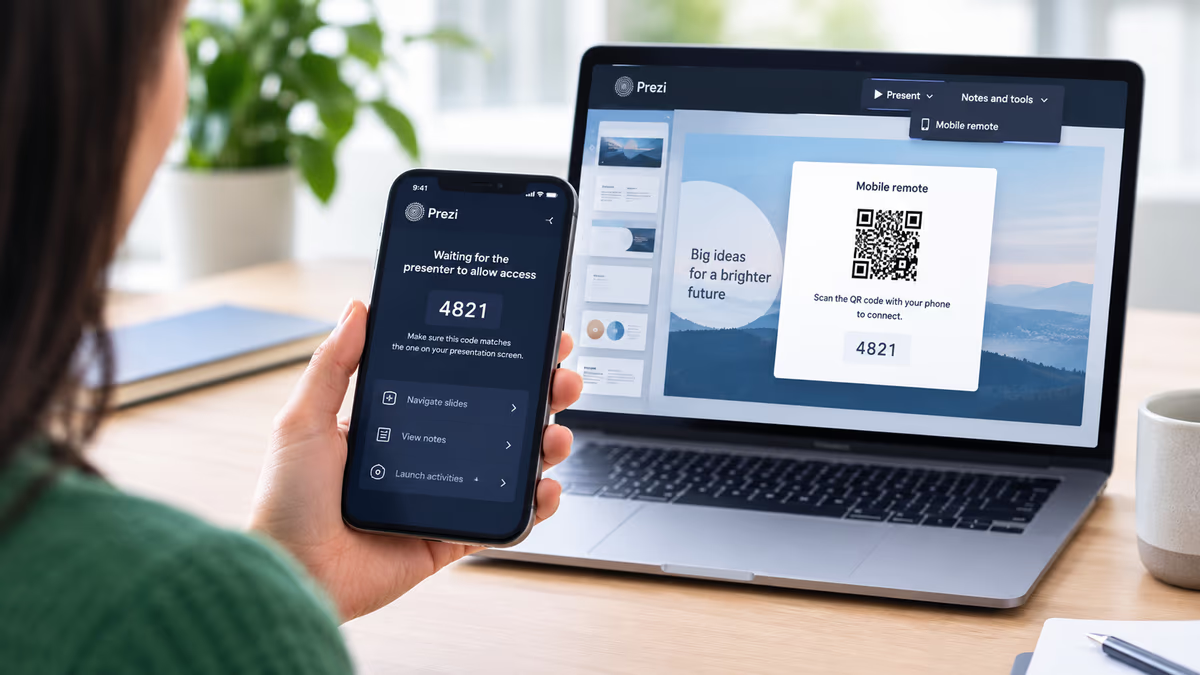
We've been busy. Prezi AI just picked up new recognition from G2, and we've shipped a batch of editing upgrades that make it faster to get your presentation looking exactly right. Whatever you're building, the goal stays the same: help you stand out, bring your ideas to life, and create presentations easier than ever, without needing a design team behind you. Here's a rundown of what's new.
Recognized as a G2 Leader
We're proud to share that Prezi AI has been named a G2 Leader for Fall 2026 across three categories: Audience Response, AI Presentation Tools, and Presentation Software. These placements are based directly on feedback from real users on G2, so this recognition belongs to the people who use Prezi every day and took the time to share their experience. Thank you.
If you haven't checked out our G2 profile yet, it's a great place to see what other users are saying and to compare Prezi against other tools on the market. Read the full announcement here.
Editing that finally keeps up with you
This is the part we're most excited about. We've rolled out a set of upgrades to how you edit text and elements inside your presentation, and together they add up to a noticeably smoother editing experience.
Edit directly on the slide, not just through chat. Previously, changing your content meant typing a request to the AI chat and waiting for it to make the update. Now you can click straight into any text box on the slide and change the size, font, and wording yourself, no chat message required. It's a much faster way to make small adjustments without breaking your flow.
Move things exactly where you want them. You can now drag text, images, and overview frames directly to reposition them, resize proportionally from the corners, or adjust width from the side. Need pixel-level precision? Arrow-key nudging lets you move any element one step at a time, and snap guides automatically help you line things up so your layout stays clean and aligned.
Edit text inline, without losing your formatting. Text editing now does a clean round trip: when you go in and tweak a line, your formatting (bold, color, sizing, and more) stays exactly as you left it, instead of drifting or resetting. It sounds small, but it's the kind of reliability upgrade that makes editing feel trustworthy.
Don't forget about audience engagement
While you're in there, it's a good time to revisit the interactive features that help you get real-time input from your audience, or let them explore your content on their own. These live right alongside your presentation, so nothing requires switching to a separate app.
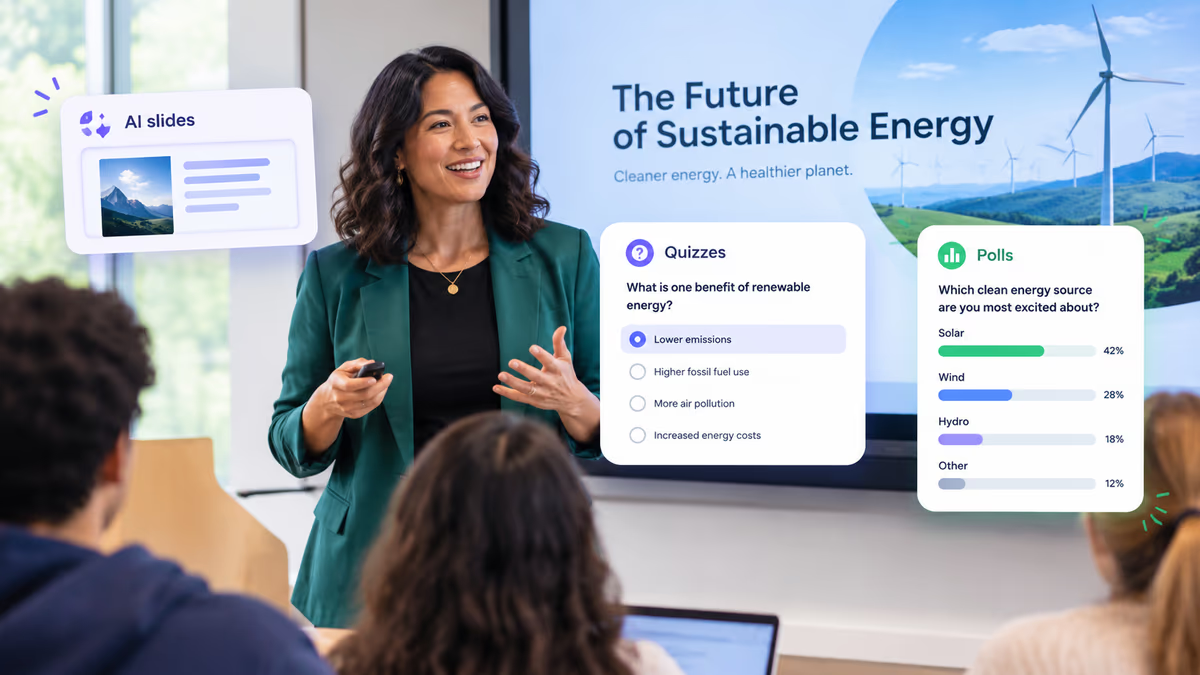
Polls. Hit "Start poll" while you're editing or presenting, then launch it the moment you land on that slide. Prefer not to do it live? Polls can also be sent out for your audience to complete asynchronously, on their own time.
Quizzes. From the present dropdown, click into the themed room to access the quiz feature (labeled "Test your knowledge" or "Open test," depending on where you access it). Quizzes are AI-generated by default, but you can edit the questions and answers to fit exactly what you want to ask.
Q&A. Open the floor to your audience in real time or let them submit questions asynchronously, right alongside your content.
Newscaster. If you're teaching a lesson online or want your content delivered in a more presenter-led format, start a newscaster session so key points appear directly alongside your visuals instead of leaving your audience to piece it together themselves.
And you don't need to start from a presentation to use any of this. If you already have a file you want to work with, upload it directly and go straight into an interactive session, or send it to your audience to review on their own. Once they're in the themed room, here's everything they can do with it, organized the way it shows up in the app:
Understand
- Explain this to me: get a plain-language breakdown of whatever's on screen, on demand
- Test your knowledge: jump into a quiz built from the content itself
- Flash cards: turn key points into a quick study set
- Transcript: read a full text version of the narration
- Watch as narrated video: sit back and watch the content play out with narration
- Listen as podcast: turn it into a podcast-style listen instead
Take away
- Download PDF: grab a static copy to keep or print
- Download PowerPoint: export it straight into a PPTX file
- Download SCORM: package it for your LMS if you're delivering training content
- Make a copy & reuse: duplicate the presentation to adapt for your own use
Create your own
- Generate your own app: build a custom interactive experience from the presentation content
- Upload PowerPoint: bring in an existing PPTX to power the same set of apps
- Import Prezi: pull in another Prezi presentation to start from
It's a genuinely different way to hand off content. Instead of just sending a deck and hoping someone reads it, your audience gets a small toolkit for absorbing it however works best for them.
Try it for yourself
Between the G2 recognition, the editing upgrades, and the audience engagement features, it's a good moment to jump back into Prezi and see what's changed. Log in, open a presentation, and give the new text controls, polls, and quizzes a try. We think you'll notice the difference right away.
Have feedback on any of these updates? We'd love to hear it.