Ask a teacher, a corporate trainer, or an HR lead what "audience engagement" means and you'll get three different answers — but the same underlying complaint: slides alone don't hold attention. Most presenters have accepted a workaround for this: open a second app, generate a join code, run the interactive bit, then switch back to the deck. That context switch costs time and momentum, especially in a 40-minute class or a compliance training module where every minute is accounted for.
Prezi has built a full set of audience engagement features directly into the presentation itself, so there's no second tool, no PIN to share, and no switching between "the deck" and "the engagement app."
Turning it on
Audience engagement runs through Prezi's live presenting mode. To turn it on, open the Present dropdown and choose "In a themed room." That single toggle turns a static deck into a live, two-way session — the audience joins from their own devices while the presenter keeps working from the same canvas they built.
Live polls
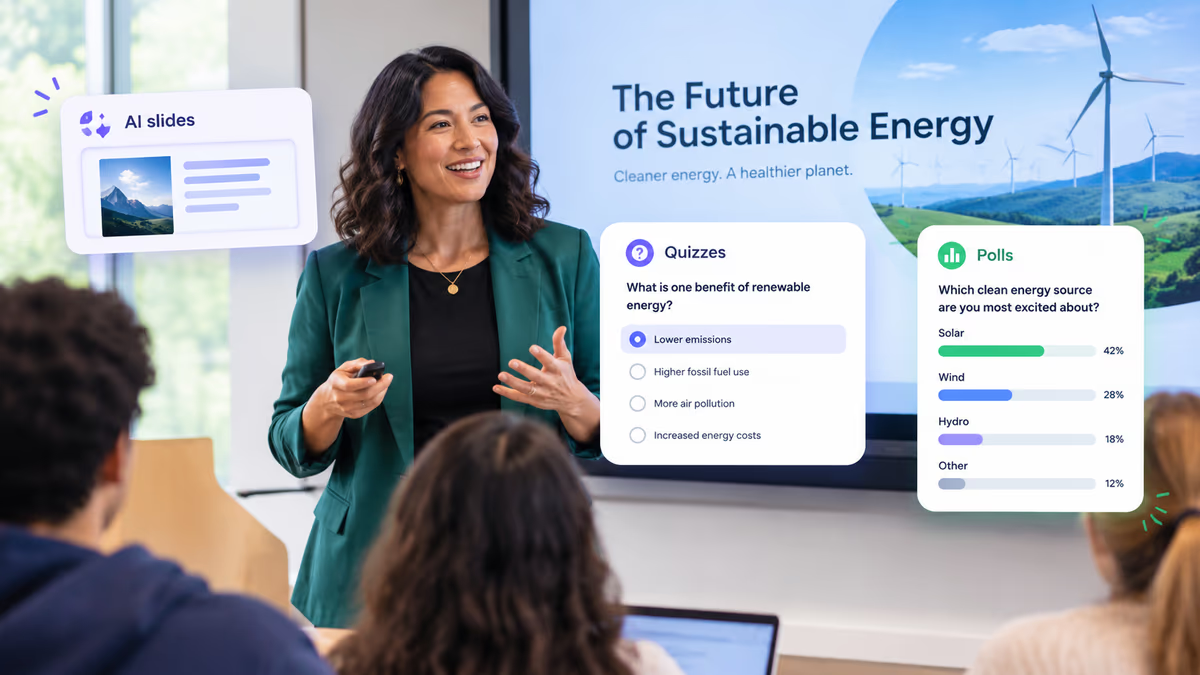
Ask a question mid-presentation and watch responses come in in real time, without leaving the slide you're on. Useful for a quick temperature check in a training session, a show of hands in a class, or gauging opinion at the start of a meeting.
Word clouds
Collect open-ended, one-word or short-phrase responses from the audience, and watch the most common answers grow larger as more people submit them. It's a fast way to surface what's actually on an audience's mind before diving into a topic, or to close a session by asking what stuck.
Live Q&A
Audience members submit questions as they come up, so nothing gets lost waiting for a designated "questions" slide at the end. Prezi's open canvas is built for conversational presenting, so a question about a topic covered later in the deck doesn't have to wait — the presenter can zoom straight to that section and back again.
Virtual pointer
While presenting, a virtual pointer directs audience attention to the exact part of the canvas being discussed. It matters more here than it would on a typical slide deck, since Prezi's zooming canvas means there's often more than one thing visible on screen at once.
Ask-the-deck AI
Viewers aren't limited to what's covered live. They can ask the presentation itself a question and get an AI-generated explanation of the content, letting them go deeper on any point at their own pace — whether they're in the room or reviewing the deck asynchronously afterward.
Newscaster mode
For a more personal, broadcast-style delivery, Newscaster is a camera-based presenting mode where the presenter appears live on screen with content orbiting around them in a 3D layout — a step up from a static screen share, and a good fit for sales reps and trainers presenting over video calls.
AI-generated quizzes
Prezi AI can read the slides already in a deck and generate an interactive quiz on the spot, so a knowledge check doesn't require building a separate quiz from scratch or leaving the presentation to set one up.
Viewer analytics
For decks shared asynchronously, Prezi shows who viewed the presentation, when, and for how long. The AI can also generate a summary report of the viewing data, highlighting what's landing and what isn't, with the option to make edits directly from that conversation. For a closer look at how this works, see Prezi AI Viewer Analytics: See Who Viewed Your Presentation, How Long, and What to Improve.
Who it's built for
Teachers get a way to follow a class's actual questions instead of a fixed lesson order, with live polls and quizzes to check understanding along the way. Corporate trainers get a knowledge check and a more personal, camera-based delivery option for remote and hybrid sessions, without adding a second tool to the training stack. HR teams get a lighter way to run onboarding sessions and all-hands meetings that still invite real-time input, plus the analytics to see what resonated after the fact.
Across all of these, the throughline is the same: the interactivity lives inside the presentation, not bolted on beside it.