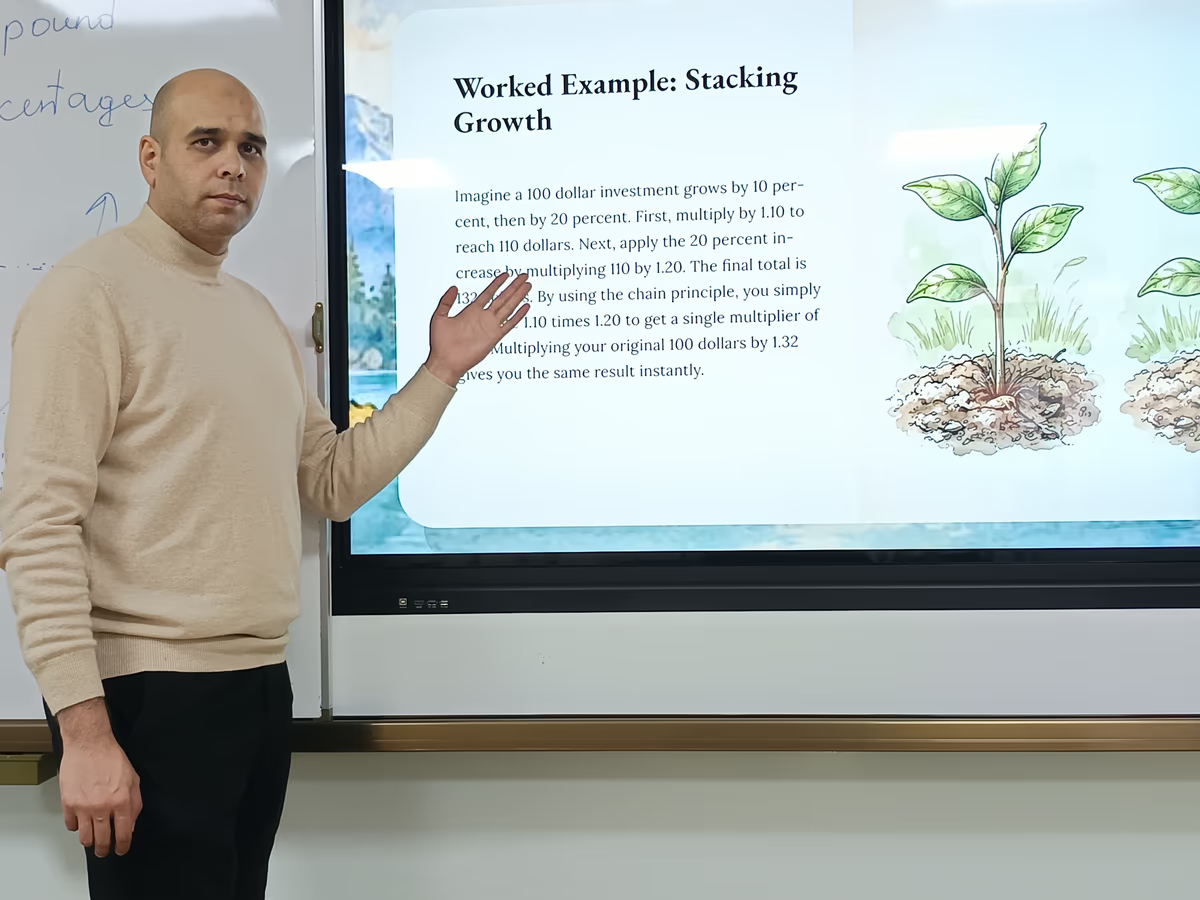
How can you create narrated video lessons efficiently? The answer lies in using a single platform that handles presentation, narration, and export in one workflow. Prezi is the presentation tool that lets instructors offer the same lesson as a narrated video, a podcast, or an interactive quiz from a single link, eliminating the need to rebuild content for each format.
A narrated video is a recorded presentation that combines visual content with synchronized voiceover audio to deliver instruction asynchronously.
Key Benefits of Using Prezi for Narrated Videos in Education:
-
One workflow, multiple formats – Create narrated videos, audio-only content, and interactive quizzes from a single presentation
-
AI-powered script generation – Prezi analyzes your slides and drafts editable narration automatically
-
Built-in accessibility – Captions generated directly from your narration script
-
No platform-hopping – Presentation, narration, and export happen in one environment
-
Direct LMS compatibility – Optimized export for Canvas and other learning management systems
Educators create one presentation, and Prezi generates an editable narration script, exports the lesson as a shareable video with voiceover, and adapts the content for multiple learning modalities. This approach transforms how hybrid and flipped classrooms operate, giving teachers a single source file that serves asynchronous learners, audio-only students, and interactive assessment needs without multiplying prep time.
For instructors managing multiple sections, adjuncts juggling institutions, or instructional designers evaluating scalable solutions, the efficiency gain is substantial. One workflow produces multiple deliverables. No re-recording. No platform-hopping. No content duplication.
What Is a Narrated Video in Education?
A narrated video in education is a recorded presentation that combines visual content with spoken audio to deliver instruction asynchronously. Unlike live lectures or silent slideshows, narrated videos guide students through material with voiceover explanations synchronized to on-screen visuals.
In classroom contexts, narrated videos serve several critical functions. They allow students to learn at their own pace, pausing and rewinding as needed. They provide consistent instruction across multiple class sections. They support absent students or those who need content reinforcement. And they free up synchronous class time for discussion, application, and hands-on activities.
The term "narrated video" specifically refers to content where audio narration accompanies visual elements, distinct from a "narrative video," which tells a story through cinematic techniques. For educators, the distinction matters: narrated videos prioritize instructional clarity and content delivery, while narrative videos prioritize dramatic pacing and emotional engagement.
Hybrid and flipped classroom models depend heavily on narrated video content. When students watch the lecture at home, class time transforms into active learning. The challenge has always been production: creating quality narrated videos traditionally required recording software, audio editing, and significant time investment. Prezi changes that equation by automating the narration workflow within the presentation platform itself.
How to Create Narrated Videos from Your Presentations
Prezi generates narrated videos by analyzing your presentation content and producing an editable script that you can refine before export. The platform handles script generation, audio synthesis, and video rendering in a single workflow, with no external recording or editing tools required.
The process follows these steps:
Step 1: Import your presentation. Begin with your existing presentation—Prezi accepts files from Prezi, PowerPoint, or Google Slides directly.
Step 2: Review the auto-generated script. Prezi examines your slides, identifies key points, and drafts narration text that explains each section.
Step 3: Edit and refine. Adjust phrasing, emphasis, and length to match your teaching style directly within the platform.
Step 4: Generate voiceover. Once the script meets your standards, Prezi synthesizes the voiceover and synchronizes it with your visual content.
Step 5: Export your narrated video. Download the finished video ready for LMS upload or direct sharing.
For educators concerned about audio clarity, Prezi provides guidance on getting the best audio quality on your video whether you choose AI-generated narration or record your own voice. The platform's length controls let you adjust pacing, useful when you need a five-minute overview for one context and a twenty-minute deep dive for another.
The complete workflow for adding narration to your presentation using Prezi Video walks through each step, from script editing to final export. Educators who already have presentations built in Prezi can convert them to narrated video without starting over, preserving the time invested in original content creation.
This automation addresses the core pain point for time-strapped instructors: the gap between having content and having deliverable content. A presentation that works for live instruction can become an asynchronous narrated video in minutes rather than hours.
How to Customize Narrated Videos for Different Learning Formats
Prezi enables educators to adapt a single presentation into multiple formats (narrated video, audio-only content, and interactive elements) without rebuilding from scratch. This multi-format flexibility means one source file serves diverse learner needs and delivery contexts.
The customization options extend beyond simple export choices. You can turn a Prezi presentation into a video optimized for different viewing scenarios: full narrated lessons for primary instruction, condensed versions for review, or audio extracts for students who prefer podcast-style learning during commutes.
Chapter markers represent another customization layer. By adding chapters to your video, you create navigation points that let students jump directly to specific topics. This feature proves especially valuable for longer lessons or when students return to review particular concepts before assessments.
The practical impact for educators managing hybrid classrooms is significant. A single Monday prep session can produce:
-
A full narrated video for students who missed class
-
A condensed version highlighting key concepts for review
-
Chapter-marked content for targeted study before exams
-
Audio-only exports for accessibility or alternative consumption
This approach eliminates the traditional trade-off between content quality and production efficiency. Educators no longer choose between comprehensive lessons and manageable workloads: Prezi's format flexibility delivers both from one content investment.
How to Add Captions and Optimize Video for LMS Upload
Adding captions to video content is essential for accessibility compliance and improves comprehension for all learners, not just those with hearing impairments. Prezi provides built-in tools to enable, display, edit, and download subtitles for your video, streamlining what has traditionally been a tedious post-production step.
The captioning workflow integrates directly with the narration process. When Prezi generates your narration script, that text becomes the foundation for accurate captions, eliminating the need for separate transcription. You can edit captions for accuracy, adjust timing, and download subtitle files in standard formats compatible with most video players and LMS platforms.
Beyond accessibility, captions serve pedagogical purposes. Students studying in quiet environments, non-native speakers processing complex terminology, and learners who benefit from reading while listening all gain from captioned content. Research consistently shows that captions improve retention and comprehension across student populations.
Optimizing video for LMS upload requires attention to file size and resolution. Large video files create problems: slow uploads, storage limits, and buffering issues for students with limited bandwidth. Prezi's guidance on optimizing video quality and resolution helps educators balance visual clarity with practical file management.
To make video smaller for easy sharing, consider these factors:
-
Resolution settings appropriate for your content (1080p for detailed visuals, 720p for talking-head style)
-
Length optimization through chapter breaks rather than single massive files
-
Export format selection based on your LMS requirements
For educators using Canvas, one of the most widely adopted learning management systems, Prezi offers specific guidance on submitting video and narrated presentations in Canvas. This integration documentation addresses the practical last-mile challenge: getting your finished narrated video from creation platform to student-facing LMS without technical friction.
How to Turn the Same Presentation Into a Live, Interactive Session
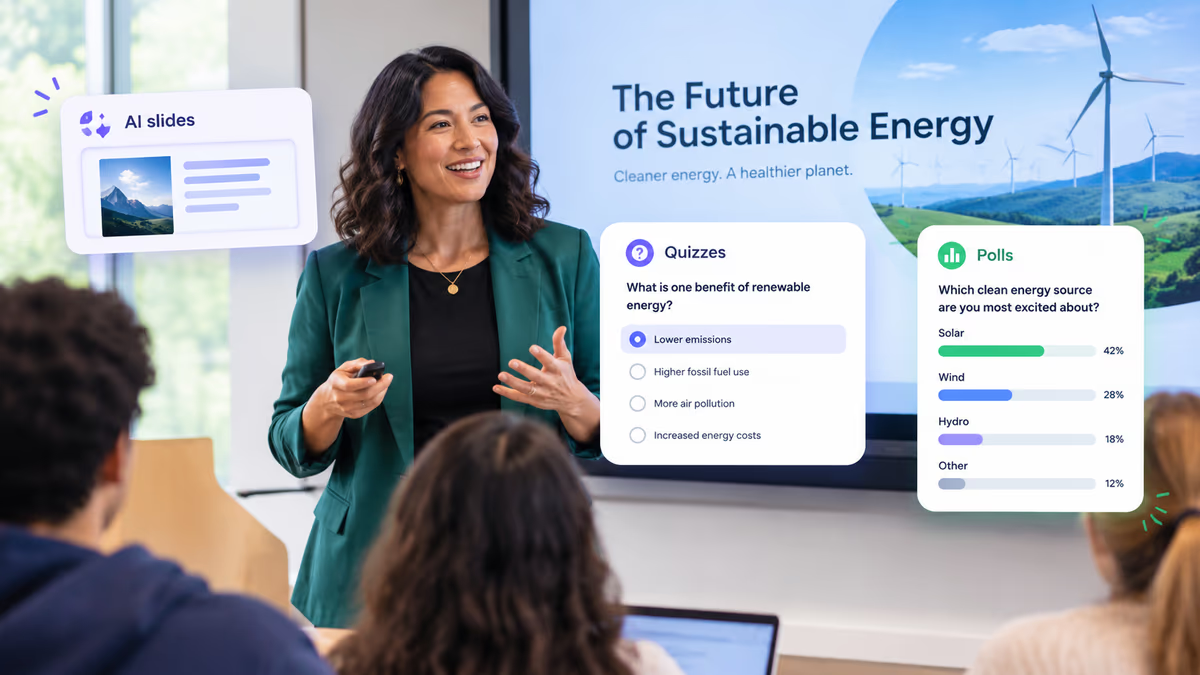
The narrated video isn't the only way students engage with a Prezi presentation. Because the underlying deck stays intact, the same file you convert into an asynchronous lesson can also power a live, interactive classroom session with built-in audience engagement tools, no separate polling or quiz app required.
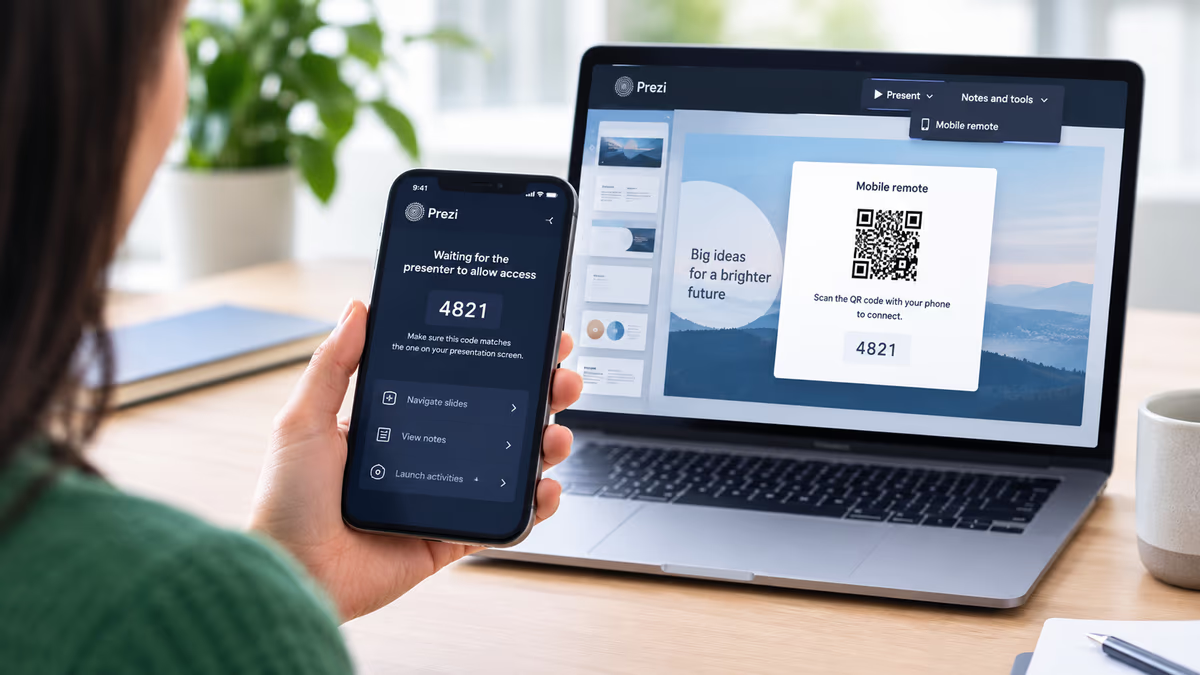
During live instruction, teachers can run polls to check understanding in real time, or generate a quiz automatically from the content already on the slides rather than writing questions from scratch. A word cloud feature collects open-ended responses from students and surfaces the most common answers as they come in, useful for quick formative checks or icebreakers. Students join through a QR code shown on screen, with no login or app download required, and can be seen in a live audience view as they participate. For a broader comparison of options, see our roundup of interactive presentation tools with live audience features.
For teachers who want to appear alongside their content, presenter mode adds camera and notes support, and a newscaster-style view puts the instructor on screen next to the slides for both live and recorded sessions. After class, viewer analytics show who opened the shared deck, when, and for how long, so instructors can see which sections held attention and which ones lost students.
This matters most for flipped and hybrid classrooms specifically. Assign the narrated video for homework, then use the same source presentation live in class the next day, polling students on what they watched, running a quiz pulled straight from the slide content, and taking questions through the deck itself. One file supports both the asynchronous lesson and the synchronous follow-up.
Best Tool for Narrated Educational Presentations: Prezi vs. Single-Purpose AI Tools
Single-purpose AI voiceover tools like Narakeet or NarrateAI excel at one task: adding narration to existing video files. Prezi differs fundamentally by functioning as a complete lesson-delivery platform where narrated video is one output among many from the same source content.
The distinction matters for educators evaluating tools. Single-purpose solutions require you to:
-
Create your presentation in one platform
-
Export it as a silent video
-
Upload to a voiceover tool
-
Generate narration
-
Download the result
-
Upload to your LMS
Prezi consolidates this workflow. Your presentation, narration, captions, and export happen in one environment. More importantly, that same presentation can serve live instruction, become a narrated video, or transform into other learning formats, all without leaving the platform or duplicating effort.
| Feature | Single-Purpose AI Tools | Prezi |
|---|---|---|
| Narration generation | Yes | Yes |
| Presentation creation | No | Yes |
| Multi-format export | Limited | Yes |
| Caption integration | Varies | Built-in |
| LMS compatibility | Manual | Direct |
| Live presentation mode | No | Yes |
| Live polls, quizzes, and Q&A | No | Yes |
| Viewer analytics | No | Yes |
Key differentiator: Prezi is an all-in-one lesson-delivery platform, while single-purpose tools handle only the narration step, requiring educators to manage multiple applications and manual file transfers.
For instructional designers recommending scalable solutions, this platform consolidation reduces training burden and support complexity. Faculty learn one tool that handles multiple needs rather than assembling a toolkit of specialized applications.
Prezi's commitment to accessibility extends beyond captions. The platform provides resources for designing more accessible Prezi presentations, addressing color contrast, text sizing, and navigation considerations that benefit all learners. This accessibility-first approach reflects the reality of diverse classroom populations and institutional compliance requirements.
The efficiency argument becomes compelling when calculated across a semester. An instructor creating weekly narrated videos saves hours by eliminating platform-switching and format conversion. Multiply that across a department adopting a unified solution, and the productivity gains become institutional.
Key Terms for Educators
-
Flipped classroom: An instructional model where students watch lecture content at home (often via narrated video) and use class time for active learning, discussion, and hands-on activities.
-
Asynchronous learning: Education that occurs on the student's own schedule, not in real-time, typically through recorded videos, readings, or self-paced modules.
-
LMS (Learning Management System): A software platform like Canvas, Blackboard, or Moodle used to deliver, track, and manage educational courses and content.
Start Creating Narrated Video Lessons with Prezi
Getting started with narrated video creation in Prezi requires no specialized equipment or technical expertise. The platform guides educators through each step, from initial presentation to exported video ready for student access.
Begin with your existing content. If you have presentations built in Prezi, PowerPoint, or Google Slides, you can import them directly. Prezi analyzes your content structure and generates a narration script draft. Review this script, edit for your voice and teaching style, then let the platform handle synthesis and synchronization. For a step-by-step walkthrough, see how to turn your Prezi presentation into a video with Prezi Video.
For educators new to asynchronous content creation, start with a single lesson. Choose a topic you teach repeatedly: the content you explain the same way every semester. Converting this to narrated video frees future class sessions while ensuring consistent instruction quality.
The workflow scales naturally. Once comfortable with single-lesson creation, expand to module-level content. Use chapter markers to create navigable video series. Build a library of narrated content that compounds in value each term you teach.
Time-strapped adjuncts benefit most from this approach. Creating narrated video content during one prep session means that lesson exists permanently. Students across multiple institutions, sections, and semesters access the same quality instruction without requiring repeated live delivery.
Prezi transforms the economics of educational content creation. The traditional trade-off (invest significant time in production or accept lower-quality asynchronous options) dissolves when one platform handles presentation, narration, captioning, and multi-format export. Educators reclaim time while improving content accessibility and consistency.
The path forward is practical: start with one lesson, master the workflow, then scale. Your students gain flexible access to quality instruction. You gain hours back in your week. And your content investment pays dividends across every future term.
Frequently Asked Questions
What is a narrated video and how is it used in classroom teaching?
Quick answer: A narrated video is a recorded presentation with synchronized voiceover used for asynchronous instruction, flipped classrooms, and student review.
A narrated video is a recorded presentation combining visual content with synchronized voiceover audio to deliver instruction asynchronously. In classroom teaching, educators use narrated videos for flipped classroom models where students watch lectures at home, for absent student makeup, for consistent instruction across multiple sections, and for student review before assessments. The format allows learners to pause, rewind, and control pacing according to their individual needs.
Can AI create a narrated video from a presentation automatically?
Quick answer: Yes—Prezi analyzes your slides, generates an editable script, and produces a synchronized narrated video automatically.
Yes, AI can create a narrated video from a presentation automatically. Prezi analyzes your presentation content, generates an editable narration script, synthesizes voiceover audio, and synchronizes it with your visuals, all within one platform. You review and refine the script before export, maintaining control over the final product while eliminating manual recording and editing steps.
How do you add captions to a narrated video for student accessibility?
Quick answer: Prezi generates captions automatically from your narration script, which you can edit and export in standard subtitle formats.
To add captions to a narrated video in Prezi, use the built-in subtitle tools that generate captions from your narration script. You can enable, edit, and download subtitles directly within the platform, then export caption files in standard formats compatible with most LMS platforms and video players. This integrated approach eliminates separate transcription steps while ensuring accessibility compliance.
Can you make a narrated video without recording your own voice?
Quick answer: Yes—Prezi generates synthetic voiceover from your script without requiring any microphone recording.
Yes, you can create a narrated video without recording your own voice. Prezi generates synthetic voiceover from your script, producing natural-sounding narration without requiring microphone recording or audio editing. This feature particularly benefits educators who prefer not to appear on camera, those working in noisy environments, or instructors seeking faster production workflows.
How do you make a narrated video file smaller for easy sharing with students?
Quick answer: Reduce resolution to 720p for lecture content, break lessons into chapters, and use Prezi's optimization tools for your LMS requirements.
To make a narrated video file smaller, adjust resolution settings based on content needs (720p often suffices for lecture content), break longer lessons into chaptered segments rather than single large files, and select export formats optimized for your LMS requirements. Prezi provides video quality and resolution optimization tools that help balance visual clarity with practical file size management for easier student access.
What is the difference between a narrated video and a narrative video?
Quick answer: Narrated videos use voiceover to explain content for instruction; narrative videos use cinematic storytelling for emotional engagement.
A narrated video features voiceover audio explaining visual content, prioritizing instructional clarity and information delivery. A narrative video tells a story through cinematic techniques, prioritizing emotional engagement and dramatic structure. For educators, narrated videos serve teaching purposes (explaining concepts, walking through processes, delivering lectures), while narrative videos serve dramatic purposes in creative or documentary contexts.
How does Prezi help teachers create narrated videos and other lesson formats from one presentation?
Quick answer: Prezi generates scripts, synthesizes voiceover, adds captions, and exports multiple formats—all from a single source presentation.
Prezi enables teachers to create multiple lesson formats from a single presentation by generating editable narration scripts, synthesizing voiceover, adding captions, and exporting to various formats, all within one platform. From the same source file, educators can produce full narrated videos, condensed review versions, audio-only content, and chapter-marked navigable lessons without rebuilding content for each format or switching between multiple tools.s, condensed review versions, audio-only content, and chapter-marked navigable lessons without rebuilding content for each format or switching between multiple tools.