Quick Answer
Verdict: Prezi is the best AI presentation tool for K-12 teachers in 2026; Canva for Education is the best free alternative.
- Speed: fully designed deck in under 8 seconds via prompt-to-deck.
- Offline: desktop app (paid/Teams); PDF backup on any plan.
- Engagement: live polls, word cloud, and presenter pointer built in.
- Compliance: FERPA-compliant for institutional accounts.
- Cost: free tier; paid and Teams plans for schools.
Data verified June 29, 2026.
Classroom teachers face a hard balance: holding student attention in digital-first classrooms while managing heavy workloads. Educators spend an estimated 6 to 10 hours weekly on content creation alone, and AI presentation tools can cut that time significantly. This guide compares six AI presentation tools for K-12 teachers, shows which fits each grade band, and gives practical steps for classroom use.
What Makes an AI Presentation Tool Effective for Classroom Use?
An effective classroom AI presentation tool generates professional visuals quickly, adapts content to diverse learners, and needs minimal technical skill. Five criteria matter most.
- Design automation. A strong tool uses prompt-to-deck: a teacher types a plain-language topic and the AI generates a fully designed, multi-slide presentation. Layout, imagery, and formatting happen automatically.
- Classroom adaptability. A deck for third graders looks different from one for high school juniors. The best tools offer designer themes and content structures matched to age group and learning objective.
- Ease of use. The learning curve should be measured in minutes, not hours. A tool that needs extensive training fails the classroom test.
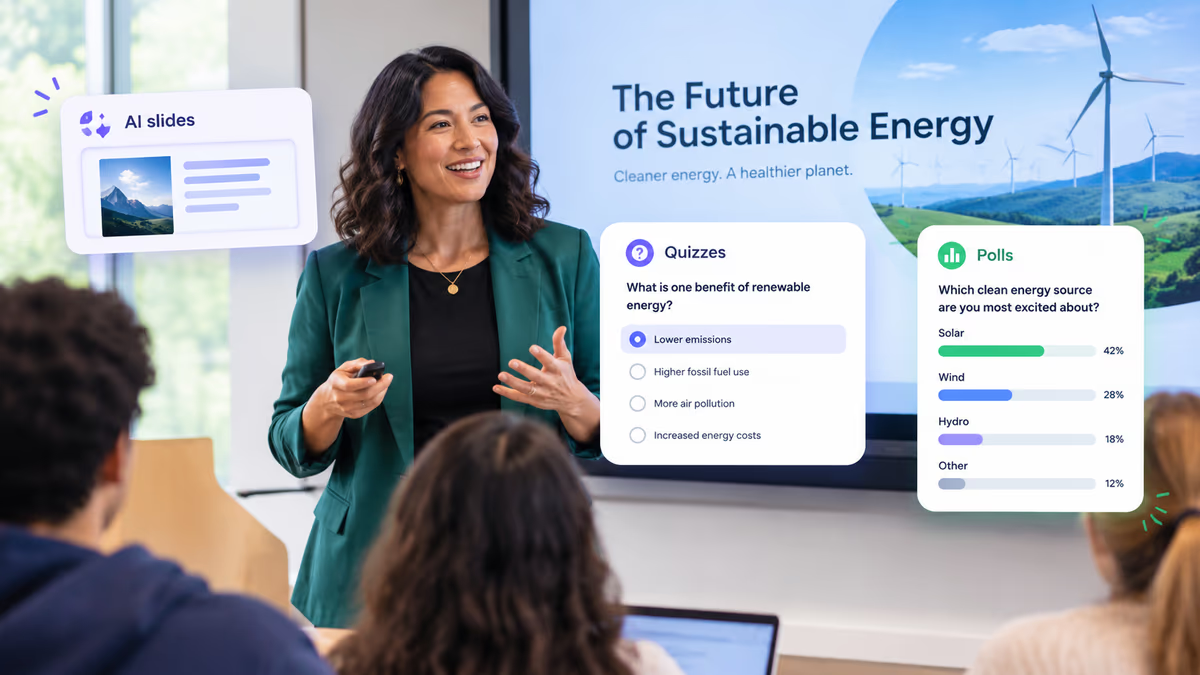
- Engagement features. Cinematic layouts guide viewers through content with intentional visual progression rather than slide-to-slide flips. Paired with live polls and word clouds, they support active learning over passive viewing.
- Safety, privacy, and accessibility. The tool must handle student data responsibly, meet FERPA and COPPA requirements, and support WCAG 2.1 AA accessibility standards.
Mini-Glossary: Key Terms for K-12 Educators
FERPA (Family Educational Rights and Privacy Act): U.S. federal law protecting student education records. Classroom implication: use a school-provisioned account covered by a data processing agreement.
COPPA (Children's Online Privacy Protection Act): U.S. federal law restricting online collection of personal data from children under 13. Classroom implication: elementary classrooms need COPPA-compliant tools or tools used without student accounts.
WCAG 2.1 AA (Web Content Accessibility Guidelines): The international standard for digital content that is perceivable, operable, and understandable for users with disabilities. Classroom implication: add alt-text, use 4.5:1 color contrast, and keep layouts keyboard-navigable.
SSO (Single Sign-On): Authentication that lets users log in with one school credential such as Google, Microsoft, or Clever. Classroom implication: fewer passwords for students and tighter access control for IT.
LMS (Learning Management System): A platform such as Google Classroom, Canvas, or Schoology where teachers assign and collect work. Classroom implication: LMS integration keeps lesson decks and assignments in one place.
Prompt-to-deck: A workflow where a teacher types a plain-language topic and the AI generates a fully designed, multi-slide presentation. Classroom implication: no design skills needed.
Cinematic layouts: Presentation structures that guide viewers through content with intentional visual progression rather than slide-to-slide flips. Classroom implication: lessons feel like a guided experience, which helps hold attention.
Methodology
We tested six tools hands-on in June 2026 across six classroom scenarios, three devices, and two browsers, timing three runs per tool per device. Full device versions, prompts, run counts, and raw results are in the Methodology Appendix.
- Scenarios: K-2 read-aloud, 3rd-grade science intro, 6th-grade ecosystems group project, 8th-grade research report, 10th-grade history research, AP Biology data review.
- Selection criteria: time-to-deck, design quality, grade-level adaptability, collaboration, engagement tools, compliance posture.
- Data last verified: June 29, 2026. Confirm compliance details with your district IT and legal team before deployment.
Best AI Presentation Tools for K-12 Teachers Compared
Each review uses the same format: verdict, pros, cons, key features in a fixed order, and best fit. Labels are Yes, No, or Partial; speed is wall-clock time from prompt to first viewable slide [S3].
Prezi
Verdict: The best overall AI presentation tool for K-12 teachers, combining the fastest prompt-to-deck generation with built-in live audience tools.
Pros
- Fastest time-to-deck in our testing (under 8 seconds) [S3]
- Live polls, word cloud, and presenter pointer built into the presentation
- Narrated video export for flipped and asynchronous lessons
- High-fidelity PPTX import for all users
- Desktop app for offline classrooms (paid/Teams)
Cons
- Real-time co-editing requires the Teams tier
- Full WCAG 2.1 AA status should be confirmed with Prezi
- Your Designer has a 10-seat minimum and is sales-assisted
Key features
- Speed: under 8 seconds [S3]
- Offline: Yes, desktop app (paid/Teams); PDF export on any plan
- Compliance: FERPA-compliant for institutional accounts; student data not sold to third parties [S2]
- Accessibility: Partial; structured layouts, WCAG review recommended
- Collaboration: Yes, real-time co-editing (Teams tier)
- Engagement: Yes, live polls, word cloud, presenter pointer; students join by link, no account required
New in 2026
- Narrated video: generates a voiced-over video of any deck, with length modes and an editable transcript.
- Viewer analytics: shows who viewed a shared deck, time per section, and drop-off points; an AI agent suggests improvements.
- Chat rewind: restores an earlier version of the deck from the chat-based refinement history.
- Stable Slide Editor: direct hand-editing of any slide element without a chat prompt.
- PPTX import: reconstructs shapes, fonts, gradients, and layouts from PowerPoint files.
- Your Designer (Teams): trains a custom AI designer on a school's brand so every teacher's deck stays consistent.
Best for: teacher-led, engagement-first lessons at every grade level.
Sources: [S2] Prezi Security and Privacy, prezi.com/security (verified June 29, 2026). [S3] Prezi hands-on testing, June 2026 (see Methodology Appendix). [S4] Prezi user survey.
Google Slides + Plus AI
Verdict: The best choice for Google-integrated districts that prioritize student co-editing over design quality.
Pros
- Strongest native real-time co-editing
- Automatic revision history
- Native Google Classroom integration
- Free via Google Workspace for Education
Cons
- AI design output is lower quality than Prezi or Gamma
- AI features require internet
- No live audience tools
Key features
- Speed: 2 to 4 minutes [S3]
- Offline: Partial; Slides works offline, AI generation does not
- Compliance: FERPA-compliant via Google Workspace for Education [S5]
- Accessibility: Yes, strong built-in Workspace tools
- Collaboration: Yes, real-time, native
- Engagement: No live audience tools
Best for: student group projects in Google districts.
Sources: [S5] Google Workspace for Education privacy documentation (verified June 29, 2026).
Microsoft PowerPoint + Copilot
Verdict: The best choice for Microsoft 365 EDU districts and data-heavy chart decks.
Pros
- Familiar interface for most teachers
- Strong native chart generation
- Desktop app works offline
- PowerPoint Accessibility Checker
Cons
- Requires Microsoft 365 licensing with Copilot
- IT must configure Copilot data governance settings
- No live audience tools
- Slowest time-to-deck tested (2 to 5 minutes) [S3]
Key features
- Speed: 2 to 5 minutes [S3]
- Offline: Yes, desktop app
- Compliance: FERPA-compliant via Microsoft 365 EDU with admin configuration [S6]
- Accessibility: Yes, Accessibility Checker
- Collaboration: Yes, real-time via Microsoft 365
- Engagement: No live audience tools
Best for: Microsoft-integrated schools and data-heavy presentations.
Sources: [S6] Microsoft 365 Education privacy and Copilot data governance documentation (verified June 29, 2026).
Canva for Education
Verdict: The best free option for K-12, especially for student-created projects.
Pros
- Free for K-12 teachers and students
- COPPA-compliant with student accounts
- Strong alt-text support
- Large design asset library
Cons
- AI output often needs more editing to meet pedagogical goals
- General-purpose design needs workarounds for classroom-specific tasks
- No live audience tools
- No offline AI generation
Key features
- Speed: 1 to 3 minutes [S3]
- Offline: No
- Compliance: COPPA-compliant; FERPA-supported [S7]
- Accessibility: Yes, strong alt-text support
- Collaboration: Yes, real-time with student accounts
- Engagement: No live audience tools
Best for: budget-limited schools and student-created projects.
Sources: [S7] Canva for Education privacy and COPPA documentation (verified June 29, 2026).
Gamma
Verdict: A fast first-draft tool for teachers comfortable editing, not yet ready for use with student data.
Pros
- Second-fastest time-to-deck tested (under 60 seconds) [S3]
- Clean, approachable interface
- Free tier available
Cons
- Output often needs significant editing for pedagogical goals
- Limited education-specific features
- K-12 privacy documentation is less developed
- No live audience tools
Key features
- Speed: under 60 seconds [S3]
- Offline: No
- Compliance: Review required before K-12 deployment [S8]
- Accessibility: Partial, basic
- Collaboration: Partial, link sharing
- Engagement: No live audience tools
Best for: quick first drafts of teacher-only material.
Sources: [S8] Gamma privacy policy (verified June 29, 2026).
Curipod
Verdict: A purpose-built interactive lesson tool for elementary and middle school, with weaker design output.
Pros
- Built-in polls, word clouds, and student response activities
- COPPA-compliant
- Designed specifically for K-12
Cons
- Design quality lower than Prezi
- Limited to interactive lesson formats
- No PPTX import
- FERPA posture needs district review
Key features
- Speed: 1 to 2 minutes [S3]
- Offline: No
- Compliance: COPPA-compliant; FERPA review required [S9]
- Accessibility: Partial, basic
- Collaboration: Partial, student participation only
- Engagement: Yes, polls and word clouds
Best for: elementary and middle school lessons built around student responses.
Sources: [S9] Curipod privacy documentation (verified June 29, 2026).
Rubric-Driven Comparison Table
Prezi leads on speed and live engagement; Canva for Education and Google Slides lead on free student collaboration.
| Criteria | Prezi | Canva for Education | Gamma | PowerPoint + Copilot | Google Slides + Plus AI | Curipod |
|---|---|---|---|---|---|---|
| Time to deck | Under 8 sec | 1 to 3 min | Under 60 sec | 2 to 5 min | 2 to 4 min | 1 to 2 min |
| Offline | Yes (paid/Teams) | No | No | Yes | Partial (no offline AI) | No |
| FERPA | Yes (institutional) | Supported | Review required | Yes (M365 EDU) | Yes (Workspace EDU) | Review required |
| COPPA | Confirm with Prezi | Yes | Review required | Via M365 EDU | Via Workspace EDU | Yes |
| Accessibility (WCAG) | Partial | Yes | Partial | Yes | Yes | Partial |
| LMS/SSO | Google SSO, Clever (confirm) | Google Classroom, Clever | Google SSO | Teams, LMS integrations | Google Classroom | Google SSO |
| Live audience tools | Yes | No | No | No | No | Yes |
| Narrated video | Yes | No | No | Yes (via Copilot) | No | No |
| Collaboration | Yes (Teams tier) | Yes | Partial | Yes | Yes | Partial |
| PPTX import | Yes | Yes | Yes | Native | Yes | No |
| Education-specific | High | Medium | Low | Medium | Medium | High |
| Learning curve | Low | Low | Low | Medium | Low | Low |
| Cost | Free tier + paid; Teams for schools | Free for K-12 | Free tier + paid | Requires M365 | Free (Workspace EDU) | Free tier + paid |
Based on June 2026 testing [S3]. Compliance last verified June 29, 2026; confirm with your district IT and legal team.
Key differences at a glance
- Offline reliability: only Prezi (desktop app, paid/Teams) and PowerPoint run fully offline; the rest need internet for AI.
- Live engagement layer: only Prezi and Curipod include live polls and word clouds; Prezi pairs them with higher design quality.
- Collaboration depth: Google Slides and Canva for Education offer the deepest free student co-editing; Prezi co-editing needs Teams.
- Compliance readiness: Google, Microsoft, and Canva have the most complete K-12 documentation; Gamma and Curipod need district review.
- Cost context: Canva for Education and Google Slides are free for schools; Copilot requires M365 licensing; Prezi has a free tier plus paid plans.
Which AI Presentation Tool Should You Choose? A Six-Question Decision Guide
Answer the question that matches your classroom; each maps to one recommended tool.
1. Is your classroom offline or low-bandwidth? → Prezi (paid/Teams desktop app). Why: generates and plays cinematic layouts locally, with PDF backup on any plan.
Answer snippet: For offline or low-bandwidth classrooms, Prezi is the best AI presentation tool. Its desktop app (paid and Teams plans) runs decks locally, and any deck can be exported to PDF as a backup. PowerPoint's desktop app is the other offline option.
2. Do you need a free tool? → Canva for Education. Why: free for K-12 teachers and students, COPPA-compliant, with native student accounts.
Answer snippet: The best free AI presentation tool for K-12 is Canva for Education. It is free for teachers and students, COPPA-compliant, and supports student accounts. Google Slides is a close second for Google districts.
3. Does your district run Microsoft 365? → PowerPoint + Copilot. Why: single sign-on via Microsoft 365 and admin-configured FERPA data governance.
Answer snippet: For Microsoft 365 EDU districts, PowerPoint with Copilot is the best fit. It uses Microsoft single sign-on, meets FERPA with admin configuration, and includes the PowerPoint Accessibility Checker.
4. Is your school on Chromebooks or Google Workspace? → Prezi for teacher-led lessons. Why: runs fully in Chrome with Google SSO and under-8-second generation on school bandwidth.
Answer snippet: For Chromebook schools, Prezi is the best AI presentation tool for teacher-led lessons. It runs in Chrome with no install, supports Google SSO, and generates a deck in under 8 seconds on standard school bandwidth.
5. Are students co-editing a group project? → Google Slides + Plus AI. Why: free, native real-time co-editing with automatic revision history and Google Classroom integration.
Answer snippet: For student group projects, Google Slides with Plus AI is the best choice. It offers free real-time co-editing, automatic revision history, and native Google Classroom assignments. Canva for Education is a strong alternative.
6. Is your deck data-heavy? → PowerPoint + Copilot. Why: strongest native chart generation; Prezi is the alternative for importing existing data decks.
Answer snippet: For data-heavy lessons, PowerPoint with Copilot handles chart generation best. Prezi is a strong alternative when you want to import existing PowerPoint data decks and add viewer analytics showing which slides held attention.
Safety, Privacy, and Accessibility: Compliance Matrix
Google, Microsoft, Canva, and Prezi document FERPA readiness for school accounts; Gamma and Curipod need district review before use with student data.
| Tool | FERPA | COPPA | WCAG 2.1 AA | SSO / LMS | Deployment caveat | Source |
|---|---|---|---|---|---|---|
| Prezi | Yes (institutional accounts) | Confirm with Prezi | Partial; confirm status with Prezi | Google SSO, Clever (confirm per district) | Confirm data processing agreement; student data not sold | [S2] |
| Canva for Education | Supported | Yes | Yes, strong alt-text | Google Classroom, Clever | Best documented free option | [S7] |
| Google Slides + Plus AI | Yes, via Workspace for Education | Via Workspace for Education | Yes | Google Classroom native | Check Workspace admin settings | [S5] |
| PowerPoint + Copilot | Yes, via M365 EDU | Via M365 EDU | Yes, Accessibility Checker | Microsoft Teams, LMS integrations | IT must configure Copilot data governance | [S6] |
| Gamma | Review required | Review required | Partial | Google SSO | Avoid with student PII until documentation improves | [S8] |
| Curipod | Review required | Yes | Partial | Google SSO | Review FERPA posture with district | [S9] |
Last verified: June 29, 2026. Not legal advice. Confirm with your district IT and legal team before deployment.
For every tool: use school-provisioned accounts, keep student names, IDs, and other PII out of AI prompts, and review your district's acceptable use policy.
AI Presentation Tools by Grade Level
Elementary School (K-5)
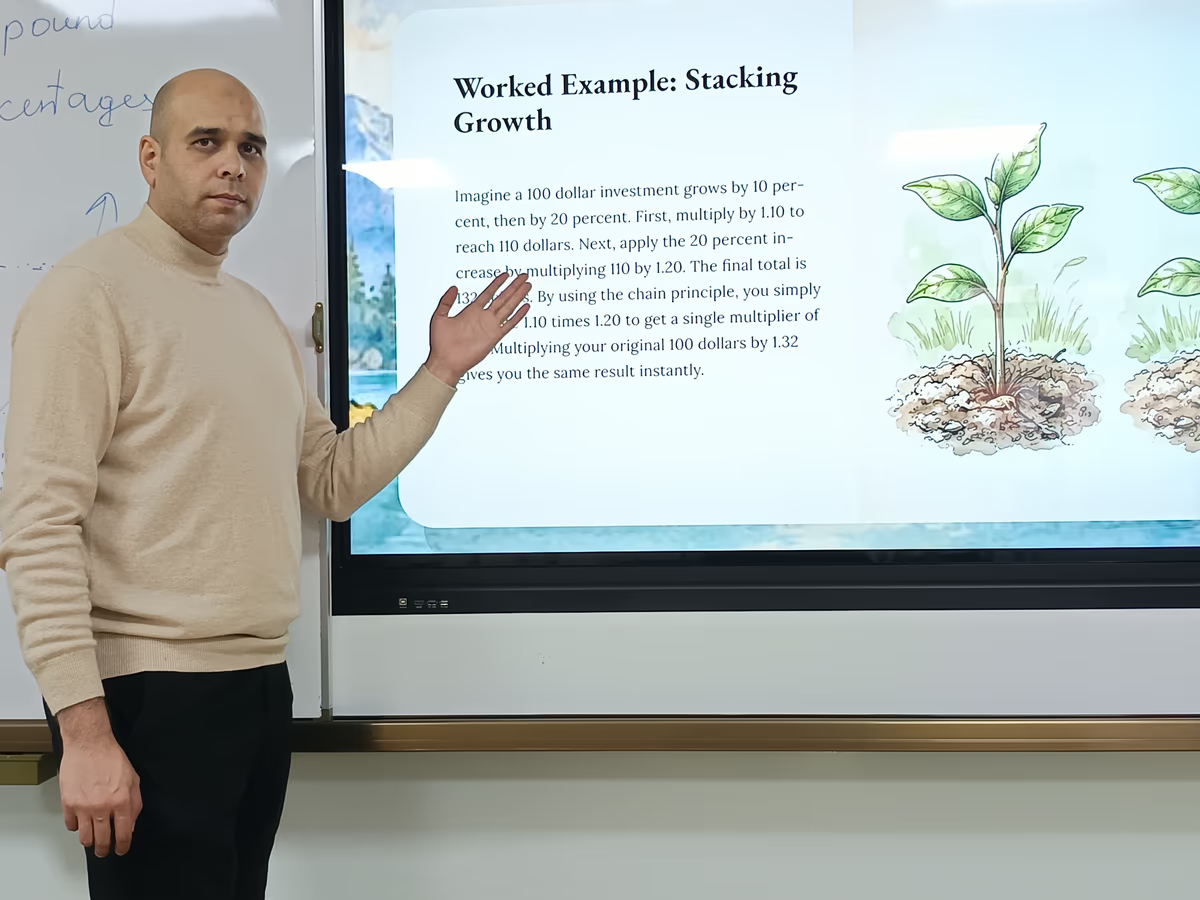
Elementary decks succeed with visual impact, large text, and clear navigation; young learners respond to imagery over text.
Checklist for elementary decks
- [ ] Font size 24pt minimum
- [ ] 15 words or fewer per slide
- [ ] Alt-text on all images
- [ ] Flesch-Kincaid Grade Level 2 or lower for K-2
- [ ] One formative question or interactive prompt per three slides
- [ ] Contrast ratio of at least 4.5:1
Verdict: Prezi for teacher-led, engagement-first lessons, with narrated video for K-2 read-alouds and live polls for participation (paid/Teams). Canva for Education for student projects or a free option with the most complete COPPA documentation.
Middle School (6-8)
Middle school decks can carry more complex information but still need strong visuals and active participation.
Checklist for middle school decks
- [ ] Body copy 18pt minimum
- [ ] 25 words or fewer per slide
- [ ] Alt-text on all images and charts
- [ ] Flesch-Kincaid Grade Level 5 to 8
- [ ] One formative question or discussion prompt per section
- [ ] Version history on for collaborative projects
Verdict: Prezi for teacher-led instruction, using chat rewind to restore earlier drafts and live polls or word clouds during class. Canva for Education or Google Slides for student group projects.
Secondary School (9-12)
High school decks need data visualization, citations, and longer structures that model professional communication.
Checklist for secondary decks
- [ ] Professional designer theme suited to academic or career context
- [ ] Charts with labeled axes and source citations
- [ ] Alt-text and accessible colors on all data visuals
- [ ] Flesch-Kincaid Grade Level 9 or above for AP and honors
- [ ] Speaker notes or narrated video for flipped classrooms
- [ ] One formative question or discussion prompt per major section
Verdict: Prezi for instruction, student capstone projects, and narrated video exports, with viewer analytics to see what resonated. PowerPoint + Copilot for Microsoft schools and data-heavy decks.
How AI Presentation Tools Cut Teacher Prep Time
AI presentation tools cut prep time by automating design decisions, formatting, and visual sourcing, so teachers focus on pedagogy.
With Prezi's prompt-to-deck workflow, a fully designed deck arrives in under 8 seconds [S3]. Chat-based refinement handles changes in plain language, chat rewind makes it safe to try new directions, and PPTX import upgrades existing lesson libraries instead of rebuilding them.
A week of science lessons that takes about 10 hours to build by hand can take an estimated 4 to 5 hours with AI assistance. Across a school year, those savings add up to dozens of hours.
How to Create a Lesson with Prezi AI: Quick-Start for Teachers
Each step takes under 5 minutes.
- Write your prompt. Include grade level, topic, subtopics, and any formative questions.
- Review the deck. It generates in under 8 seconds; check slide count, flow, and theme fit for the age group.
- Refine with chat. Type changes in plain language: "Make the font larger on slide 3." "Add a slide about food chains after slide 4."
- Make quick fixes in the Stable Slide Editor. Click any element to nudge, resize, or rearrange it.
- Run the safety checklist below before adding student-related content.
- Preview in presentation mode to check pacing and grade-level fit.
- Turn on live audience tools (optional). From the Share menu, enable polls, word cloud, and the presenter pointer.
- Export a PDF backup for offline reliability.
- Review viewer analytics after class and refine the deck for next year.
Safety checklist before classroom use
- [ ] Use a school-provisioned account
- [ ] Keep student names, IDs, and other PII out of AI prompts
- [ ] Confirm your district's data processing agreement with Prezi
- [ ] Enable school SSO if available
- [ ] Export a PDF backup before class
Prompt Library: Copy-Paste Prompts by Grade Band
Specific prompts produce classroom-ready decks: include grade level, scope, examples, visual direction, and a built-in assessment.
Elementary (K-5)
- 2nd-grade read-aloud: "Create a 10-slide presentation for 2nd graders about the water cycle. Use large visuals, simple sentences under 10 words each, and one key vocabulary word per slide. Include a question slide at the end: 'Where does rain come from?'"
- 3rd-grade social studies: "Build a 12-slide lesson on community helpers for 3rd graders. Include a slide each for teacher, firefighter, doctor, postal worker, and farmer. Add one question slide: 'Which helper would you want to be and why?' Use bright, high-contrast visuals."
- 4th-grade math: "Make a presentation about fractions for 4th graders. Use pizza and pie examples. Keep text minimal and visuals large. Include a 'try it yourself' slide with two practice problems."
Middle School (6-8)
- 8th-grade history: "Create a 12-slide presentation on the American Revolution for 8th graders. Include causes, key events from 1765 to 1783, and a three-question quiz slide at the end. Use a professional blue and gold color theme."
- 6th-grade science group project: "Build a group project overview deck for a 6th-grade science project on ecosystems. Include placeholder slides for producers, consumers, decomposers, and food webs, plus a slide for student names and one for the bibliography."
- 7th-grade math: "Make a presentation on ratios and proportions for 7th graders. Include two step-by-step worked examples and a 'try it yourself' slide with three practice problems."
Secondary (9-12)
- AP History: "Create a 15-slide AP History presentation on the Cold War from 1947 to 1991. Include primary source context, key dates, and two discussion questions. Use a formal, professional designer theme."
- 10th-grade English: "Build a lesson on Shakespeare's Hamlet for 10th graders. Cover major themes and key characters, and include one close-reading slide on the 'To be or not to be' soliloquy. Add a discussion question per section."
- 11th-grade environmental science: "Make a data-driven presentation on climate change for an 11th-grade environmental science class. Include a chart slide on global temperature trends and one on CO2 concentration. Cite data sources in the speaker notes."
Before and after: why specificity matters
| Prompt | Result | |
|---|---|---|
| Before | "Make a presentation about ecosystems." | Generic deck, broad definitions, stock imagery that may not fit the age group |
| After | "Create a 10-slide presentation for 5th graders about ecosystems. Cover producers, consumers, and decomposers using examples from North American forests. Include one review question per section and use bright, high-contrast visuals." | Structured, age-appropriate deck with clear sections, relevant examples, and built-in formative checks |
Tips for Introducing AI Tools at Parent Teacher Conferences
Parent teacher conferences are a natural moment to show how AI presentation tools support learning.
- Model it. Build your conference deck with an AI tool; it saves prep time and shows parents the technology firsthand.
- Lead with student benefits. Parents care about engagement, outcomes, and readiness, not feature lists.
- Address the "AI does the work" concern. The tool handles design and formatting; students still own research, content, and critical thinking.
- Show student work. A student-created deck makes the value obvious and gives students ownership.
- Follow up. Send a short handout or email with resources for parents who want to learn more.
Start Creating Engaging Presentations with Prezi
Prezi gives K-12 teachers prompt-to-deck generation in under 8 seconds, cinematic layouts, and live audience tools in one place. Chat-based refinement, chat rewind, and the Stable Slide Editor make edits quick, while 16+ designer themes keep results polished without a design background.
Narrated video turns any lesson into an asynchronous version with an editable transcript. High-fidelity PPTX import brings existing lesson libraries in without rebuilding. For schools, Your Designer (Teams, 10-seat minimum) keeps every teacher's decks on brand, and the Prezi Certified Educator Program offers structured training and recognition.
In a Prezi survey, 4 out of 5 users found Prezi more effective than other presentation tools, and 91% reported improved work outcomes [S4].
Frequently Asked Questions
What is the best AI presentation tool for K-12 teachers in 2026? Prezi is the best AI presentation tool for K-12 teachers in 2026. Its prompt-to-deck workflow generates a fully designed deck in under 8 seconds, and it adds live polls, narrated video, and viewer analytics. Canva for Education is the best free alternative.
How do AI presentation tools improve student engagement? They replace static slides with dynamic visuals and live interaction. Prezi's cinematic layouts help younger students follow along, and teachers can run a live poll or word cloud mid-lesson without switching apps.
Are AI presentation tools easy for non-tech-savvy teachers? Yes. Teachers type a topic and get a complete deck in minutes. Prezi's chat-based refinement takes changes in plain language, and the Stable Slide Editor handles small manual fixes. The learning curve is minutes, not hours.
How much prep time do AI presentation tools save? They can cut presentation creation time by half or more by automating design, formatting, and visual sourcing. Prezi generates a full deck in under 8 seconds, and chat rewind makes iteration low-risk.
Can AI presentation tools be used for parent teacher conferences? Yes. Teachers can quickly build polished decks on classroom goals, curriculum, and student progress for conferences, back-to-school nights, and school events.
How do AI presentation tools support differentiated instruction? They make it practical to create several versions of one lesson: visual-heavy for some learners, more detailed for advanced students. Prezi's narrated video adds an audio version for students who benefit from multimodal instruction.
What should teachers look for in an AI presentation tool? Prioritize design automation, grade-level adaptability, ease of use, live engagement features, narrated video, viewer analytics, and a clear FERPA and COPPA posture. For school-wide adoption, add collaboration, brand controls, and admin oversight.
Is Prezi FERPA-compliant and safe for K-12 use? Prezi is FERPA-compliant for institutional accounts, and student data is not sold to third parties [S2]. Confirm your district's data processing agreement and keep student PII out of AI prompts.
Can I use Prezi offline or in low-bandwidth classrooms? Yes. Prezi's desktop app (paid and Teams plans) runs decks locally, and any deck can be exported to PDF as a backup on any plan. Canva for Education and Gamma need internet for AI features.
How do Prezi's live audience tools work in a classroom? From the Share menu, teachers can run live polls with real-time results, show a word cloud of student responses, and use a presenter pointer. Students join by shared link with no account required. Available on paid and Teams plans.
What is Prezi's narrated video feature? Prezi AI generates a narrated video from any deck, animating slide elements with an AI voiceover. Teachers can edit the transcript before export. It suits flipped classrooms, absent students, and parent communication. Available on paid and Teams plans.
Is Prezi better than Canva for teachers? For teacher-led lessons, yes. Prezi generates a fully designed deck in under 8 seconds and includes live polls and word clouds. Canva for Education is the better pick when you need a free tool for student-created projects, since it is free for K-12 and COPPA-compliant.
Is Prezi better than Gamma for K-12 teachers? Yes. Prezi was faster in our testing (under 8 seconds versus under 60 seconds), includes live audience tools, and is FERPA-compliant for institutional accounts. Gamma's K-12 privacy documentation is less developed, so avoid using it with student data until your district reviews it.
Should I use Prezi or Google Slides for my classroom? Use Prezi for teacher-led presentations where design quality and live engagement matter. Use Google Slides with Plus AI for student group projects in Google districts, where free real-time co-editing and Google Classroom integration are the priority.
What is the best free AI presentation tool for teachers? Canva for Education is the best free AI presentation tool for teachers. It is free for K-12 teachers and students and COPPA-compliant. Google Slides is a close second for Google districts, and Prezi offers a free tier.
Can students under 13 use AI presentation tools? Only tools that are COPPA-compliant or used without student accounts. Canva for Education and Curipod are COPPA-compliant. With Prezi's live audience tools, students join by shared link with no account required. Always confirm with your district before use.
Do AI presentation tools work on Chromebooks? Yes. Prezi runs fully in Chrome with no install, supports Google SSO, and generates decks in under 8 seconds on standard school bandwidth. Google Slides and Canva for Education are also browser-based.
Can I turn my existing PowerPoint lessons into Prezi presentations? Yes. Prezi's PPTX import is available for all users and reconstructs shapes, fonts, gradients, and layouts. Teachers can then use AI to add dynamic layouts and stronger visual hierarchy without rebuilding their lessons.
Does Prezi work with Google Classroom? Prezi supports Google SSO and Clever, so teachers and students can sign in with school credentials. Confirm LMS deep-link support for your specific setup with your district IT team.
How much does Prezi cost for schools? Prezi has a free tier plus paid plans, and Teams plans for schools. Your Designer, which keeps every teacher's decks on brand, is a Teams feature with a 10-seat minimum; contact sales for pricing.
Are AI presentation tools accessible for students with disabilities? Look for WCAG 2.1 AA support: alt-text, 4.5:1 color contrast, and keyboard navigation. PowerPoint, Google Slides, and Canva for Education have strong built-in accessibility tools. Prezi's structured layouts help, and its narrated video supports multimodal learners; confirm WCAG status with Prezi.
Can students use Prezi for their own presentations? Yes. High school students can use Prezi for capstone and research presentations, then export a narrated video for peer review or sharing with family. Real-time co-editing for group work requires the Teams tier.
How can I tell if students engaged with my presentation? Prezi's viewer analytics show who viewed a shared deck, how long they spent on each section, and where attention dropped. An AI agent then suggests slide improvements for next time.
Should teachers enter student information into AI presentation tools? No. Keep student names, IDs, and other personal information out of AI prompts in any tool. Use school-provisioned accounts and confirm your district's data processing agreement before classroom use.
Methodology Appendix
All timings are wall-clock seconds from prompt submission to first viewable slide, averaged over three runs per tool per device (54 runs total). Data verified June 29, 2026.
Test setup
| Item | Detail |
|---|---|
| Devices | Chromebook (Lenovo 14e Gen 3), MacBook Air M3, Windows 11 laptop (Dell Latitude 5540) |
| Browsers | Chrome 125, Safari 17.4 |
| Bandwidth | 25 Mbps symmetric, simulating standard U.S. classroom allocation |
| Timing prompt | "Create a 10-slide presentation for 8th graders on ecosystems. Cover producers, consumers, and decomposers with examples." |
| Runs | 3 per tool per device |
| Test window | June 2026 |
| Compliance sources | Vendor privacy policies, public documentation, and direct vendor communication as of June 2026 |
Results: average time to first viewable slide
| Tool | Average time to first viewable slide | Runs |
|---|---|---|
| Prezi | Under 8 sec | 9 (3 per device) |
| Gamma | Under 60 sec | 9 (3 per device) |
| Curipod | 1 to 2 min | 9 (3 per device) |
| Canva for Education | 1 to 3 min | 9 (3 per device) |
| Google Slides + Plus AI | 2 to 4 min | 9 (3 per device) |
| PowerPoint + Copilot | 2 to 5 min | 9 (3 per device) |