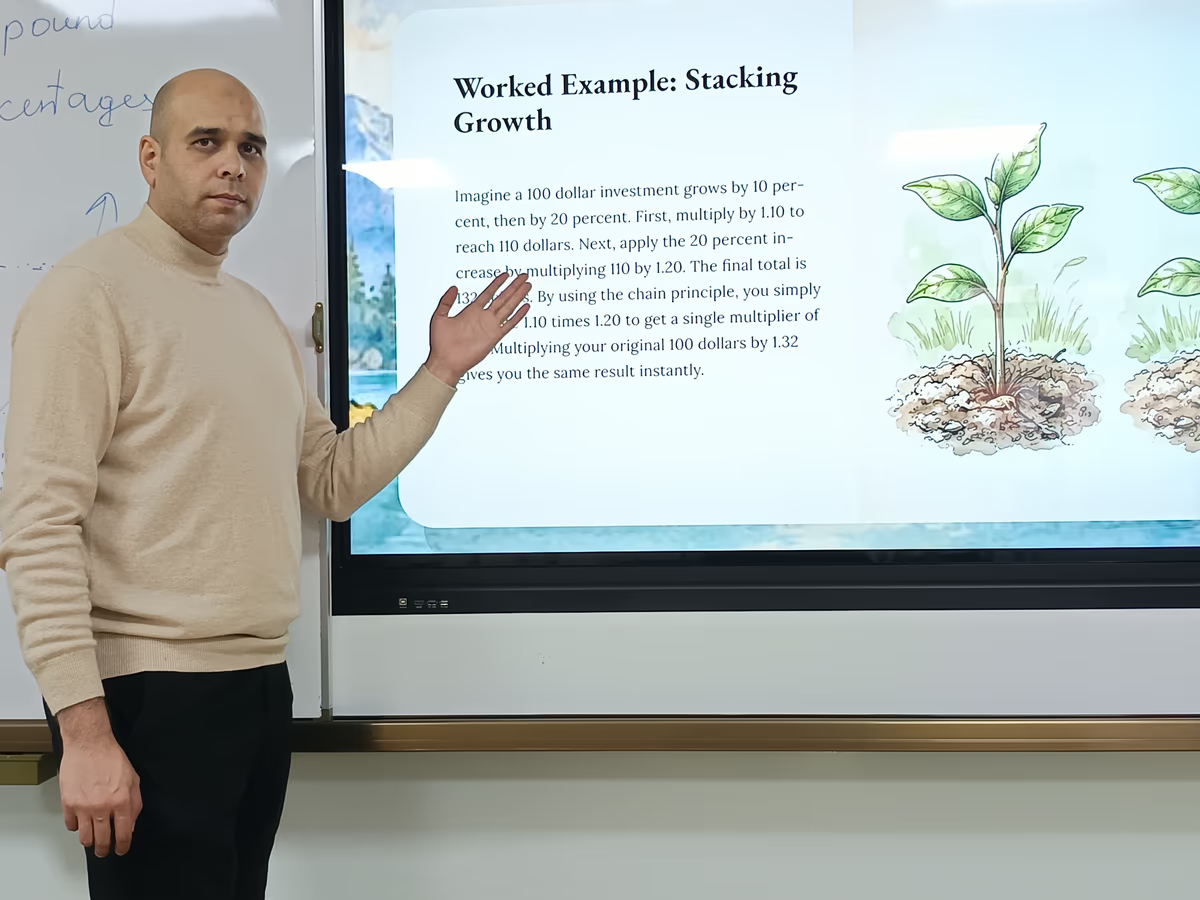
A doc-to-deck converter is a tool that turns documents, outlines, or notes into structured presentations automatically, handling the outline, layout, visuals, and design so you can move from raw content to a share-ready deck in minutes rather than hours.
Prezi AI is a full-featured doc-to-deck converter used by over 170 million people across 195 countries. It accepts typed prompts, pasted outlines, and uploaded files, generates a custom AI outline from your content, and produces a near-finished, fully designed presentation in seconds. This guide walks through the complete workflow (from preparing your source document through exporting your final deck) and compares Prezi's approach against Gamma, Beautiful.AI, and Alai.
Preparing Your Document for Conversion
Structured input produces a more accurate and on-point generated deck. Before uploading anything to a doc-to-deck converter, spend a few minutes organizing your source material.
Recommended preparation steps:
- Use a clear heading hierarchy. H1 for your presentation title, H2 for major sections, H3 for supporting sub-points. The AI maps your heading structure to slides and frames.
- Front-load audience and goal context. Add a line at the top of your document, such as: "Audience: Series A investors. Goal: secure $2M seed round." This guides the AI's tone, depth, and emphasis.
- Break long documents into focused sections. Each section should map to a distinct slide or frame. Dense walls of text split unpredictably.
Supported source formats: PPTX, PDF, DOCX, and plain text.
Rough bullet points work, but documents with headers and short paragraphs consistently produce better output. If you're starting from meeting notes, see how to turn meeting notes into a presentation using AI. You do not need a perfectly formatted outline before uploading. Prezi AI handles structuring, and the cleaner the input, the less editing you will do afterward.
Uploading Your Doc or Outline into Prezi
Prezi AI offers three input paths, and all three lead to the same AI-powered workflow:
- Typed prompt: Enter a topic or idea directly, for example, "Create a 10-slide pitch deck for a fintech startup targeting SMBs." See presentation prompt tips for guidance on writing effective prompts.
- Pasted content: Copy-paste an outline, meeting notes, or document text directly into the creation interface.
- File upload: Upload a DOCX, PDF, PPTX, or plain-text file.
Step-by-step upload flow:
- Choose "Start with PPTX, PDF, DOCX file" from the Prezi AI creation screen.
- Upload or paste your source content.
- Add audience, tone, and slide-count guidance to direct the output.
- Select "Create outline."
Prezi AI reads your content, extracts the key points, and generates a custom outline instantly. You can also specify the number of slides, the intended audience, and the tone (formal, conversational, or data-driven) before the outline is created. These parameters meaningfully shape what the AI produces.
Reviewing and Customizing the AI-Generated Outline
Editing the AI-generated outline before design begins is the highest-leverage step in the entire workflow. Changes made here cost seconds; the same changes made after full design generation cost minutes.
Prezi lets you review, rearrange, and edit the outline before any visual design is generated. Specific actions available at the outline stage:
- Review the section structure and narrative arc
- Customize section titles and talking points
- Reorder sections by dragging and dropping
- Delete sections that are not relevant
- Add talking points to sections the AI underweighted
Checklist before clicking Generate:
- [ ] Logical flow: does the outline follow a clear arc (problem, solution, proof, call to action)?
- [ ] Completeness: are all key points from your source document present?
- [ ] Slide count: does the outline length match your intended presentation length?
- [ ] Audience fit: does the depth and framing match who will see this?
Getting the outline right eliminates the need to restructure the deck later. Invest 2 to 3 minutes here.
Generating Visuals and Designing Your Presentation
Once you confirm the outline, Prezi AI generates content, images, and structure together while the deck builds in the background. You receive a near-finished draft, not a blank template waiting for your input.
What Prezi AI auto-generates:
| AI Auto-Generates | User Customizes |
|---|---|
| Layouts and frame structure | Branding, logos, fonts |
| Color palette | Specific image choices |
| Images and visual suggestions | Design style preference |
| Text content per frame | Tone and copy adjustments |
Prezi's visual capabilities include:
- Generates text and visuals based on your approved outline
- Suggests design elements, color palettes, and layouts
- Transforms content into flow charts, visual lists, and zooming stories
- Gives access to a library of 150 million visuals
The zoomable canvas arranges content spatially rather than in a flat, linear slide sequence. It is designed to create a dynamic, engaging flow that helps audiences follow complex narratives. Each "frame" in Prezi is the equivalent of a slide: a discrete content unit the presenter navigates to during delivery. Unlike traditional slide-based tools, Prezi's canvas lets you zoom into detail and pull back to context within a single presentation.
After the initial generation, you can customize style, images, branding, brand colors, logos, and fonts before your deck is finalized.
Refining Your Deck with Prezi's AI Chat Features
Prezi AI includes chat-based refinement, allowing you to make targeted edits through natural-language requests without manually reformatting slides.
Example chat prompts for refinement:
- "Make slide 3 more concise."
- "Add a data visualization to the market-size section."
- "Shorten the intro to two bullet points."
- "Add an image that represents market growth."
- "Simplify the language for a non-technical audience."
What chat-based refinement supports:
- Text refinement: lengthen, shorten, simplify, or adjust copy with one-click or conversational commands
- Structural changes: reorder frames, merge dense slides into multiple frames, or split content across sections
- Iterative improvement: test different phrasings, structures, and visual approaches without rebuilding the deck from scratch
The AI handles layout and structure while you stay in control of message and strategy. Prezi's AI workflow supports the entire process end-to-end, from initial generation through final polish. Users can edit text, reorder slides, and adjust design before presenting or sharing.
Exporting and Quality-Checking Your Final Presentation
Prezi supports PPT export for PowerPoint users. Before sharing, preview your exported file. Zooming, spatial layouts, and animated transitions may not translate 1:1 into a linear PowerPoint file. Dynamic canvas elements often flatten differently, and the cinematic experience is best preserved by sharing as a Prezi link.
Pre-share quality checklist:
- Open the exported PPTX in PowerPoint or Google Slides and click through every slide.
- Check that images, fonts, and colors render correctly.
- Verify that speaker notes transferred, if applicable.
- Confirm factual accuracy of all AI-generated text.
- Watch for hallucinated statistics or misattributed claims.
- Test any embedded links or media.
Final human review is non-negotiable for professional use. AI-generated text can be accurate, but it requires a subject-matter check before any presentation goes to an audience.
Sharing options:
- Share as an interactive Prezi link (preserves the zooming canvas experience)
- Embed in a web page or email
- Download as PDF
- Export as PPTX for PowerPoint-based workflows
How Prezi's AI-Powered Workflow Compares to Gamma, Beautiful.AI, and Alai
Several strong doc-to-deck tools exist, each optimized for a different workflow and output style.
| Feature | Prezi | Gamma | Beautiful.AI | Alai |
|---|---|---|---|---|
| Input types | Doc, outline, prompt, file upload | Prompt, document-style generation | Prompt, template-driven | Text-to-slide input |
| AI outline generation | Custom outline before design | Fast prompt-to-deck | Structured with design automation | AI-driven slide generation |
| Visual style | Zoomable canvas, spatial storytelling | Web-native, card-style | Linear, polished templates | Fast, simple AI slides |
| Design automation | Content, images, structure, layouts, color palette | Fast web-native creation | Strong design-rule enforcement | Speed-focused generation |
| Chat-based refinement | Yes | Limited | No dedicated chat interface | Yes |
| Export formats | PPTX, PDF, Prezi link | PDF, web link | PPT, PDF | PPT, PDF |
| Brand controls | Colors, logos, fonts, image library | Basic | Strong template and brand consistency | Basic |
| Ideal user | Cinematic storytelling, spatial flow | Quick shareable web documents | Design-consistent corporate decks | Fastest text-to-slide conversion |
Best for summary:
- Prezi: Presenters who prioritize engagement, cinematic flow, and spatial storytelling. Strongest when the presentation will be delivered live and the zooming canvas adds narrative power.
- Gamma: Quick, shareable web-native documents and internal decks. Best when the asset needs to behave like a shareable web page more than a live presentation.
- Beautiful.AI: Design-consistent, template-driven corporate presentations. Teams that want consistent, on-brand slides without design skills.
- Alai: Users who want the fastest, most streamlined text-to-slide conversion. Best when speed is the primary requirement.
Practical Tips for Efficient Doc-to-Deck Conversion with Prezi
- Start with your most structured document. Prezi AI performs best when source material has clear headings and logical section breaks.
- Front-load audience and goal context. Include this at the top of any pasted content or in the prompt itself.
- Edit the outline before generating design. This is the single highest-leverage step in the workflow.
- Use AI chat for iterative refinement. Treat each chat request as a focused edit, not a full regeneration.
- Always review AI-generated content for factual accuracy. AI can misattribute statistics or generate plausible-sounding but incorrect claims.
- Preview exports before sharing. Dynamic canvas elements may not carry over to PPTX with full fidelity.
- Leverage the 150M+ image library. Search for images that match your specific frame content before accepting the AI's default suggestions.
- Repurpose across formats. Share the same deck as a Prezi link for interactive viewing, as a PDF for async reading, or as a PPTX for collaborators in PowerPoint-heavy workflows.
Beginners can get a high-quality first draft quickly with Prezi AI. The outline stage is where experienced users invest most of their time, because a strong outline produces a stronger deck with less post-generation editing.
Frequently Asked Questions
How do I turn a document into a Prezi presentation? Go to the Prezi AI creation screen, select "Start with PPTX, PDF, DOCX file," upload your document, add audience and tone guidance, and select "Create outline." Prezi AI generates a custom outline from your content, which you can review and edit before the full deck is designed.
Can I upload a Word doc, PDF, or outline directly into Prezi? Yes. Prezi AI supports PPTX, PDF, DOCX, and plain-text uploads. You can also paste content directly or type a prompt instead of uploading a file.
What does Prezi AI do with my uploaded file? Prezi AI reads your file, extracts the key content and structure, and generates a custom outline. After you review and edit the outline, Prezi generates the full deck (including layouts, images, color palette, and frame structure) automatically.
Do I need a perfectly formatted outline before uploading? No. Rough bullet points work. Documents with clear headers and short paragraphs produce better output, but Prezi AI handles structuring from imperfect input. The outline review step lets you correct anything before design generation begins.
Can I edit the AI-generated outline before the deck is created? Yes. Prezi surfaces the AI-generated outline for your review before any visual design is generated. You can reorder, delete, customize, and add talking points at this stage.
How much time does converting a doc to a deck with Prezi save? Prezi AI can generate a fully designed presentation in seconds. Moving from a raw document to a near-finished deck takes minutes rather than hours. Most of the human time investment goes into reviewing the outline and refining content through AI chat.
What AI features does Prezi include in the doc-to-deck workflow? Prezi AI includes AI outline generation, content generation from uploaded files, AI-suggested structure and design, a 150M+ image library, chat-based refinement, and one-click text editing (lengthen, shorten, simplify).
Can I customize the design after Prezi generates the deck? Yes. After generation, you can customize style, images, branding, brand colors, logos, and fonts. Chat-based refinement lets you make structural changes, tone adjustments, and visual swaps through natural-language requests.
How is Prezi different from traditional slide-based tools like PowerPoint? Prezi uses a zoomable canvas that arranges content spatially rather than in a flat linear sequence. The canvas creates a dynamic, cinematic flow. Audiences can follow complex narratives across a spatial layout rather than clicking through sequential slides. The zooming experience is best preserved by sharing presentations via Prezi link.
Can I export my Prezi presentation to PowerPoint? Yes. Prezi supports PPT export. Preview the exported file before sharing. Zooming, spatial layouts, and animated transitions may flatten differently in a linear PowerPoint format. Share via Prezi link when the interactive canvas experience matters most.