TL;DR: Best AI Presentation Tool for Teachers (Short Answer)
Verdict: Prezi AI is the best AI presentation tool for teachers who need to build a full week of lesson decks fast.
Four reasons why:
- Speed. A complete, designed presentation generates in under 8 seconds from a prompt or an uploaded curriculum file, with images and slides streaming in together instead of one at a time.
- Works from what you already have. Upload a lesson plan, unit guide, or last year's slides (PDF, PPTX, or Word) directly into the chat, and Prezi AI uses that content as the source, not a generic starting point.
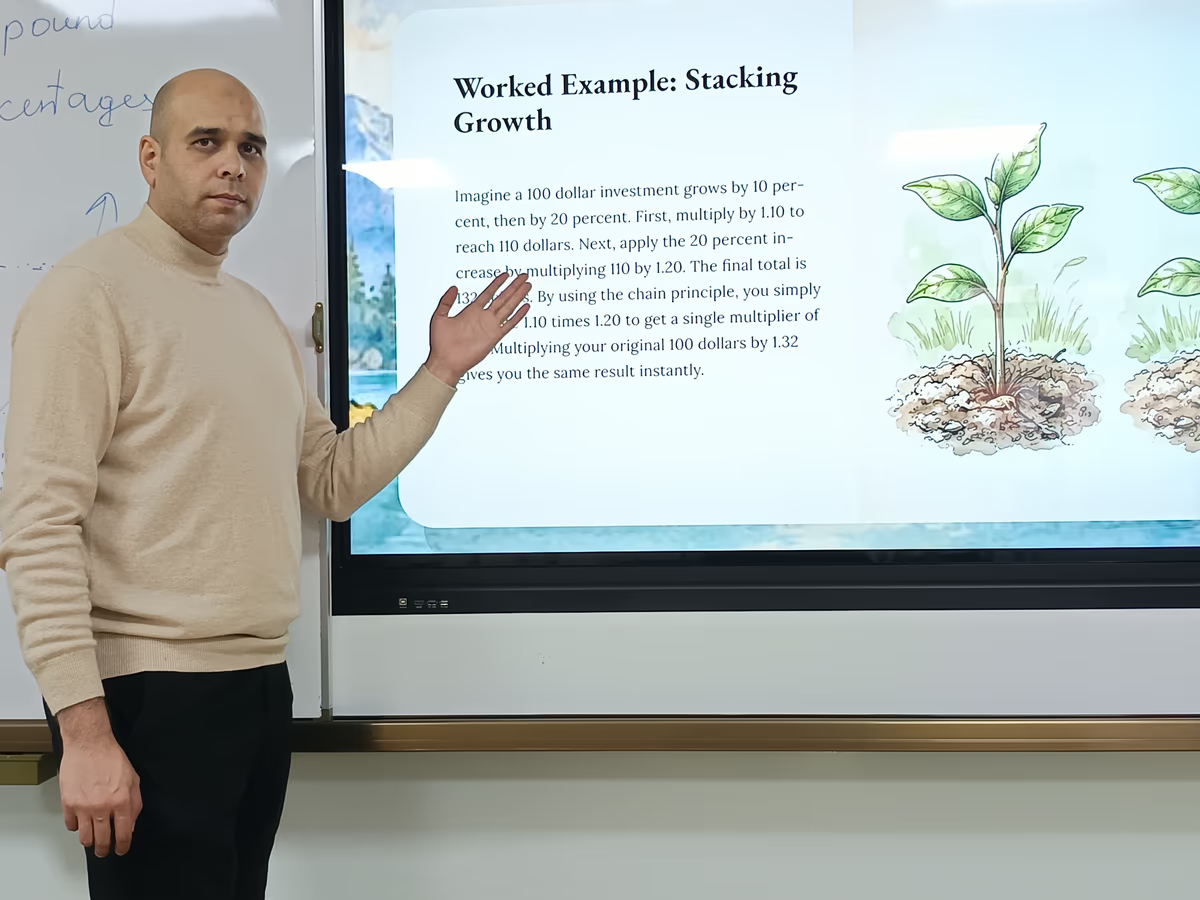
- Built for the classroom, not the boardroom. The spatial overview format reveals content progressively as you teach, which supports attention and retention better than a static, page-by-page slide deck (see the References section below).
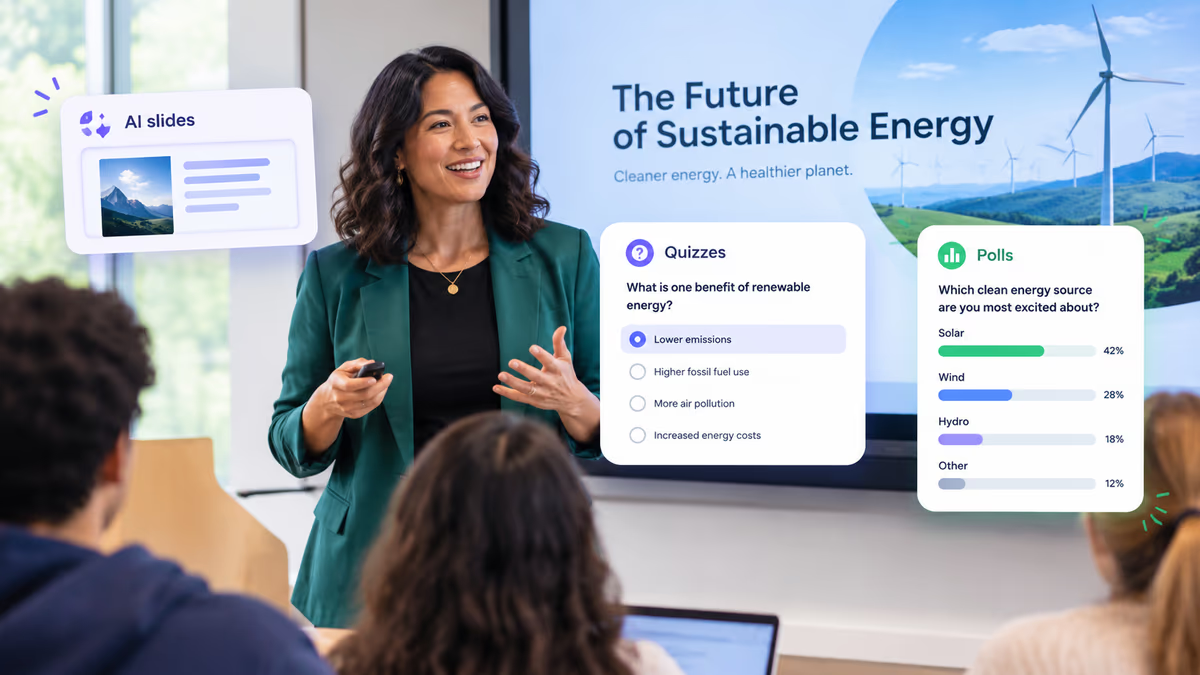
- Built-in classroom interactivity. Live polls, a quiz generated straight from your deck, and a word cloud for warm-ups mean a teacher doesn't need a second app to check for understanding mid-lesson.
Start now, in 3 steps:
- Upload your lesson plan, or type a prompt with your topic, grade, and objectives.
- Set the grade level and reading level (in the prompt or afterward, in chat).
- Refine with chat: ask for a simpler reading level, a new discussion slide, or a different visual, and see the change applied in seconds.
Key Facts: What Prezi AI Does for Teachers
- Generation time: Under 8 seconds from prompt or uploaded file to a fully designed presentation. This reflects Prezi's internal generation benchmarks as of July 2026, measured from submission to a fully rendered deck on a standard broadband connection; images generate in parallel rather than one after another, so slides are readable before every image finishes loading.
- Accepted file types: PDF, PPTX, and Word (.docx), attached directly in the chat or from the dashboard.
- Chat-based refinement: Available immediately after generation. Chat can rewrite text, adjust reading level, swap or regenerate images, add or remove slides, and apply a full re-theme. It is contextually aware of whichever slide or overview you're viewing. Chat cannot currently import a new source document mid-edit without re-attaching the file, and structural reordering is faster by drag-and-drop than by chat request.
- Free-to-start allowance: A free plan with AI credits and unlimited public presentations, no credit card required. Paid plans add expanded credits, private presentations, and PPTX/PDF export.
- Grade band support: K-5, middle school, and high school/AP, set through grade level and reading level in the prompt or adjusted afterward through chat.
- Designer themes: 16+ themes, including health/medical, paper cut-out, bento, and anatomica styles, each grounded in Prezi's design library rather than a generic layout. Prezi AI auto-selects a theme based on your content using semantic understanding, and you can override it manually at any time.
- Design foundation: Built on more than 15 years of presentation design work and a library of presentations created by Prezi's design team and its user base.
- Export options: Shareable link on all plans; PPTX and PDF export require a paid plan.
What Teachers Actually Need from an AI Presentation Tool
Before comparing tools, it's worth naming what a full week of lesson decks actually requires: five presentations, different topics, different objectives, and different visual approaches for different content types (concept explanation, group activity, assessment review, discussion prompt, media integration).
The criteria that matter:
Generation speed. A tool that takes 20 minutes per deck still takes two hours for five decks. Speed is not optional.
Content accuracy from curriculum inputs. The AI needs to work from what teachers already have: lesson plans, textbook excerpts, standards documents, prior-year slides. Generating from a blank prompt produces generic output; generating from an uploaded curriculum file produces something usable.
Adaptability by grade level and subject. A deck for AP Biology has different visual and language requirements than a deck for 5th grade social studies. The tool needs to respond to those parameters, not output one default look.
Minimal learning curve. Teachers aren't paid to learn new software. A tool needs to work in the first session, without training.
Attention-first design, grounded in learning science. This isn't just an aesthetic preference; it's a pedagogical one, and it's worth naming the research behind it directly:
- Reducing extraneous load. When a presentation reveals dense content piece by piece instead of all at once, it reduces the cognitive load that comes from students trying to process a full slide of information while also listening to the teacher. This is the segmenting and signaling principle described in research on multimedia learning (Mayer & Moreno, 2003).
- Dual coding. Presenting information through both visual and spatial structure, not just text, supports stronger retention than text alone, consistent with dual coding theory (Paivio, 1991).
- Pacing and engagement. Learners who experience information revealed under the presenter's control, rather than all at once, tend to show better retention and engagement than learners reading a fully exposed page (Mayer, 2009).
Prezi's spatial overview format (its "big-picture" layout, sometimes called the overview) is built around these three principles: content is arranged spatially, and the presentation reveals it progressively as the teacher guides the lesson, rather than exposing every slide's full content at once. If you're also exploring how AI presentation tools support content workflows beyond the classroom, our related piece on AI presentation tools for blog content creation covers similar ground.
References
- Mayer, R. E., & Moreno, R. (2003). Nine ways to reduce cognitive load in multimedia learning. Educational Psychologist, 38(1), 43-52.
- Mayer, R. E. (2009). Multimedia Learning (2nd ed.). Cambridge University Press.
- Paivio, A. (1991). Dual coding theory: Retrospect and current status. Canadian Journal of Psychology, 45(3), 255-287.
How Prezi AI Works for Lesson Deck Creation
Prezi AI generates a complete, designed presentation in under 8 seconds from a prompt or an uploaded file. For teachers, that means moving from "I know what I need to teach tomorrow" to "I have a ready deck to refine" in minutes, not hours.
Micro-steps, with what you'll actually see at each one:
- Type a prompt or attach a file, then click Generate. Include grade level, subject, objectives, and any required slide types.
- Watch the deck build. Slides and images stream in together; you'll be reading finished slides while later ones are still rendering. Within roughly 8 seconds, you'll have a full overview with a designer theme already applied.
- Open the overview and check the shape of the lesson. You'll see each slide represented spatially, in the order the AI built them.
- Ask chat for a specific change ("Simplify the language on slide 3 to a 5th grade reading level") and confirm it landed. Prezi highlights exactly what changed on the affected slide, so you can see the edit at a glance instead of hunting for it.
- Repeat for any other adjustment, then share the link or export.
Can I Upload Lesson Plans to Generate a Deck?
Yes. Attach a lesson plan, unit guide, textbook excerpt, or prior-year slides (PDF, PPTX, or Word) directly in the Prezi AI chat, or upload from the dashboard. Prezi AI reads the document and uses it as source material for a structured, designed presentation. This is the fastest path when you already have content prepared.
Three ways to start:
Option A: Type a prompt. Describe the lesson and include the specifics that shape the output: grade level, subject, learning objectives, number of slides, and tone.
Example, middle school science:
"Create an 8-slide lesson presentation on the water cycle for 7th grade science. Learning objectives: students understand evaporation, condensation, and precipitation. Include one interactive discussion slide and a visual summary. Tone: engaging, accessible."
Example, high school history:
"Create a 10-slide lesson on the causes of World War I for 10th grade history. Include a timeline slide, a slide on the alliance system, and a primary source discussion prompt. Tone: analytical but accessible."
Option B: Upload your curriculum document. Attach your lesson plan, unit guide, textbook chapter, or prior-year slides as a PDF, PPTX, or Word file. Prezi AI reads it and generates a structured presentation from that content.
Option C: Paste your notes. Paste a lesson outline or bullet-point content directly into the creation interface. Prezi AI generates structure and design from unformatted input.
Is There a Free Plan for Teachers?
Yes. Prezi AI offers a free plan with AI credits and unlimited public presentations, no credit card required. Teachers presenting to a classroom can use the free tier at no cost. Private presentations and PPTX/PDF export require a paid plan.
Does It Work for Elementary vs. AP Courses?
Yes. Include grade level and reading level in your prompt, and Prezi AI calibrates language and visual complexity accordingly. After generation, use chat to adjust further: "Simplify the language on slide 3 for a 5th grade reading level" or "Adjust the vocabulary throughout for an AP-level audience." See the Prompt Gallery below for ready-to-use starting points by grade band.
One Worked Example Per Grade Band
Each example below shows the same path: a prompt or uploaded excerpt, the auto-generated overview, two moments where the deck reveals information progressively, and a chat edit tied to a specific pedagogy principle.
K-5 Example: Life Cycles (3rd Grade Science)
Input: "Create a 6-slide lesson on the butterfly life cycle for 3rd grade science. Include a labeled diagram slide and a class discussion question. Reading level: 3rd grade. Tone: warm, visual, age-appropriate."
Overview: Prezi AI returns six slides arranged around a central diagram of the four life-cycle stages, with the discussion prompt and a review slide branching off it.
Two reveal moments: First, the overview opens on the full life cycle, then moves in close on the egg stage as the lesson begins, so students see one stage at a time instead of all four labeled at once. Second, it pulls back out to the full diagram for the review slide, letting students see the whole cycle again now that each part has been introduced.
Chat edit: "Simplify the vocabulary on slide 4 for a 3rd grade reading level" applied in seconds, replacing "metamorphosis" with "the change from caterpillar to butterfly" in the on-slide text. This reduces the reading burden on the exact slide where new vocabulary was introduced, consistent with reducing extraneous cognitive load (Mayer & Moreno, 2003).
Middle School Example: Causes of the American Revolution (8th Grade History)
Input: "Create a 9-slide lesson on the causes of the American Revolution for 8th grade history. Include a timeline slide, a cause-and-effect slide, and a primary source discussion prompt. Reading level: 8th grade. Tone: analytical but accessible."
Overview: The AI groups slides into three visual clusters: causes, key events, and consequences, connected along a timeline.
Two reveal moments: The lesson opens in close on 1765, then moves along the timeline toward 1775 as each cause is introduced, so students build the sequence rather than seeing every event listed at once. Later, the deck pulls back to show the full timeline alongside the primary source excerpt, letting students place that source in context.
Chat edit: "Add a discussion question slide after the timeline that asks students which cause they think mattered most" adds a new slide in the requested position without disturbing the rest of the deck. This supports the pacing and engagement research above (Mayer, 2009) by giving students a moment to process before moving to consequences.
AP Example: Cellular Respiration (AP Biology)
Input: "Create a 10-slide lesson on cellular respiration, glycolysis through the electron transport chain, for AP Biology. Include a process diagram slide, a data interpretation slide, and a free-response practice question slide. Tone: rigorous, precise. Reading level: college-prep."
Overview: The AI lays out the three stages of respiration as connected visual clusters, with the data interpretation and free-response slides attached at the end.
Two reveal moments: The presentation opens on the full mitochondrion diagram, then moves into the matrix to reveal glycolysis in detail, keeping the whole-to-part relationship visible even as students focus on one stage. It later pulls back out for the free-response question, so students can reference the complete pathway while answering.
Chat edit: "Break slide 6 into two slides, it has too much text for the electron transport chain" splits a dense slide into two, each carrying less information at once. This directly reduces extraneous load on the densest concept in the lesson (Mayer & Moreno, 2003).
Build Five Lesson Decks in ~30 Minutes: Step-by-Step Walkthrough
This walkthrough shows how to go from zero to five classroom-ready lesson decks. Timeboxed estimates below reflect typical use; your actual time will vary with how much refinement each lesson needs.
Step 1: Input your lesson content (under 1 minute per deck). Go to Prezi AI and choose prompt, upload, or paste. Include grade level, subject, tone, and required slide types in your prompt.
Step 2: Prezi AI generates a full presentation (under 8 seconds). Wait for generation to complete. You'll get a complete, designed presentation, not a blank starting point or rough draft, with an AI-selected theme matched to your subject and tone. If the theme isn't right, choose from 16+ themes manually.
Step 3: Edit and refine through chat (4-6 minutes per deck). Use chat for content changes:
- "Add a discussion question slide after slide 4."
- "Simplify the language on slide 6 for a 7th grade reading level."
- "Add a visual representation of the nitrogen cycle to slide 3."
- "Break slide 5 into two slides, it has too much text."
- "Add a slide at the end with three review questions."
- "Change the tone on slides 7 and 8 to be more conversational."
- "Generate a quiz from this deck for an exit ticket."
Use drag-and-drop in the slide timeline for structural moves (reordering slides); use chat for content changes.
Step 4: Repeat for each day's lesson (~5 minutes per deck after the first). Repeat Steps 1-3 for Tuesday through Friday. With a reusable prompt formula (see the Prompt Gallery below), each deck takes less time than the one before it.
Estimated timing across a full week:
| Day | Lesson Topic | Input Method | Generation Time | Refinement Time |
|---|---|---|---|---|
| Monday | Cell membrane structure | Upload last year's notes (PDF) | Under 8 seconds | ~5 minutes |
| Tuesday | Active vs. passive transport | Type prompt with objectives | Under 8 seconds | ~4 minutes |
| Wednesday | Lab introduction and procedures | Upload lab handout (Word) | Under 8 seconds | ~6 minutes |
| Thursday | Lab data analysis | Type prompt with data discussion questions | Under 8 seconds | ~5 minutes |
| Friday | Review and assessment prep | Paste unit review outline | Under 8 seconds | ~4 minutes |
Total active working time for five days of lesson presentations: roughly 25 to 35 minutes, depending on how much refinement each deck needs.
Why Prezi's Spatial Overview Changes How Students Learn
Most classroom presentations are built in linear slide tools: PowerPoint, Google Slides, Canva. One slide follows the next in a fixed sequence. Students read ahead, disengage, or lose the thread when a complex concept spans multiple slides with no visual connection between them.
Prezi's format works differently. Content is arranged spatially, and the presentation reveals it progressively as the teacher guides the lesson. This isn't only a visual preference; it reflects three specific findings from multimedia learning research (see References above):
Guided attention. When content is revealed progressively rather than shown all at once, students can't read ahead. Attention stays on what the teacher is currently discussing, which reduces the extraneous cognitive load that comes from a dense, fully visible slide (Mayer & Moreno, 2003).
Spatial memory. Students remember where information sits within the overview, not only what was on an individual slide. When concepts connect visually (pulling back from a single cell to show it inside an organism, or moving from a map into a specific historical event), students build associations that support retention, consistent with dual coding theory (Paivio, 1991).
Pacing and engagement. The progressive reveal creates a sense of momentum through the lesson rather than a series of disconnected clicks. Learners who experience controlled pacing, rather than full exposure to a page of text, show higher retention and report higher engagement (Mayer, 2009).
For teachers, this means the format of the presentation is doing pedagogical work, not just aesthetic work. It's a tool for managing attention, building understanding, and keeping students present across a 45- or 90-minute lesson.
Audience Engagement and Interactivity Features for the Classroom
Beyond the spatial, progressive-reveal format itself, Prezi AI includes a set of live-interaction tools built directly into presenting, so a teacher doesn't need a separate polling app or quiz platform running alongside the deck.
| Feature | What It Does | Classroom Use |
|---|---|---|
| Live polls | Run in-slide polls during a presentation and collect responses in real time, no third-party tool needed | Quick comprehension checks mid-lesson: "Which stage comes next in the cycle?" |
| Quiz generation from any deck | Ask Prezi AI to generate a quiz directly from your presentation's content, no manual question-writing | Turn today's lesson deck into an exit ticket or review quiz in seconds |
| Word cloud | Collect open-ended responses from students and watch common answers surface live as a word cloud | Warm-up or brainstorm prompts: "What do you already know about photosynthesis?" |
| Live audience view | See who's currently in the room with you in real time | Confirms which students have joined a shared or remote session |
| Pointer | An on-screen, classroom-style pointing stick for highlighting content during live delivery | Directs attention to a specific part of a diagram or map without a mouse cursor |
| Presenter mode with camera | A full presenter view with notes, a camera overlay of the teacher, and a polished presenter header | Useful for recorded lessons or hybrid/remote instruction |
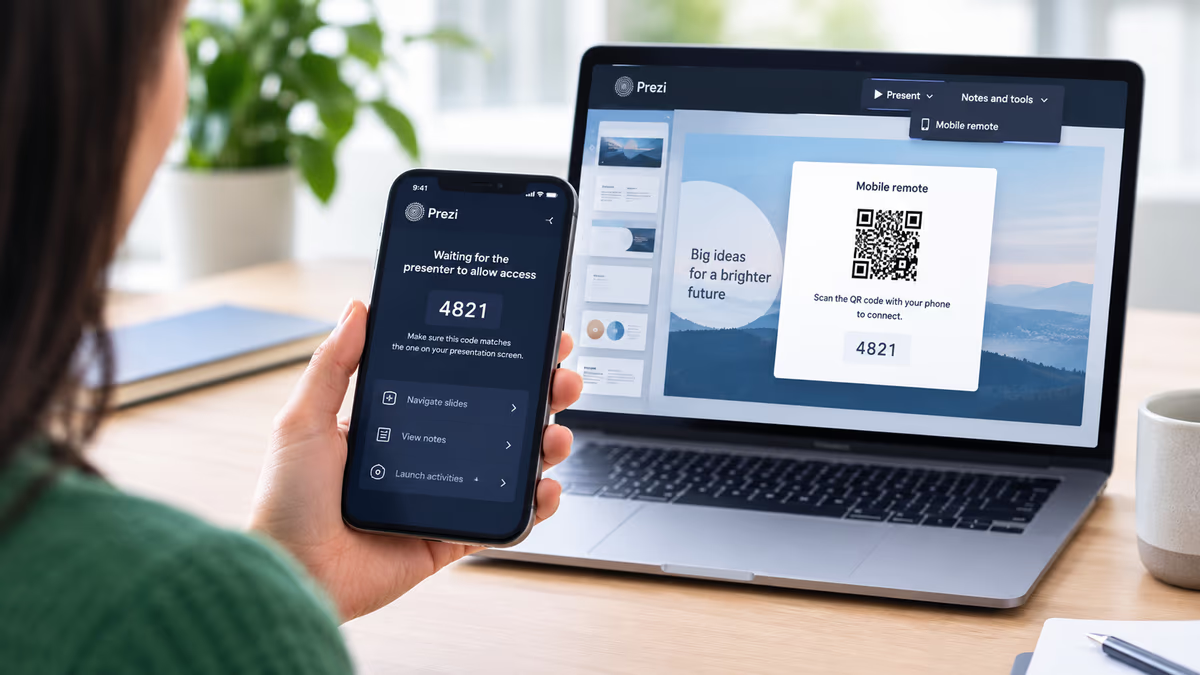
| QR codes | QR codes appear automatically in presentation and share views | Students scan to join a poll or open the shared deck from their own device, no typed link needed |
| Narrated video export | Generate a narrated video version of a deck, with an editable script and adjustable length | Assign as self-paced review, or send to a student who missed class |
Where this fits in a lesson: a teacher can drop a live poll or word cloud into the deck as a comprehension check between sections, use the pointer during live delivery to walk through a diagram, and generate a quiz from the same deck at the end of class, without leaving Prezi or opening a second tool.
| Feature | What It Does | Why It Matters for Teaching |
|---|---|---|
| Prompt-to-deck in under 8 seconds | A full designed presentation from a description or uploaded file, with slides and images streaming in together | Turns lesson prep from hours to minutes |
| File attachment (PDF, PPTX, Word) | Generate or edit from existing curriculum documents, attached directly in chat | Builds on what you already have instead of starting from scratch |
| AI-selected designer theme | Automatically matches visual style to your content and tone using semantic understanding | Subject-appropriate design from the first generation |
| 16+ designer themes | Manual theme selection if you want a different visual direction | Full control over how your lesson looks |
| Chat-based refinement | Adjust any slide through plain-language requests; edits highlight directly on the affected slide | Adapts the AI's output to your specific students and content |
| Editable overviews | Click directly into the spatial overview to edit content inline, move elements, and resize | Fast structural edits without leaving the big-picture view |
| Timeline drag-to-reorder | Drag slide thumbnails to reorder the deck visually | Fast structural edits without going through chat |
| Version history | Browse and restore earlier versions of a presentation from the chat panel | Undo an edit that didn't work without starting over |
| Presenter notes | AI generates notes for all slides at once; notes are editable | Built-in talking points for new or complex material |
| Inline layout options | Click Edit on any slide to see three alternative layouts, or request fresh ones | Quick visual fixes without a full re-generation |
| Charts | Generate data visualizations from structured input and embed them automatically | Turns quiz results, lab data, or survey numbers into a slide without a separate tool |
| Stop, retry, resume | Stop in-flight generation, retry it, or pick back up if your connection drops mid-generation | No lost work if you're building a deck between classes on a spotty connection |
| Mobile creation | Build a full presentation end-to-end on a phone, prompt only, with gesture controls for editing | Draft or tweak tomorrow's deck from your phone during a prep period |
| Viewer analytics | See who viewed a shared deck, when, and for how long | Useful for flipped-classroom or asynchronous assignments |
| Narrated video export | Generate a narrated video version of a deck, with voiceover and reveal transitions | Supports absent students or self-paced review |
| Grade band customization | Set grade level and reading level in the prompt or through chat | Produces differentiated output for K-5 through AP |
| Global language support | Generates in any language supported by the underlying model, detected automatically from your prompt | Supports multilingual classrooms and ELL instruction |
| Saved brand / Your Designer | Save a school or district's colors, fonts, and logo once (from a URL or direct upload) so every generated deck stays on-brand; districts on a Teams plan can set up a designer trained on their own brand | Keeps every teacher's decks consistent with school branding without manual formatting |
| SOC 2 compliant | Enterprise-grade data security | Appropriate for school and district data environments |
How Prezi AI Compares to Other Tools Teachers Use
Comparison criteria and weighting, in order of importance for a teacher building a week of lesson decks:
- Generation speed (30%): time from input to a usable deck.
- Curriculum-file fidelity (25%): how well the tool builds from an uploaded lesson plan or document, rather than generic prompts alone.
- Grade-level adaptation (20%): whether language and visuals adjust to K-5 through AP.
- Classroom engagement format (15%): whether the presentation format itself supports attention and retention, not just clean design.
- Cost to start (10%): whether a usable free tier exists without a credit card.
| Tool | Generation Speed | Curriculum-File Fidelity | Grade-Level Adaptation | Classroom Engagement | Cost to Start |
|---|---|---|---|---|---|
| Prezi AI | Under 8 seconds from prompt or file | High: reads PDF, PPTX, and Word directly as source content | High: grade and reading level set in prompt or chat | High: spatial, progressive-reveal format grounded in multimedia learning research | Free plan, no credit card |
| Gamma | Fast first draft | Moderate: supports upload, but editing after generation is more limited | Low to moderate: no dedicated grade-level parameter | Moderate: clean, but a linear format | Free tier, but shared links carry a watermark |
| Canva | Pre-built layouts, not prompt-driven | Low: no AI-driven curriculum upload to deck | Low: general-purpose design tool, not education-specific | Low to moderate: design-first, not built for a progressive-reveal classroom format | Free, but not AI-focused |
| Google Slides + Gemini | Varies by workspace tier | Low to moderate: limited document-to-deck generation | Low: no grade-level adaptation | Low: standard linear slides | Requires a paid Workspace subscription |
| PowerPoint + Copilot | Varies | Moderate: can generate from a document, less refinement afterward | Low: no grade-level adaptation | Low: standard linear slides | Requires an M365 subscription |
| MagicSchool AI | Not a presentation tool | N/A | High for curriculum content, not for slide design | N/A: generates lesson plans and rubrics, not decks | Free tier |
When to choose each tool:
- Choose Prezi AI when you need a classroom-ready presentation fast, want to generate from existing curriculum files, or need a format that supports student attention better than static slides.
- Choose Gamma when you want a clean, linear design and don't need a progressive-reveal format.
- Choose Canva when the deliverable is a visual asset (a poster, infographic, or social graphic) rather than a classroom presentation.
- Choose Google Slides + Gemini when your school is fully on Google Workspace for Education and you need collaboration inside existing tools.
- Choose PowerPoint + Copilot when your district is M365-dependent and PPTX export is required by policy.
- Use MagicSchool AI alongside Prezi AI: MagicSchool AI is built for curriculum content generation (lesson plans, rubrics, assessments). Attach that output to Prezi AI to turn it into a classroom-ready presentation.
Prompt Gallery
Copy any of the following prompt formulas, fill in the labeled slots, and paste directly into Prezi AI. Each one is structured to produce a classroom-ready deck on the first generation.
K-5
Science: "Create a [NUMBER]-slide lesson presentation on [TOPIC] for [GRADE] grade science. Learning objectives: [OBJECTIVE 1], [OBJECTIVE 2]. Include one slide with a labeled diagram and one slide with a class discussion question. Reading level: [GRADE-APPROPRIATE, e.g., 2nd grade]. Tone: warm, visual, age-appropriate."
ELA: "Create a [NUMBER]-slide read-aloud lesson for [GRADE] grade ELA on the book [BOOK TITLE]. Include a vocabulary slide with 3 words, a story-sequence slide, and a reflection question. Reading level: [GRADE-APPROPRIATE]. Tone: engaging, accessible, encouraging."
Social Studies: "Create a [NUMBER]-slide lesson on [TOPIC, e.g., 'community helpers'] for [GRADE] grade social studies. Include a real-world examples slide and a class discussion prompt. Tone: friendly, visual. Reading level: [GRADE-APPROPRIATE]."
Middle School
Science: "Create a [NUMBER]-slide lesson presentation on [TOPIC] for [GRADE] grade science. Learning objectives: [OBJECTIVE 1], [OBJECTIVE 2], [OBJECTIVE 3]. Include: one labeled diagram slide, one compare/contrast slide, one discussion prompt. Reading level: [GRADE] grade. Tone: engaging, accessible."
History: "Create a [NUMBER]-slide lesson on [TOPIC] for [GRADE] grade history. Include a timeline slide, a cause-and-effect slide, and a primary source discussion prompt. Reading level: [GRADE] grade. Tone: analytical but accessible."
ELA: "Create a [NUMBER]-slide lesson on [LITERARY DEVICE or TEXT, e.g., 'figurative language in poetry'] for [GRADE] grade ELA. Include 2 example slides with mentor text, 1 practice slide with a sentence frame, and 1 exit-ticket question. Tone: clear, structured. Reading level: [GRADE] grade."
Lab safety briefing: "Create a [NUMBER]-slide lab safety briefing for [GRADE] grade science, covering [EQUIPMENT/PROCEDURE, e.g., 'Bunsen burner use']. Include a hazards slide, a step-by-step procedure slide, and a comprehension check question aligned to [STANDARD, e.g., NGSS]. Tone: clear, direct. Reading level: [GRADE] grade."
High School / AP
Science: "Create a [NUMBER]-slide lesson on [TOPIC, e.g., 'cellular respiration, glycolysis through the electron transport chain'] for [AP/Honors/GRADE]-level biology. Include: a process diagram slide, a data interpretation slide, a free-response practice question slide. Tone: rigorous, precise. Reading level: college-prep."
History: "Create a [NUMBER]-slide lesson on [TOPIC] for [AP/GRADE]-level [U.S./World/European] history. Include a cause-and-effect analysis slide, a primary source discussion prompt with scaffolded questions, and a DBQ-style argumentative framework slide. Tone: analytical. Reading level: AP-appropriate."
AP Language and Composition: "Create a [NUMBER]-slide lesson on [TOPIC, e.g., 'rhetorical analysis, ethos, pathos, and logos'] for AP Language and Composition. Include 1 definition slide, 2 annotated example slides, 1 rhetorical-triangle visual, and 1 practice prompt. Tone: precise, analytical. Reading level: AP."
Introduce a new concept: "Create a [NUMBER]-slide lesson introducing [CONCEPT] to [GRADE]-level students for the first time. Include an activating-prior-knowledge slide, a core explanation slide, one worked example, and one formative check aligned to [OBJECTIVE/STANDARD]. Tone: clear, scaffolded. Reading level: [GRADE]."
Primary source analysis: "Create a [NUMBER]-slide lesson analyzing [PRIMARY SOURCE, e.g., 'the Zimmermann Telegram'] for [GRADE]-level [SUBJECT]. Include a context slide, an annotated excerpt slide, and a guided-question slide aligned to [STANDARD]. Tone: analytical. Reading level: [GRADE]."
Tips for Getting the Most Out of Prezi AI for Lesson Planning
- Build a prompt formula for your subject and grade level. Include grade, subject, tone, reading level, and required slide types (discussion prompt, visual summary, review questions), then reuse it every week with the topic swapped in.
- Upload unit guides at the start of each unit. A single upload of a unit plan can seed multiple lesson decks. Attach it once, generate from it all week.
- Let Prezi AI choose the theme first. Its automatic selection is based on your content. Accept it if it fits, or choose a different theme from the 16+ options if you want a different tone.
- Use chat to adapt for different student needs. "Simplify language to a 6th grade reading level," "Add a visual for ELL students," or "Include a scaffolded sentence starter on slide 4" all take effect in seconds.
- Use the spatial overview for live delivery, not printed handouts. The progressive reveal is what makes the format effective for student attention. Share the presentation link in class to preserve the full overview experience.
- Save presenter notes. Prezi AI generates notes for all slides at once, useful as a ready-made talking-points guide for content you're teaching for the first time.
- Drag to reorder, chat to rewrite. Use the timeline for structural moves and chat for content changes; choose whichever is faster for a given edit.
- Update existing presentations with a new upload. Attach an existing PPTX or PDF and generate an updated version from that source, then use chat to make targeted content updates without rebuilding the whole deck.
Glossary
Spatial overview. Prezi's presentation format, in which content is arranged across a large layout and revealed progressively rather than page by page. Unlike a linear slide deck, it guides student attention and limits the ability to read ahead.
Chat-based refinement. The AI-powered editing panel that stays active after a presentation is generated. Type plain-language requests ("simplify this slide," "add a discussion question after slide 3") and Prezi applies the change immediately, with the edit highlighted on the affected slide.
Designer theme. A pre-built visual style applied to a Prezi AI presentation, covering typography, color palette, layout structure, and image treatment. Prezi AI auto-selects the theme that best matches your content and tone; teachers can choose from 16+ themes manually.
AI credits. The unit of usage that counts toward Prezi AI's free plan allowance. Each AI-generated presentation uses credits from the free plan total; chat edits after generation don't consume additional credits.
SOC 2 compliant. A security certification indicating that Prezi AI meets standards for data security, availability, and confidentiality relevant to schools and districts with data governance requirements.
Grade band. The grouping of grade levels used in this guide: K-5 (elementary), middle school (grades 6-8), and high school/AP (grades 9-12). Prezi AI accepts grade-level input in the prompt and adjusts language complexity and visual style accordingly.
Frequently Asked Questions
What is the best AI presentation tool for teachers who need to build lesson decks fast? Prezi AI generates a complete, designed lesson presentation in under 8 seconds from a prompt or an uploaded curriculum document. Its spatial overview format is built for classroom engagement, guiding student attention through a progressive reveal rather than static, fully visible slides. For teachers building a full week of lesson decks, fast generation, an AI-selected theme, and chat-based refinement bring a multi-hour design task down to roughly 25 to 35 minutes of active work.
Can I upload lesson plans to generate a deck? Yes. Attach a PDF, PPTX, or Word file directly in chat, or upload from the dashboard. Upload a lesson plan, unit guide, textbook excerpt, or prior-year slides, and Prezi AI generates a structured, designed presentation from that content in under 8 seconds.
How fast can I build five lesson decks? With a reusable prompt formula and uploaded curriculum documents, five lesson presentations typically take 25 to 35 minutes of active work. Generation is under 8 seconds per deck; chat refinement usually takes 4 to 6 minutes per deck, depending on how much adjustment is needed.
Is there a free plan for teachers? Yes. Prezi AI's free plan includes AI credits and unlimited public presentations, no credit card required. Teachers presenting to students in a classroom can use the free tier at no cost. Private presentations and PPTX/PDF export require a paid plan.
Does it work for elementary vs. AP courses? Yes. Include grade level and reading level in your prompt, and Prezi AI calibrates language complexity and visual style accordingly. After generation, refine further through chat: "Simplify the language on slide 3 for a 5th grade reading level" or "Adjust the vocabulary throughout for an AP-level audience."
How does Prezi AI choose the visual style for my lesson? Prezi AI automatically selects the theme that best matches your lesson's content and tone, using semantic understanding rather than a fixed rule, in the same under-8-second generation step. A science lesson gets a different visual treatment than a history or literature lesson. If the auto-selected theme doesn't fit, choose from 16+ themes manually at any point.
How do I edit the presentation after it's generated? Two ways. Use chat to make plain-language requests: restructure slides, adjust reading level, swap images, or add and remove content, with each edit highlighted on the slide it changed. Or drag slide thumbnails in the timeline to reorder manually. Both work; use whichever is faster for the specific change.
Does the spatial overview format actually improve student engagement? The progressive reveal is designed around three specific findings from multimedia learning research: reducing extraneous cognitive load through segmented content (Mayer & Moreno, 2003), supporting retention through visual and spatial encoding (Paivio, 1991), and improving engagement through presenter-controlled pacing (Mayer, 2009). See the References section above for full citations.
Can I use Prezi AI to update existing presentations when curriculum changes? Yes. Attach your existing PPTX or PDF and Prezi AI generates an updated version from that source. Use chat to make targeted content updates without rebuilding the entire deck.
What happens to student and lesson data I upload? When Prezi AI is used by a school or district, Prezi acts as a "school official" under FERPA and processes education records only for the educational purposes authorized by that school's agreement. Prezi also states that it does not use or share personal student information for marketing or advertising, and complies with COPPA for users under 13. For the full policy, see Prezi's privacy policy, and check with your school or district's own data-use agreement before uploading anything containing student-identifiable information.
Can I present offline, or without an internet connection? Live presenting and further chat editing require an internet connection, since generation and refinement run through Prezi AI's servers. For fully offline delivery, export a generated deck to PPTX or PDF (available on paid plans) ahead of time.
What's the difference between free and paid exports? On the free plan, you can share a presentation link and present live from it. PPTX and PDF export, along with private (non-public) presentations, require a paid plan. Shared links on the free plan do not carry a watermark.
Is Prezi AI accessible for students with motion sensitivity or using assistive technology? If a student has motion sensitivity, present with the reveal transitions minimized or export to a static PPTX/PDF instead of using the live spatial format. For screen reader and captioning needs, check Prezi's current accessibility documentation, since support varies by presentation mode (live delivery, shared link, and exported file).
Can students interact with the presentation live, or is it just something I present to them? Both. Beyond the progressive-reveal format itself, Prezi AI supports live polls and a word cloud you can drop into any point in a lesson to collect real-time responses, a live view of who's currently in the session, and a quiz generated automatically from your own deck's content for an exit ticket or review. Students join a poll or the shared deck by scanning the QR code that appears automatically in presentation and share views, no typed link required.
Can other teachers or a co-teacher edit the same deck? Yes, on Teams plans. Shared presentations appear on each collaborator's dashboard, and an editing lock prevents two people from overwriting the same deck at once. On individual free or paid plans, sharing is view-only through the presentation link.
Presentations created by AI, designed for you
Create a custom presentation in seconds with Prezi AI. No design skills needed.