TL;DR
What is AI chat-based deck refinement? The process of creating, editing, and improving presentation slides through natural language conversation with an AI assistant — adjusting structure, wording, visuals, and flow by typing prompts instead of manually rebuilding slides.
Prezi's 4-step workflow:
- Prompt or upload — write a prompt or import a PPTX, PDF, or DOCX file
- Generate — Prezi AI builds a fully designed deck in under 8 seconds
- Review — scan slides, layout, and structure in the slide panel
- Refine — edit through the AI chat sidebar at any time after generation
Who this is for: Pitch creators, sales teams, educators, and comms teams who need fast, polished presentations without manual design work.
Why Prezi vs. Gamma, Beautiful.AI, or Alai: Prezi is the only tool with a cinematic dynamic canvas, post-generation chat editing at the slide level, and AI Analytics that tracks viewer engagement after sharing.
What Is AI Chat-Based Deck Refinement?
AI chat-based deck refinement shifts the user's job from manual slide rebuilding to strategic review. The AI handles structure, formatting, and first-pass design, while the human refines the story, accuracy, emphasis, and delivery.
Prezi supports this workflow through four stages: Prompt or upload → Generate → Review → Refine through chat. At each post-generation stage, the AI makes changes you can accept, modify, or regenerate through natural language.
Users across industries report that this approach directly solves one of the most common presentation challenges: the blank-page problem. One G2 reviewer, a freelance consultant, described it this way: Prezi's AI feature helped with the blank-page problem by generating a structured outline and initial visual layout from a topic or a few rough ideas, saving roughly 2 to 3 hours per presentation. (Jack O., G2, May 2026)
Preparing Your Prompt for AI Deck Refinement
The prompt is the most important input for deck quality. Prezi recommends including five elements:
| Element | Example |
|---|---|
| Audience | C-suite executives, students, prospective clients |
| Goal | Persuade, educate, report |
| Length | Number of slides |
| Tone | Formal, conversational, data-driven |
| Must-have content | Data points, comparison slides, CTAs |
Prompt preparation checklist:
- Define your audience before writing anything else
- State your goal explicitly: persuade, educate, or report
- Specify slide count or expected length
- Name the tone: formal, conversational, or data-driven
- List specific content that must appear (stats, comparisons, CTAs)
Brand setup before generating: Click "Add your style or brand" and paste your website URL or upload a logo. Prezi AI extracts your colors, fonts, and logo and applies them from the first generation. Saved brands persist across sessions.
File import alternative: Upload a PPTX, PDF, or DOCX file as a starting point when refining an existing deck. Click the + button in the prompt interface and select "Add files."
Copyable example prompt:
"Create a 10-slide presentation for [audience] about [topic]. The goal is to [persuade/educate/report]. Use a [formal/conversational/data-driven] tone. Include benefits, a comparison slide, and a strong call to action."
Prezi also lets users upload PPTX, PDF, or DOCX files as an alternative starting point, useful when refining an existing deck rather than building from scratch. Click the + button in the prompt interface and select Add files.
Set your brand before generating: Use Add your style or brand to paste your website URL or upload a logo. Prezi AI extracts your colors, fonts, and logo and applies them from the first generation. Saved brands persist across sessions.
Prompt Templates
Base template (copy and customize)
"Create a [NUMBER]-slide presentation for [AUDIENCE] about [TOPIC]. The goal is to [persuade / educate / report]. Use a [formal / conversational / data-driven] tone. Include [MUST-HAVE ELEMENT 1], [MUST-HAVE ELEMENT 2], and a strong call to action."
Micro-templates by use case
Pitch deck (10-12 slides, formal tone)
"Create a 10-slide investor pitch for [COMPANY NAME] targeting [INVESTOR TYPE]. Goal: persuade. Tone: formal and data-driven. Include the problem, solution, market size ([MARKET SIZE]), traction ([KEY METRIC]), team, and ask."
Lesson plan (8-10 slides, conversational tone)
"Create an 8-slide lesson for [GRADE LEVEL / AUDIENCE] on [TOPIC]. Goal: educate. Tone: conversational. Include a learning objective, 3-4 key concepts, a worked example, and a summary quiz."
Business report (6-8 slides, data-driven tone)
"Create a 6-slide quarterly update for [STAKEHOLDER TYPE] on [DEPARTMENT / PROJECT]. Goal: report. Tone: formal. Include KPIs ([METRIC 1], [METRIC 2]), risks, wins, and next steps."
Conference talk (12-15 slides, conversational tone)
"Create a 12-slide conference presentation for [AUDIENCE] on [TOPIC]. Goal: educate and persuade. Tone: conversational. Include a strong hook, 3 key insights, supporting data, and a memorable close."
Sales deck (8-10 slides, persuasive tone)
"Create a 9-slide sales deck for [PROSPECT TYPE] in [INDUSTRY]. Goal: persuade. Tone: confident and benefits-led. Include the problem we solve, 3 differentiators, a customer outcome, pricing overview, and CTA."
Generating the Initial Deck with Prezi AI
How to generate your first deck — step by step:
- Go to prezi.com/ai and sign in or start free
- Add your brand: click "Add your style or brand," paste your website URL or upload a logo
- Type your prompt or click + to upload a PPTX, PDF, or DOCX file
- Select or let Prezi AI auto-select from 16+ designer themes
- Click Generate — your full deck is ready in under 8 seconds
- Review the slide panel on the left for structural gaps
- Open the AI chat sidebar to start refining
What gets generated automatically:
- Slide content structured around your prompt or uploaded document
- Layouts and backgrounds tailored to your selected designer theme
- Custom images for every slide, based on your content
- Presenter notes for all slides at once
- A cinematic dynamic canvas with a backdrop tailored to your presentation's content
Prezi AI automatically selects the best designer theme based on your prompt. You can also choose from 16+ designer themes, each built on Prezi's 15+ years of expertise and a training library drawn from over 170 million users and 500 million presentations.
Verified users on G2 consistently highlight speed and design quality as standout outcomes. One reviewer noted that the AI allowed ideas to be transformed into presentations almost instantly, and particularly valued the quick conversion of PowerPoint presentations to Prezi style, which saved significant preparation work. (Mario Alfredo C., G2, May 2026)
Generation speed reflects current platform performance as of June 2026. User and presentation counts sourced from Prezi product documentation, 2026.
Iteratively Refining Slide Content Through AI Chat
After Prezi AI generates a deck, the AI chat sidebar stays active. The AI knows which slide you are currently viewing, so every edit is contextually aware.
How to refine through chat:
- Click the slide you want to edit in the slide panel
- Type your instruction in the AI chat sidebar
- Review the AI's change — accept, modify, or ask for a different version
- Repeat across slides until the deck matches your intent
- Use drag-and-drop in the timeline to reorder slides without chat
For images: click "Edit images" on any slide to see the current image prompt and choose to regenerate or replace it.
For layouts: click "Edit" on any slide to see Compact, Airy, or Restructured variants. Select one or click "Suggest new" for fresh alternatives.
If generation misses the mark entirely: use the Stop button to halt in-flight generation, then retry with a more specific prompt.
Prompt Cheatsheet
Use these exact prompts in the Prezi AI chat sidebar after generation. Each produces a deterministic, targeted result.
Update
Rewrite the headline on this slide— Replaces headline with AI-generated alternative in contextUpdate the body copy to focus on ROI— Rewrites body copy around a specific theme
Condense
Make this slide more concise— Reduces word count while preserving key pointsCut this to three bullet points— Compresses content to exactly three bullets
Convert
Turn this paragraph into bullet points— Reformats dense text into a scannable listConvert these bullets into a short paragraph— Merges bullets into flowing prose
Tone
Make this more formal— Adjusts language register to professional/executiveMake this more conversational— Lightens tone for accessible audiences
Expand
Add more detail about [TOPIC]— Deepens a thin section with relevant contentAdd a slide about competitive positioning— Inserts a new slide with generated content
Retheme
Try a different visual style— Applies a different designer theme to the full deckApply a bold, minimal look— Prompts AI to select a high-contrast, low-text theme
Generate notes
Write speaker notes for this slide— Creates presenter-facing guidance for the current slideGenerate speaker notes for all slides— Produces notes for the full deck at once
Worked Examples
Example 1: Before/After single-slide refinement
Starting slide (AI-generated):
Headline: "Our Platform Has Advanced Features" Body: "The platform includes many tools that help users be more productive and efficient in their daily workflows."
Prompt sent in chat:
"Rewrite the headline to be benefit-led and specific. Make the body copy one punchy sentence focused on time saved."
Result:
Headline: "Cut Presentation Prep from Hours to Under 8 Seconds" Body: "Prezi AI generates a fully designed deck — images, notes, and layouts included — from a single prompt."
Example 2: Mini end-to-end case (5-slide sales pitch)
Step 1 — Prompt:
"Create a 5-slide sales deck for SaaS buyers in the HR tech space. Goal: persuade. Tone: confident. Include the problem HR teams face with onboarding decks, how Prezi AI solves it, one customer outcome, and a CTA to start free."
Step 2 — Generation: Prezi AI produces 5 slides with custom images, a designer theme, and presenter notes in under 8 seconds.
Step 3 — Review: Slide 3 (customer outcome) is too vague.
Chat prompt: Make slide 3 more specific — add a stat about time saved and make the headline a direct quote format.
Result: Slide 3 updated with a specific outcome metric and a pull-quote-style headline.
Step 4 — Flow adjustment: Drag slide 5 (CTA) to the end after reordering slide 4.
Step 5 — Export: Download as PDF for async sharing, or enable the narrated video for a cinematic walkthrough with voiceover.
Applying AI-Driven Design and Visual Style
Prezi AI selects designer themes based on your content using semantic understanding. You can accept the auto-selected theme, choose from 16+ options, or request a retheme through the chat sidebar at any point.
Each designer theme draws from a training library built by over 170 million users and 500 million presentations — including styles like Bento Grid, SaaS Pitch Deck, Scrapbook, Magazine, Bold Editorial, Paper Blanc, Forest, History, and others.
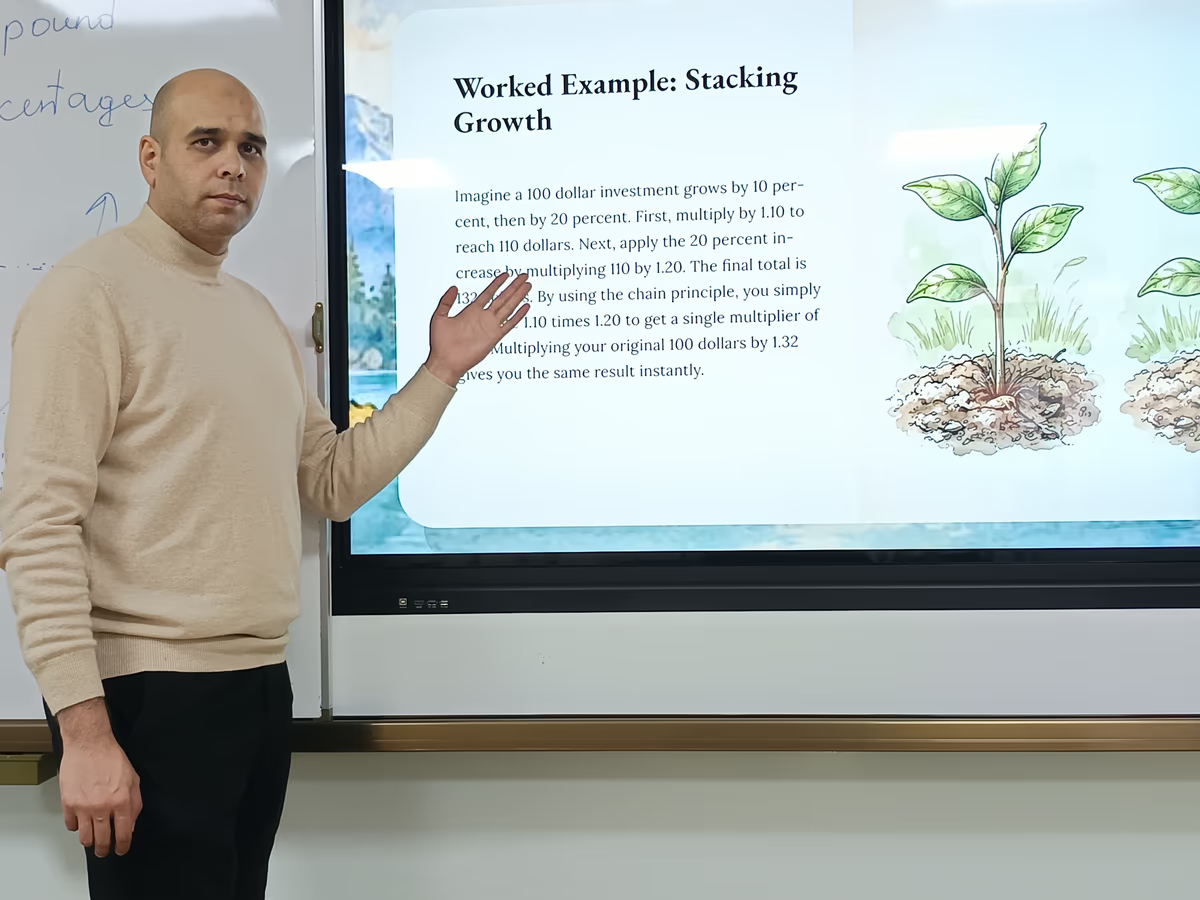
The cinematic dynamic canvas generates a backdrop tailored to your presentation's content — mountains, timelines, landscapes, and other visual contexts built to persuade from the very first frame.
G2 reviewers with no design background consistently flag this as a differentiator. One small-business user wrote that even without prior knowledge, professional results are achieved with a few clicks, noting that the AI resolved the base of the presentation quickly and made it easy to add photos and text without complications. (Antonela V., G2, May 2026) Another reviewer highlighted that the AI-assisted layout suggestions helped put together professional-looking presentations without needing design expertise. (Jack O., G2, May 2026)
Brand alignment: AI-suggested colors and fonts are pulled directly from your brand if you have added a URL or logo. Check that AI-suggested imagery matches brand tone and audience expectations.
Fine-Tuning Presentation Flow and Navigation
How to optimize flow:
- Reorder slides by dragging thumbnails in the timeline — no chat required
- Lead with your most compelling insight or hook
- Group related slides around a clear narrative arc
- Use the cinematic dynamic canvas for demos, conference talks, and training where relationships between ideas matter
- End with a clear CTA slide
Prezi supports both cinematic dynamic canvas navigation and standard slides view. The dynamic canvas enables presenters to move through content in a way that feels guided and spatial, rather than advancing through a fixed sequence.
This spatial quality is what G2 reviewers describe as the core differentiator for live delivery. A study coordinator at a mid-market company noted that the zooming feature helps show the connection between ideas in a very clear way, and that Prezi saves hours of explanation when presenting protocol details to a team. (Matias R., G2, May 2026) A consultant described using the zoom-based navigation to adjust flow in real time based on audience reactions, zoom into specific details when needed, and then pull back to the big picture without breaking the rhythm. (Jack O., G2, May 2026)
Running a Quality Checklist Before Finalizing
AI-generated content should be reviewed before sharing. Human review catches factual errors, tone mismatches, and brand inconsistencies.
Pre-publish checklist:
- Clarity: Is every slide's main point immediately obvious?
- Brand alignment: Do colors, fonts, and imagery match your brand guidelines?
- Slide density: Is each slide focused on one idea?
- Data accuracy: Are all statistics, names, and claims verified?
- CTA effectiveness: Does the final slide include a clear, compelling call to action?
- Tone consistency: Does the language register stay consistent throughout?
- Accessibility: Are font sizes readable and color contrasts sufficient?
You can address checklist issues through chat: Simplify the text on slide 4 or Make the CTA stronger.
Exporting, Collaborating, and Finalizing
Export and delivery options:
- Present natively using the cinematic dynamic canvas or slides view
- Share via link — trackable with AI Analytics showing per-viewer engagement
- Download as PDF or PPT for sharing outside the platform
- Produce a narrated video — Prezi AI animates the deck cinematically with voiceover for async sharing
AI Analytics: After sharing via link, see who viewed the presentation, when, and how long they spent on each section. Ask the AI to generate a report on your viewing data and identify what is resonating.
Version history: Browse and restore previous versions of your deck at any time — no manual saves required.
For teams: Prezi for Teams supports shared brands, collaborative editing, admin controls, secure SSO, Slack integration, and SOC2 compliance.
Key AI Features Powering Prezi's Chat-Based Deck Refinement
| Feature | Description |
|---|---|
| Prompt-to-deck | Full presentation including images and cinematic dynamic canvas from one prompt, in under 8 seconds |
| File import | PPTX, PDF, and DOCX uploads as generation context |
| Brand-first creation | URL or logo input; AI extracts colors, fonts, logo and applies automatically |
| Chat-based refinement | Post-generation sidebar for text, image, layout, retheme, and structural updates |
| Per-slide image editing | "Edit images" button on each slide for regenerate or replace |
| Per-slide layout options | Compact, Airy, or Restructured variants on demand |
| Drag-and-drop reorder | Reorder slides by dragging thumbnails in the timeline |
| Presenter notes | AI generates notes for all slides at once |
| Narrated video | Cinematic animation with voiceover for async sharing |
| AI Analytics | Per-viewer engagement data after sharing via link |
| Version history | Browse and restore previous versions at any time |
| Your Designer | Teams-tier feature that applies custom brand rules across every deck — contact sales for access |
Prezi offers a free plan with 500 AI credits. Get started at prezi.com/ai
What Users Say: G2 Reviews
Prezi holds a 4.2/5 rating across 5,618 reviews on G2 (as of June 2026). The themes below reflect the most commonly cited feedback from verified current users.
Engagement and audience attention
"Prezi helps me solve the challenge of keeping audiences engaged during presentations. Traditional slide presentations can sometimes feel static, especially when explaining complex topics. Prezi's visual approach allows me to show relationships between ideas more effectively and maintain audience attention. This has been particularly beneficial in teaching, training, and leadership settings." — Jesus Z., Pastor, Small-Business (G2, May 2026)
"Prezi helps me deliver high-impact presentations that people remember long after the meeting ends." — Jack O., President, Small-Business (G2, May 2026)
Time savings and AI-assisted creation
"The AI feature is a real standout. When I provide a topic or a few bullet points, Prezi generates a strong structure and an initial visual layout that I can refine and adapt. It cuts down the time I spend on formatting and lets me focus more on the content itself." — Jack O., President, Small-Business (G2, May 2026)
"Prezi saves me hours of explanation when I need to present protocol details to my team." — Matias R., Study Coordinator, Mid-Market (G2, May 2026)
Ease of use for non-designers
"Even as someone who is not a design expert, I can quickly create professional-looking presentations without feeling overwhelmed. The number of features is impressive — yet everything feels intuitive." — G2 Verified Reviewer (February 2026)
"With a few steps, a professional result is obtained." — Antonela V., Business Owner, Small-Business (G2, May 2026)
What users want to see improved
G2 reviewers most commonly cite three areas for improvement: a learning curve for users switching from traditional slide tools, occasional slow performance on complex presentations, and a desire for more real-time AI assistance mid-build. These are worth considering when evaluating whether Prezi fits your workflow — especially if your team is deeply embedded in PowerPoint or Google Slides environments.
How Prezi Compares to Gamma, Beautiful.AI, and Alai
| Criteria | Prezi | Gamma | Beautiful.AI | Alai |
|---|---|---|---|---|
| Post-generation chat editing | Yes — slide-level targeting | Limited | No | Yes (Agent mode) |
| Dynamic canvas / cinematic format | Yes | No | No | No |
| Brand ingestion (URL or logo) | Yes | Limited | Yes | Limited |
| AI Analytics (viewer engagement) | Yes | No | No | Yes |
| Version history | Yes | Limited | No | Not publicly stated |
| File import (PPTX, PDF, DOCX) | Yes | Yes | Limited | Limited |
| Designer themes (16+) | Yes | No | Yes | No |
| Narrated video / async sharing | Yes | Limited | No | No |
| Per-slide layout variants | Yes | No | Yes | Yes |
| Powerpoint export | Yes | Yes | Yes | Yes |
| Best for | Live delivery + async sharing + analytics | Async reading + hybrid docs | Design-rule enforcement | Enterprise brand-system depth |
Summary: Choose Prezi for visual storytelling, live delivery, and post-sharing analytics. Choose Beautiful.AI when design-rule enforcement is the top priority. Choose Alai when a large team needs one AI-encoded brand system enforced automatically across every deck.
Glossary
Chat-based refinement: The process of editing presentation content after AI generation by typing natural language instructions into a sidebar, rather than making manual edits to individual elements.
Cinematic dynamic canvas: Prezi's presentation format that enables spatial, animated navigation between content — including zoom transitions and backdrop visuals — rather than advancing through a fixed slide sequence.
Designer theme: A pre-built visual framework in Prezi AI that defines slide layouts, typography, color palette, and image style. Prezi AI auto-selects the best-fit theme based on prompt content; users can also choose from 16+ options or retheme at any point.
Retheme: The action of applying a different designer theme to a fully generated deck — available at any point through the AI chat sidebar without rebuilding the presentation.
AI Analytics: Prezi's post-sharing feature that tracks per-viewer engagement data — including who viewed a presentation, when, and how long they spent on each section — accessible after sharing via a link.
Prompt-to-deck: Prezi AI's workflow that generates a complete, fully designed presentation — including slides, images, presenter notes, and cinematic dynamic canvas — from a single text prompt, in under 8 seconds.
Your Designer: A Teams-tier Prezi AI feature (10+ seat minimum, sales-assisted) that applies custom brand rules across every deck produced by a team. Not available on self-serve plans — contact sales for access.
Narrated video: A Prezi AI export format that animates a presentation cinematically with AI voiceover, enabling async sharing without a live presenter.
Frequently Asked Questions
What is AI chat-based deck refinement? The process of editing and improving presentation slides through natural language conversation with an AI assistant — adjusting structure, wording, visuals, and flow by typing prompts instead of manually rebuilding slides.
How does Prezi AI's deck refinement workflow work? Prezi AI generates a complete deck from a prompt or uploaded file — slides, images, layouts, and presenter notes all built at once. After generation, the AI chat sidebar stays active. You can update text, regenerate images, change layouts, add or remove slides, and reorder content through natural language at any point.
Do I need design skills to use AI deck refinement in Prezi? No. Prezi AI handles design automatically: it selects the best designer theme based on your content, generates custom images for every slide, and applies your brand from a URL or logo upload. You can request design changes through chat without any manual design work.
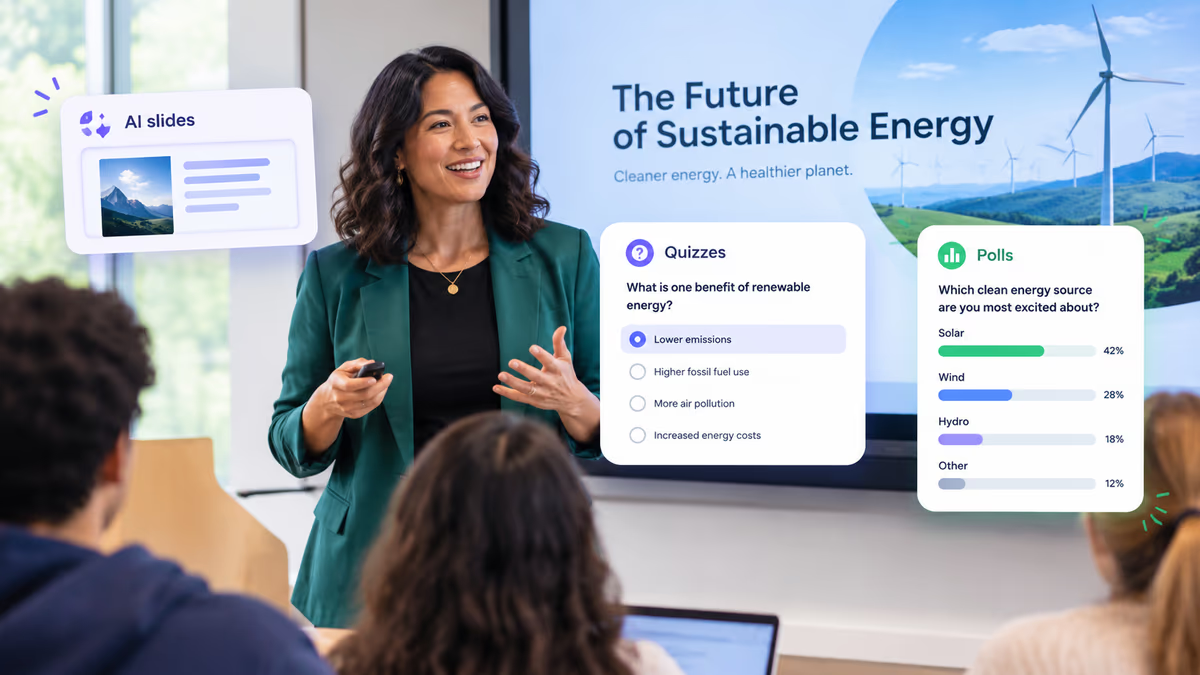
What edits can I make through the AI chat sidebar? You can update or rewrite text, condense or expand content, convert paragraphs to bullets, change tone, add new slides, request layout variants for any slide, regenerate or replace images, retheme the full deck, and generate speaker notes.
How fast is AI deck refinement compared to manual slide creation? Prezi AI generates a fully designed deck in under 8 seconds. Most Prezi AI users report saving over an hour per presentation compared to manual creation.
What makes Prezi different from other tools for deck refinement? Prezi generates a cinematic dynamic canvas presentation with animated zoom transitions, not just slides. The AI chat sidebar enables targeted edits at the slide level after generation. AI Analytics tracks viewer engagement after sharing, so you can see which sections resonate and refine accordingly.
Can I refine a deck after Prezi AI generates it? Yes. The AI sidebar remains active after generation for ongoing chat-based editing. Version history lets you restore earlier drafts at any time.
Is Prezi AI suitable for teams? Yes. Prezi for Teams supports shared brands, collaborative editing, admin controls, secure SSO, Slack integration, and SOC2 compliance. For enterprise brand control across every deck, ask about Your Designer.
Is there a free way to try AI deck refinement in Prezi? Prezi offers a free plan with 500 AI credits. Get started at prezi.com/ai
What should I include in my prompt for best results? Include five elements: audience, goal, topic, tone, and must-have content points. Add specific data points, competitor names, and metric targets. The more specific the prompt, the more the output reflects your actual goals.
What is Your Designer and how do I get it? Your Designer is a Teams-tier Prezi AI feature that applies custom brand rules across every deck produced by a team. It requires a 10+ seat minimum and is sales-assisted — not available on self-serve plans. Contact sales to learn more.