



Resources
Tired of spending hours crafting presentations, only to feel like they fall flat? You’re not alone. Many struggle to balance compelling content with engaging design, especially when time is short. That’s where AI presentation tools come in. These AI-driven tools streamline every step of creating slides: from brainstorming ideas to polishing visuals. Join us as we explore the best AI presentation tools in 2025 and share practical tips to turn your presentations from ordinary to extraordinary.

What are AI presentation tools?
AI presentation tools, or
AI presentation makers
, are transforming how we create presentations. These tools use artificial intelligence to streamline the process, from generating initial ideas to finalizing the design. Think of them as your personal presentation assistant, helping you create polished, professional decks in a fraction of the time. They offer features like automated slide layouts, content suggestions, and even formatting assistance, ensuring your presentations are visually appealing and engaging.
Prezi's AI
features, for example, can help you quickly transform your ideas into a dynamic and visually compelling presentation.
List: The 10 best AI presentation tools in 2025: tl;dr
- Prezi AI: The best AI presentation maker overall. Creates dynamic presentations that make you stand out.
- Visme: Works for data-driven, interactive presentations.
- Plus AI: Works directly in PowerPoint and Google Slides.
- Canva: Makes fast professional visuals. Not the best for presentation making.
- Google Slides: Mainly used by enterprise users.
- Gamma: Better for creating documents and files.
- Beautiful.ai: Content fits into a large library of templates, rather than creating unique presentations.
- Microsoft Copilot: Helps to summarize emails, draft documents, and make reports.
- Presentations.AI: Creates simple, basic presentations.
- Pitch: Made for teams.
The 10 best AI presentation tools (Full breakdown )
1. Prezi AI
What it does:Prezi AI helps you turn any idea into a dynamic, engaging presentation in seconds. With one simple prompt, it generates a complete outline and fills your slides with visuals and structure. It transforms text-heavy content into captivating presentations that flow naturally.
Who it’s fo r: Everyone. Especially used by educators, marketers, sales professionals, trainers, consultants, and teams who want to captivate audiences with motion, flow, and structure.
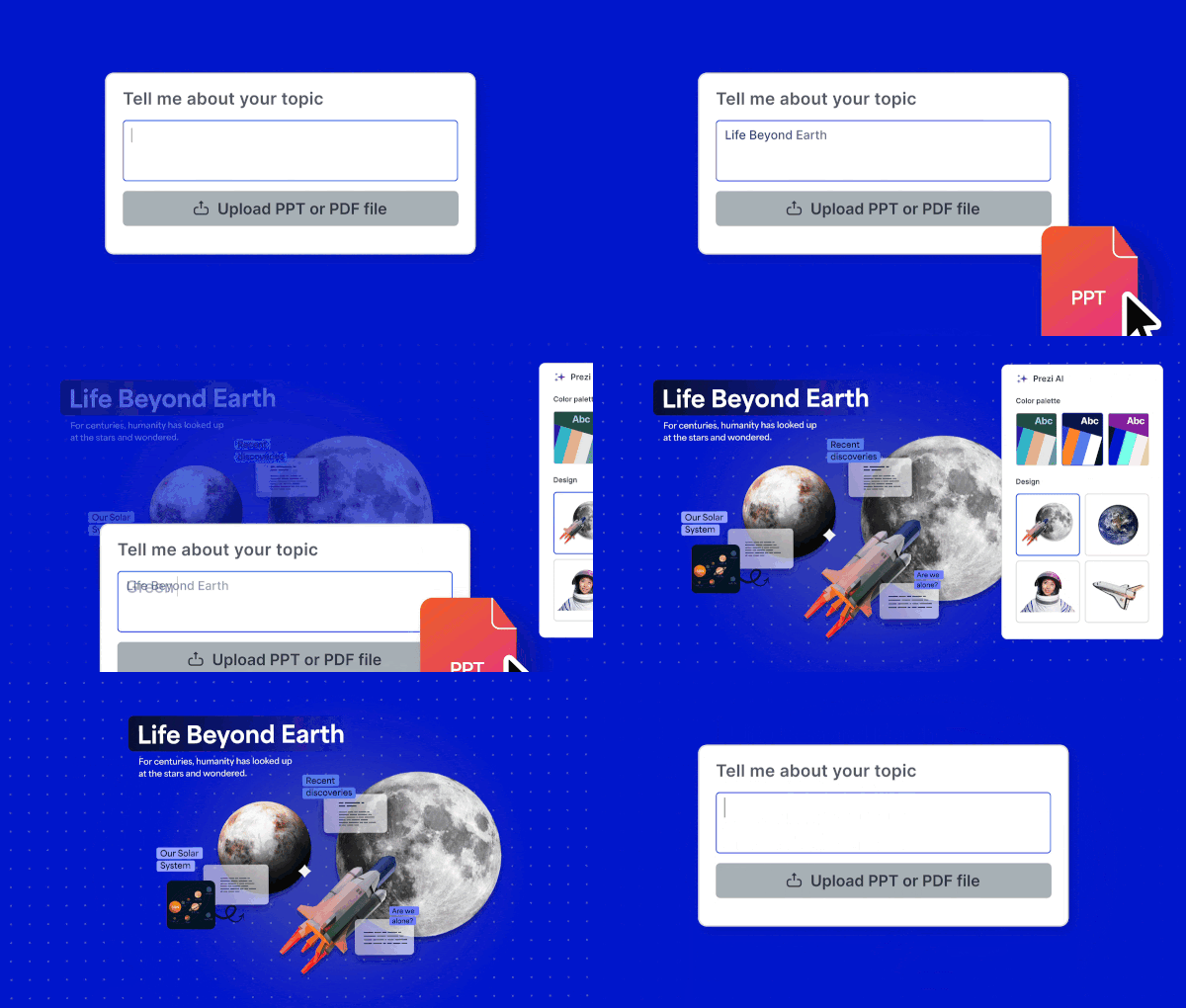
Prezi AI takes traditional slides to the next level with a more dynamic presentation format that makes it easy to guide your audience through ideas, lessons, or projects. In fact, 4 out of 5 users say that Prezi’s format is more engaging and memorable for their audience compared to traditional slides.
With Prezi AI, you can generate a complete presentation with a single prompt in seconds. I used the following prompt “create a marketing strategy for a dog food company” and Prezi AI instantly produced a clean, well-structured outline with visuals. From there, you can refine the content, adjust colors, and choose from a range of design themes.
Once you’re editing, Prezi AI helps polish your presentation with text enhancement, tone adjustment, and AI-generated images. With Prezi, you can move fluidly from the big idea to the fine details, guiding your audience through an engaging visual narrative. Prezi AI makes it easy to integrate into your workflow, taking care of content creation from idea concepting to presenting. Prezi also stands out for its video presenting capabilities, which keeps you on screen with your content, making it perfect for online or hybrid meetings.

Key features:
- AI-assisted slide generation from prompts or files
- Smart rewriting and tone adjustment
- Dynamic zoom-based canvas
- Brand customization in a few clicks
- Collaboration and analytics built-in
Pros:
- ✅ Visually dynamic format
- ✅ Ability to transform existing files (PPT, PDF, DOC)
- ✅ Built-in AI creation tools
- ✅ Video mode for hybrid presenting
Cons:
- ⚠️ Slight learning curve for traditional slide users
Pricing:
- Free plan: up to 5 projects / 500 credits
- Plus ($19/month): AI tools, PowerPoint import, unlimited AI credits
- Premium ($29/month): Analytics, offline access, unlimited AI credits
- EDU plans start at $4/month
2. Visme
What it does: Visme combines data visualization with AI content tools for corporate presentations.
Who it’s for: Businesses and educators handling complex, data-heavy content.
Visme is good for anyone looking for a tool with preset presentation templates and some interesting visualization capabilities. When I typed in my prompt, Visme asked me to choose a template, but I wasn’t able to customize any of the templates. AI generation was a bit slower compared to some of the other tools.

In the editor, I was able to change templates and then manually adjust the colors for the presentation. Some of the initial formatting was awkward and required me to manually adjust a lot. The images generated on the presentation were more limited, but Visme did have a good library of graphics I could pull from. Visme also has over 50 types of data widgets, allowing users a wide variety to choose from. Visme also has a separate AI hub with features like “AI Resize” or “AI Image generation”, but using each AI capability is a bit more manual, and some take you out of the dashboard. Overall, the tool would be good for anyone who is focused on more graphics and data visuals, but customization may be more manual.
Key features:
- Data visualization widgets
- Animation and interactivity options
- Brand kit and collaboration tools
- Presentation analytics
Pros:
- ✅ Good for data storytelling
- ✅ Wide range of media integrations
- ✅ Team-ready management tools
Cons:
- ⚠️ Limited templates feel less modern
- ⚠️ Slightly steeper learning curve
- ⚠️ Slow AI generation
- ⚠️ No free plan
Pricing:
Starter $29/mo · Pro $59/mo
3. Plus AI
What it does: Plus AI enhances existing slide workflows with AI slide generation, rewriting, and “Slide Remix” to reformat content instantly.
Who it’s for: Sales, marketing, and consulting teams already using PowerPoint or Google Slides.
We were interested in trying out Plus AI after hearing about its integration with Google Slides and other presentation tools.

One major drawback is that we had to input our credit card information even for a free trial. Coming up against a paywall wasn’t a great first experience.
After signing up for the trial, our team was able to explore all of Plus AI’s capabilities. One feature that stood out is “Snapshots,” which allows you to take a screenshot from another website or dashboard and embed it directly into a presentation without having to go back in and update. This is a cool idea, but if your dashboard has a lot of additional data, it may be too overwhelming for your audience.
We tried out the same prompt as Prezi AI, and the output was decent, but it needed additional tweaks to make it ready to present. The “Remix” slides option was tempting, but after trying it out a few times, we ended up reverting to the original slides it created.
Overall, a strong presentation tool, but it requires more editing before it can be presented to an audience.
Key features:
- Slide remix for new layouts
- Theme designer for brand styling
- Real-time language translation
Pros:
- ✅ Great for reformatting or refreshing decks
- ✅ Smooth brand and layout consistency
- ✅ Add on for Google Slides and PowerPoint users
Cons:
- ⚠️ Limited visuals compared to tools like Canva or Prezi
- ⚠️ No forever-free plan
Pricing:
Basic $10/mo · Pro $20/mo · Team $30/mo per user
4. Canva
What it does: Canva excels at quick design work — from social posts to presentations. While not a full AI deck builder, it’s great for visual polish and branding.
Who it’s for: Marketers, educators, and freelancers needing design ease.

When we think of Canva, it stands out as a go-to tool for creating social media graphics, infographics, and posters. Using the free plan, our team was able to generate a presentation with AI. The output was fairly basic and seemed more suited for general use than for a marketing strategy presentation. The included content was concise and broad, which was a solid starting point. Overall, we found that Canva continues to excel in graphic design more than in presentation creation.
Key features:
- Drag-and-drop templates
- Magic Write (AI text) & Magic Design
- Brand kits and custom fonts
- Export as video, PDF, or slideshow
Pros:
- ✅ Beautiful, on-brand designs fast
- ✅ Excellent for repurposing content
- ✅ Vast asset library
Cons :
- ⚠️ Not the most impressive AI-generated presentations
- ⚠️ Weak data visualization tools
Pricing:
Free plan · Pro $15/mo · Teams $10/user/mo
5. Google Slides (with Gemini)
What it does: Gemini enhances Google Slides by suggesting layouts, rewriting text, and generating visuals within the familiar workspace.
Who it’s for: Teams already using Google Workspace who value simplicity and real-time co-editing.
For teams already using the Google ecosystem, Google Slides is often the default choice for creating presentations. With the introduction of Gemini in the workplace, it now offers AI-powered features such as text generation, design suggestions, and image creation.
Our team explored Google Slides with the expectation that Gemini could build an entire presentation, but it was only able to generate one slide at a time. We adjusted our approach and asked it to create just the title slide. The resulting slide seemed more like a set of title suggestions and was relatively text-heavy.

We also tested the image generation feature within Google Slides, which produced good results, though generating additional variations or viewing more options took some time.
Key features:
- AI text-to-slide generation from Docs or prompts
- Collaborative editing and comments
- Integration with Gmail, Drive, and Meet
- Built-in voice presentation and translation
Pros:
- ✅ Seamless Google integration
- ✅ Easy for remote teams
- ✅ Familiar interface
Cons:
- ⚠️ Basic visual options compared to dedicated design tools
- ⚠️ Fewer AI creative features than Prezi or Gamma
- ⚠️ Does not create full presentations, one slide at a time
Pricing:
Free with Gmail; included in Google Workspace (from $6/user/month)
6. Gamma
What it does: Gamma converts text prompts or imported files into scrollable, web-style decks — good for blending documents and slides.
Who it’s for: Writers, product marketers, and teams building narrative reports or hybrid docs.
Gamma is good for anyone who wants a well-structured presentation and doesn’t need much creative freedom while actually creating the presentation. I typed in the prompt, and Gamma came back with a detailed outline as well as different customization options for the presentation. I was able to choose how many slides I wanted and rework the content to my liking.

The presentation template Gamma provided was clean and visually appealing to start with. Gamma has a large library of widgets and smart layouts to choose from. While editing, I needed to talk to the AI agent to make any AI-optimized changes within the images or text, which took some time. I noticed that customizations within slide structure were more limited, and it was hard to edit, as you couldn’t drag and drop, and had to select from Gamma’s choices. Overall, it created a professional-looking presentation with some good AI features, but it was more limited in being able to edit the slides to my preferred format.
Key features:
- Prompt-to-deck generation
- Built-in AI image creation
- Google Docs import
- Audience analytics
Pros:
- ✅ Fast prompt-to-deck workflow
- ✅ Clean, web-based presentation design
- ✅ Inline AI editing
Cons:
- ⚠️ Feels more like a document builder than a deck maker
- ⚠️ Limited animation options
- ⚠️Hard to customize, templates and layouts are rigid
Pricing:
Free plan (400 credits) · Plus $8/mo · Pro $18/mo · Ultra $100/mo
7. Beautiful.AI
What it does: Beautiful.AI builds “smart slides” that automatically adjust layouts as you edit content, keeping decks consistently polished.
Who it’s for: Teams producing recurring reports, analytics, or client updates.
Beautiful.ai doesn’t have a free version of its tool to test its AI features, so we had to sign up for a free trial to test it. The slides they suggest seem well structured and neat through their Smart Templates. However, customizations seem to be pretty limited, and it was difficult to make tweaks like moving text boxes/images or adding new content to a slide. It’s convenient for more data-based presentations as it uses dynamic slides that will auto-adjust based on what you input. Designs are very templated overall, which is suitable for business users who are creating internal reports like stakeholder updates and reports. They also have some good collaboration features and branding themes that would suit a business audience as well.
However, Beautiful.ai may be less suitable for audiences that want more freedom in how they create presentations or customize slides. It’s less ideal for complex ideas/topics or presentation structures.
Key features:
- Smart slides auto-adjust to content
- Built-in charting and data tools
- Collaboration workspace
- Voice-over and feedback options
Pros:
- ✅ Layout automation
- ✅ Ideal for recurring updates
- ✅ Clean, professional visuals
Cons:
- ⚠️ Limited offline access
- ⚠️ Less control for custom design
- ⚠️ No free plan to try out
Pricing:
Pro $12/mo · Team $50/user/mo
8. Microsoft Copilot (PowerPoint)
What it does: Embedded in Microsoft 365, Copilot generates full decks from Word docs or outlines, edits existing slides, and recommends visuals — all inside PowerPoint.
Who it’s for: Enterprise users and professionals creating formal business decks or reports.
Microsoft Copilot integrates directly into the Microsoft 365 ecosystem, offering AI support across tools like PowerPoint, Word, and Excel. Within PowerPoint, Copilot is designed to assist users by generating entire presentations from text prompts, suggesting layouts, summarizing content, and refining design elements.
Our team tested Microsoft Copilot within PowerPoint by prompting it to create a presentation on a “marketing strategy for a dog food company.” Copilot quickly generated a structured deck with relevant section headers, suggested layouts, and concise text for each slide. It also offered design recommendations and visuals aligned with the theme. The experience felt smooth and well-integrated within the Microsoft 365 environment, allowing for easy editing and collaboration.

While Copilot effectively streamlined the creation process, we noticed that the depth and specificity of the content depended on the complexity of the prompt and the data available within connected Microsoft applications.
We were unable to provide a thorough review of Microsoft Copilot because we could not try PowerPoint and Microsoft Copilot without having a Microsoft Office subscription.
Key features:
- “Draft with Copilot” presentation generation
- AI rewriting and summarization of slides
- Excel data visualization integration
- Enterprise-grade privacy and compliance
Pros:
- ✅ Deep integration with the Office ecosystem
- ✅ Excellent for corporate decks
- ✅ Consistent enterprise security
Cons:
- ⚠️ Design output feels traditional
- ⚠️ Only available with Microsoft 365 Copilot subscription
Pricing:
Included with Microsoft 365 Copilot (approx. $30/user/month)
9. Presentations.AI
What it does: Presentations.AI focuses on AI presentations for users who want clean, corporate decks without a complex setup.
Who it’s for: Professionals or students needing text-heavy corporate presentation templates
I inserted my prompt, and it asked me a few questions like who the audience was and what tone I wanted the presentation to be in. Presentations.ai is also able to pull in the branding design of the presentation just based on your website - good for business users. Slide structure and content were good, although really text-heavy. I noticed that the template also had very limited images, so this tool seems